

Set a template's starting task view
Quick summary: Save a shared task view on a project template and drag its tab first. New projects inherit the saved view and its starting order; users can then choose their own order without changing anyone else’s preferences.
Save the shared view on the template
Section titled “Save the shared view on the template”-
Open Project > Projects > New. Under Project Templates, click the pencil beside the template to edit it. Check Project Manager, then open its tasks using the Tasks smart button.
-
Switch to the list or Kanban view that the new projects should use. Set the desired filters and grouping. For example, use a list grouped by Stage. To group subtasks by their parent, use Group By > Custom Group > Parent Task.
-
Click the sliders icon beside the view switcher and enable Top Menu to show the view tabs. Open the sliders menu beside the tabs and expand Save View. Give the view a clear name, such as By stage, tick Shared, then click Save.
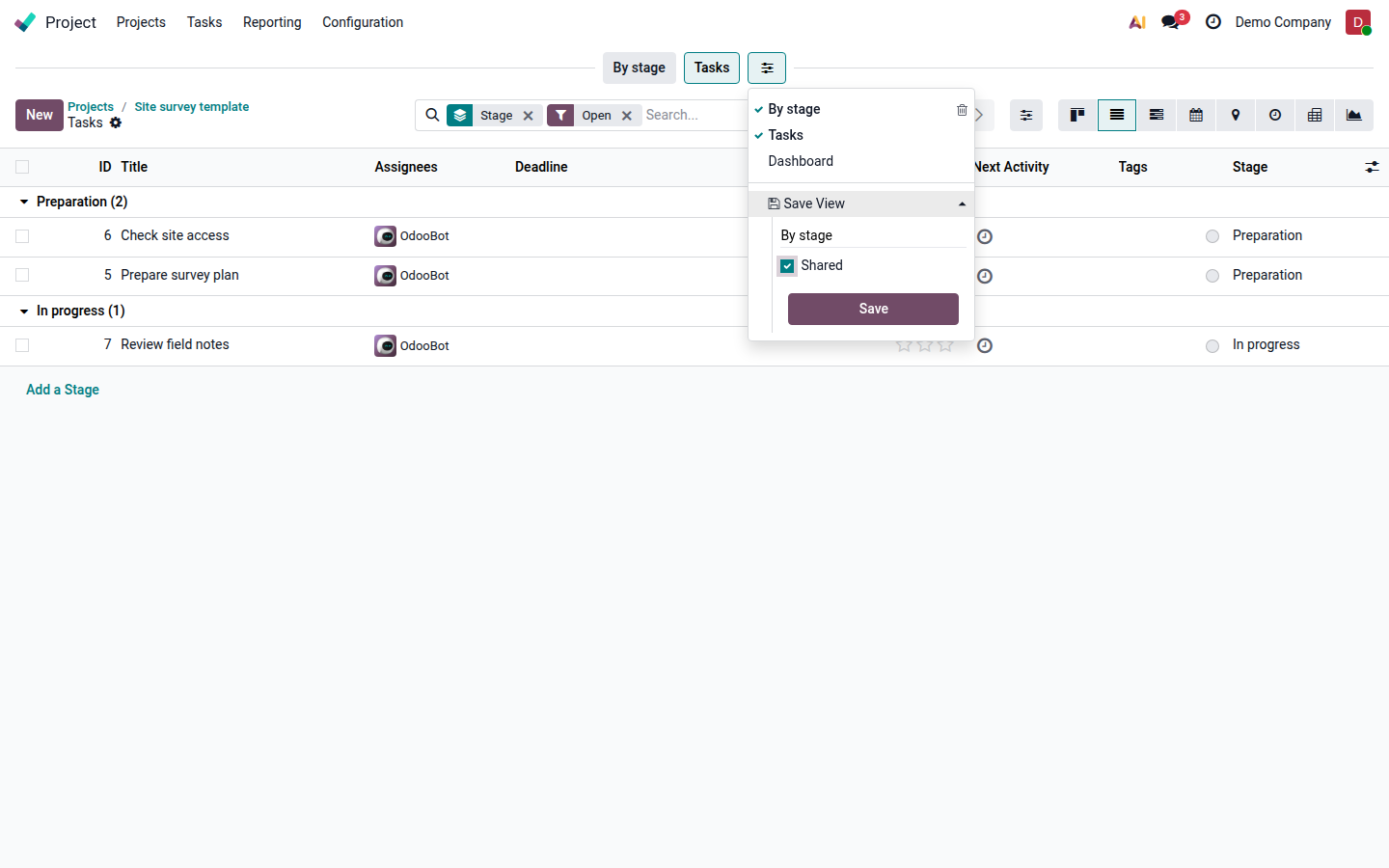
Open image at full size (new tab) -
Drag the saved tab to the first position, before Tasks. The order saves automatically. Selecting a tab without moving it does not make it the opening tab.
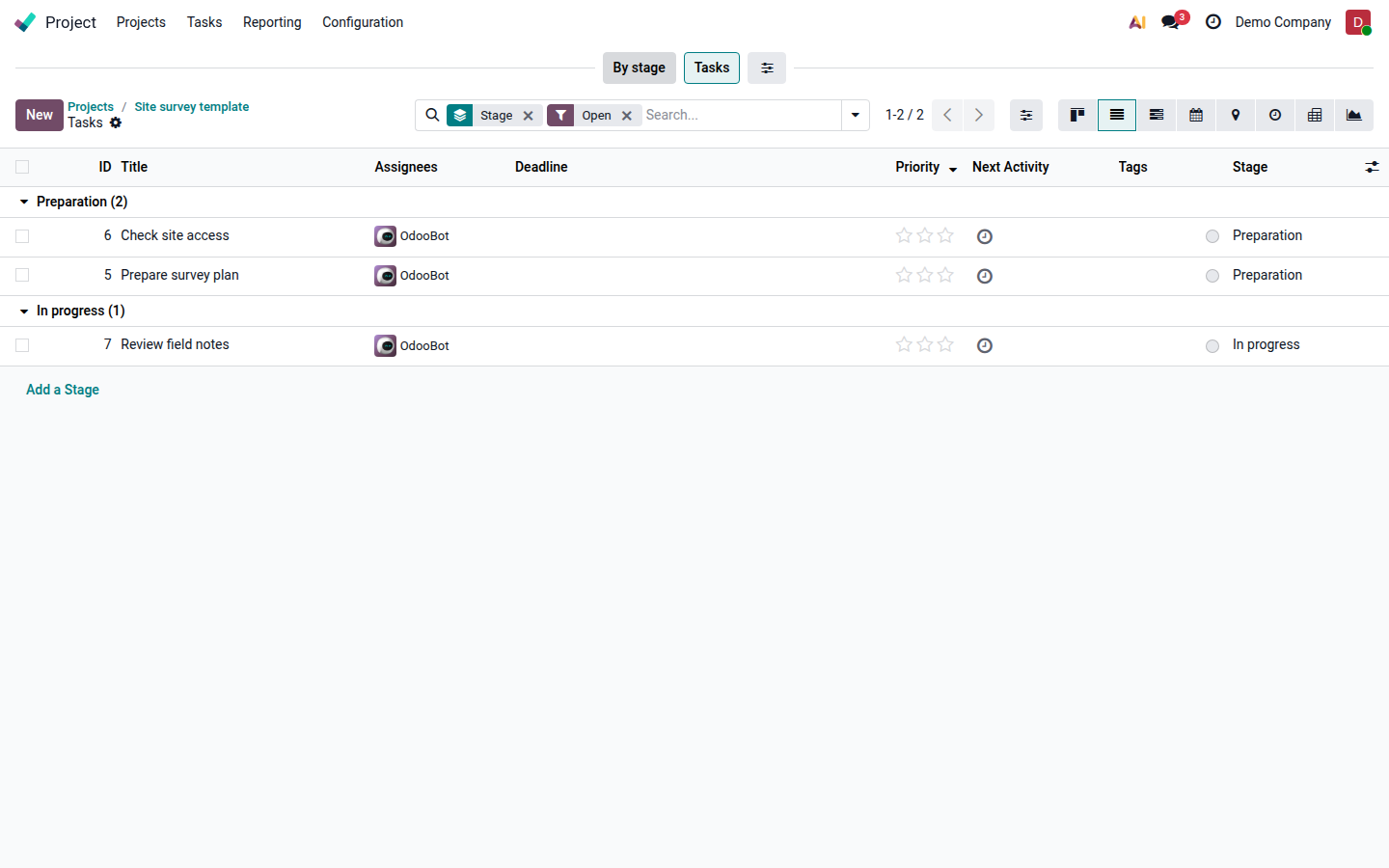
Open image at full size (new tab)
Create a project and check its first opening
Section titled “Create a project and check its first opening”-
Return to Project > Projects > New, select the template, enter the new project’s name, and click Create project.
-
If necessary, change Project Manager in the new project’s settings. A manager without personal tab settings for this project receives the previous manager’s shared-tab order.
-
Open the new project as a regular project user who has access to it. Its shared starting view opens immediately, even if the current project manager has not opened the project yet. There is no need to open the sliders menu first.
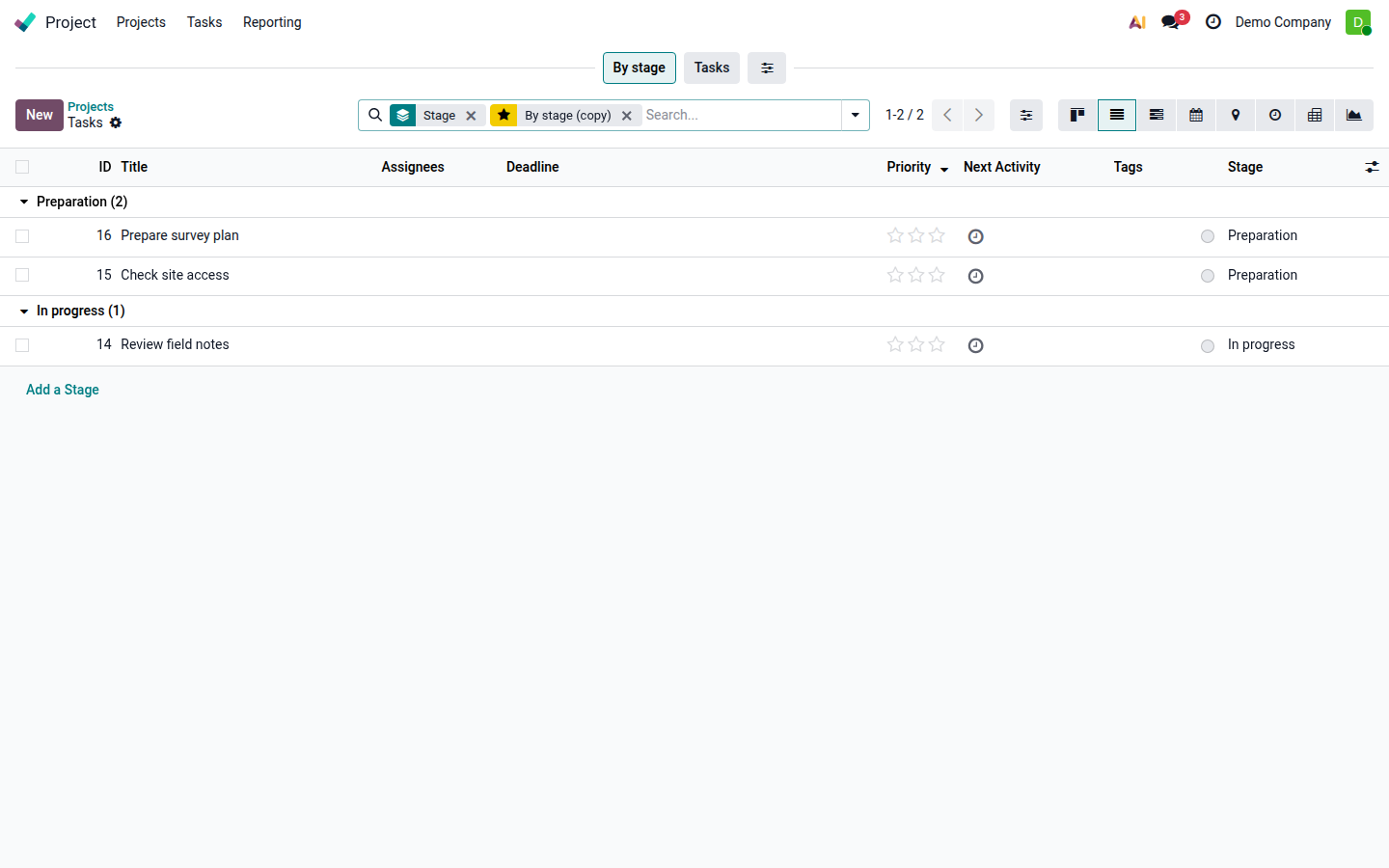
Open image at full size (new tab)
Existing personal settings take precedence. For example, a user who already arranged tabs on the template may receive that personal order when the project is copied. Shared views change presentation, not project or task access rights.
Keep a personal opening view
Section titled “Keep a personal opening view”Drag the preferred tab first on the new project. To return to the ordinary task view on future openings, drag Tasks first. Other users keep their own order.
Changes to the template apply to projects created afterward. Existing projects keep their copied views. A later change to a manager’s order does not overwrite users who already have their own settings.
For background on preparing templates, see Odoo 19 project templates.