

Count inventory and resolve location differences
Quick summary: Record a physical count, investigate differences, and have a Stock Manager apply the justified correction.
Before you start
Section titled “Before you start”You need Inventory access and an agreed count scope: company, locations, products, lots, packages and owners. Coordinate or pause movements during the count. The approval and balancing restrictions described here require Implex Stock; only a Stock Manager may apply adjustments in this setup.
Record the count
Section titled “Record the count”-
Open Inventory > Operations > Physical Inventory. Filter to the assigned company and locations. Count the goods physically, including separate lots, serial numbers and owners.
-
Enter Counted for each counted line. Enter zero when nothing was found; a blank count does not mean a verified zero. If a product/location combination is missing, use New and select the correct product and tracking details.
-
Save and review Difference. A count records an observation; stock on hand changes only when the correction is applied.
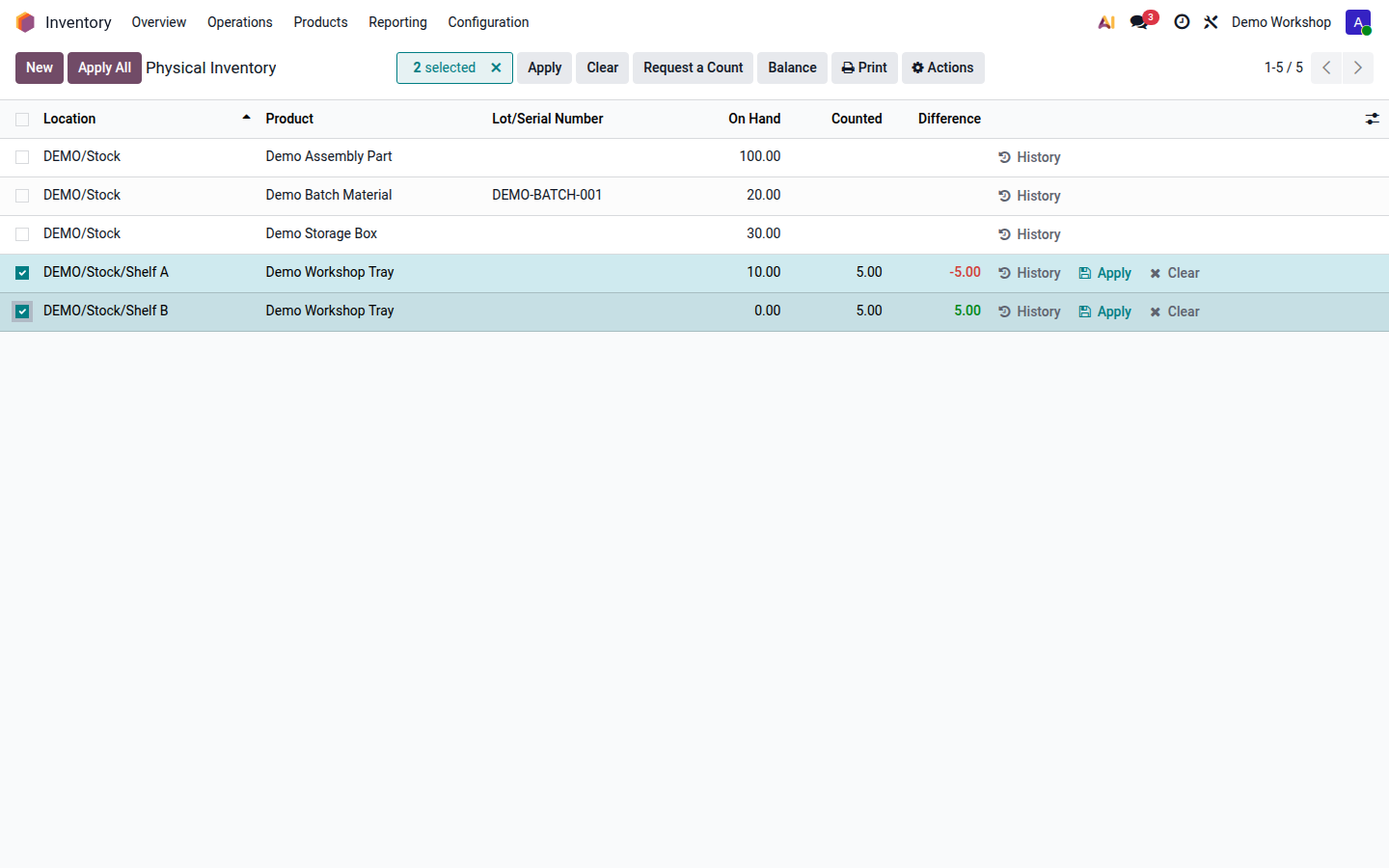
Open image at full size (new tab) -
Investigate differences: recount, inspect neighboring locations, and check unrecorded receipts, deliveries or transfers. If stock moved since counting, establish a current count before applying; do not accept a stale-count warning without checking it.
Choose the correction
Section titled “Choose the correction”A wrong completed document needs a linked movement correction. A verified missed relocation needs an internal transfer. An unexplained physical gain or loss needs a reviewed inventory adjustment. These are different business events even when their totals match.
Find the appropriate correction
Section titled “Find the appropriate correction”Use these questions to separate a wrong document, a missed relocation and a physical difference. The procedures and approval limits remain explained below.
Recommended next step
Correct the linked document
Use a return or the completed-movement correction procedure. Do not hide an incorrect receipt or delivery with an inventory adjustment.
Recommended next step
Ask a Stock Manager to review balancing
Compare the same product, lot and owner within one company. Confirm immediately completes stock movements, so inspect every proposal first.
Recommended next step
Record the verified missing internal transfer
Check source, destination, quantity and tracking evidence. Avoid also applying a count for the same relocation.
Recommended next step
Recount and investigate before applying
Check unrecorded operations and neighboring locations. A remaining physical gain or loss needs a reviewed adjustment applied by a Stock Manager.
Balance matching location differences
Section titled “Balance matching location differences”Balancing is appropriate when the same goods are physically in another location and the recorded relocation is missing. It is not a tool for offsetting unrelated losses and gains.
-
A Stock Manager selects at least two counted lines with opposite differences for the same product, lot and owner, within one company.
-
Click Balance and review every proposed source, destination and quantity against the count and movement evidence.
-
For example, location A has 10 recorded but 5 counted; B has 0 recorded but 5 counted. The correction must move 5 recorded units from A to B, where the goods were found. Do not physically move the goods back just to match the old records.
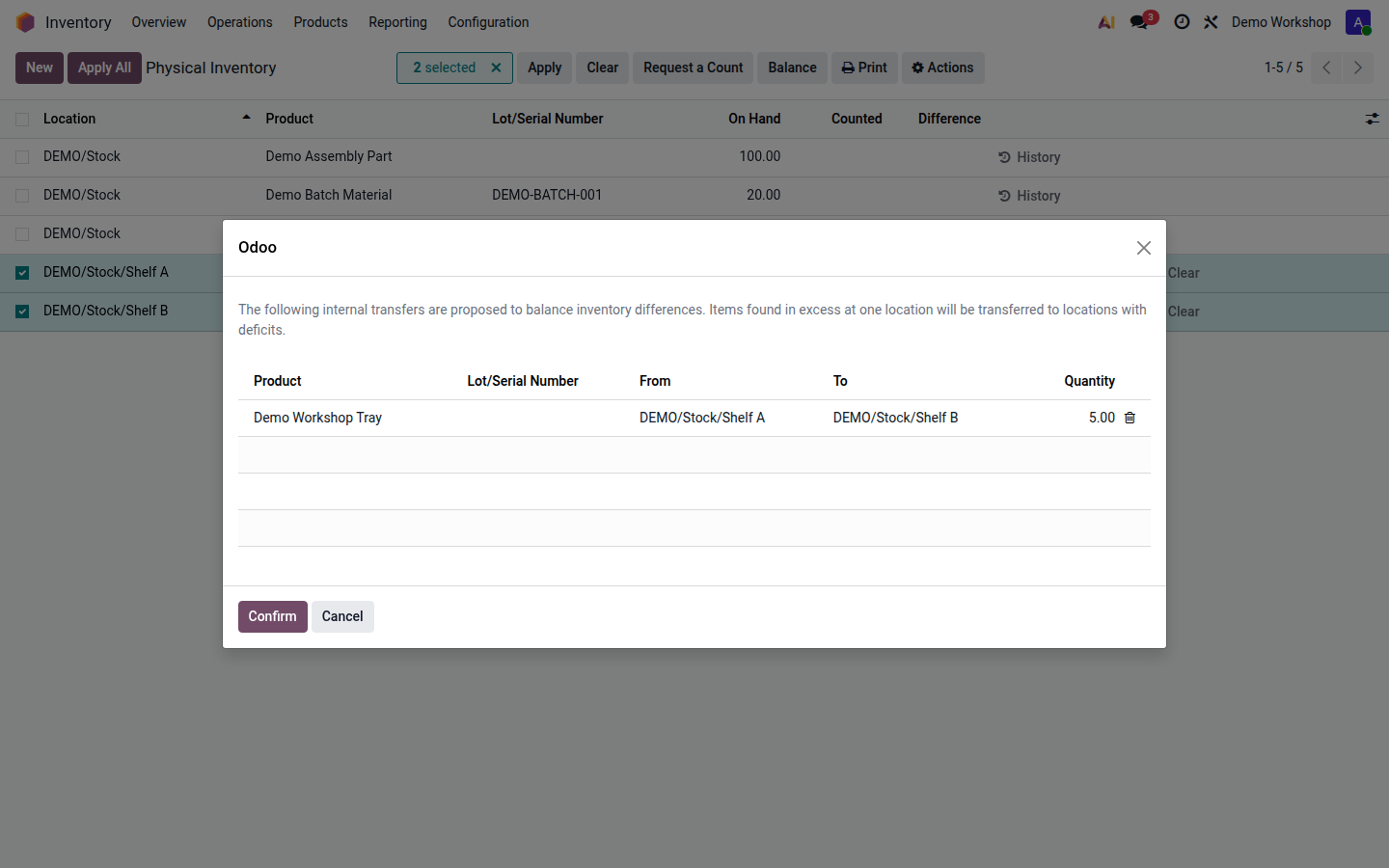
Open image at full size (new tab) Check the From and To columns, not just the introductory sentence in the dialog. The proposal corrects the recorded location: in this example it moves stock from A to B, where the units were counted.
-
Click Confirm only after checking the proposal. This immediately completes the proposed stock movements; it does not merely save draft transfers.
-
Refresh the count and investigate any remaining differences. Balanced quantities reduce the differences without inventing a company-wide gain or loss.
Apply a real gain or loss
Section titled “Apply a real gain or loss”- A Stock Manager reviews the remaining counted quantities, differences and supporting explanation. Adjustment values can affect stock valuation.
- Select the reviewed lines and click Apply. In the dialog, enter a meaningful Inventory Reason and verify Counting Date.
- Click Update Quantities to apply the adjustment. Check the updated on-hand quantities and movement history.
If a negative-stock check blocks a movement, inspect the exact source location, product and lot. Correct missing movements or quantities with evidence; ask the Stock Manager to resolve the cause instead of enabling negative stock as a shortcut.