

Down-payment invoices
Quick summary: Issue the down-payment invoice from the sales order, record its payment on the down-payment account, and set the amount consumed by the final invoice.
Try an example
Section titled “Try an example”Change the order value, down-payment percentage, current delivery share, and tax rate. The example shows the gross available down payment, proportional consumption suggestion, and approximate amount due on the regular invoice.
Example result
- Down payment excluding tax
- €3,000.00
- Tax on down payment
- €660.00
- Available down payment
- €3,660.00
- Regular invoice before consumption
- €6,100.00
- Suggested down-payment consumption
- €1,830.00
- Approximate amount due
- €4,270.00
Standard workflow
Section titled “Standard workflow”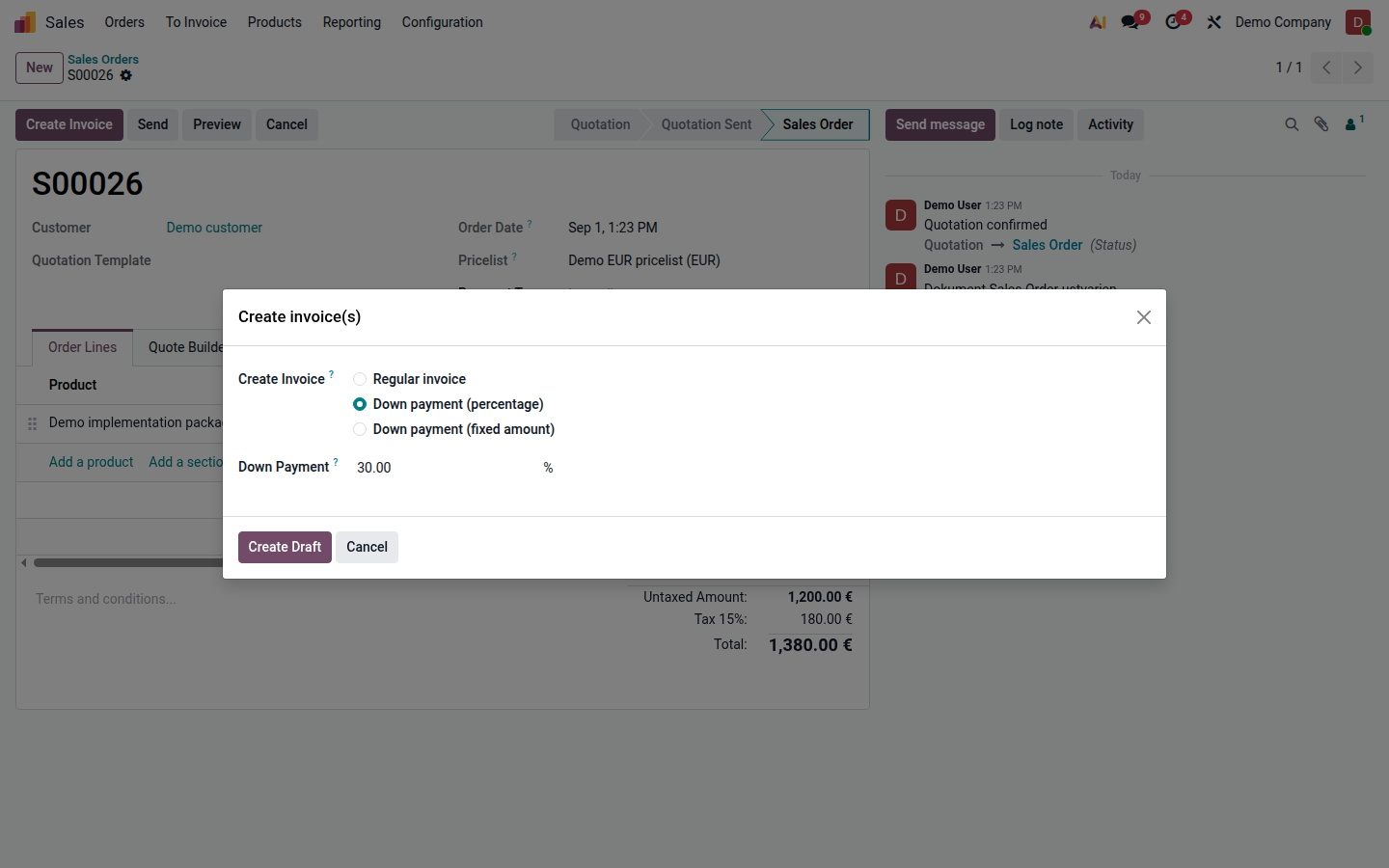
- Confirm the sales order with the correct products and taxes.
- Click Create Invoice and select a percentage or fixed Down Payment.
- Review, post, and send the invoice.
- When paid, post the bank transaction to the configured down-payment account and always set the partner.
- After delivery, create a Regular Invoice from the same sales order.
- Review Available Down Payment and Consumed Down Payment. Consume the full remainder on the final invoice.
- Post the invoice and verify the reduced open amount.
Down payment from a previous system
Section titled “Down payment from a previous system”Import it through an approved opening journal entry using the same partner and taxes, the down-payment account, and an open receivable item. Accounting must determine the accounts and tax grids; never copy account numbers or amounts from another company.