

Set up reconciliation models
Quick summary: A reconciliation model recognizes recurring bank transactions and prepares their counterpart entries. Test a narrowly defined rule manually before allowing Odoo to apply it automatically.
Choose the level of automation
Section titled “Choose the level of automation”- Manual models appear as actions on matching transactions in bank matching. The user reviews the transaction and chooses the model.
- Automated models create and reconcile their counterpart entries without a user selecting the model. Use this only when the matching conditions identify the intended transactions reliably.
If several automated models match the same transaction, Odoo applies the first one in the list. Drag models into a deliberate order and keep the most specific rules first.
Create and test a bank-fee rule
Section titled “Create and test a bank-fee rule”This example is for bank fees imported as separate transactions with a consistent description. Adapt the journal, wording, and account to your bank and approved chart of accounts.
-
On the Accounting dashboard, open the bank journal’s dropdown menu and choose Reconciliation > Models. Click New and name the model, for example Bank fees — main bank.
-
Keep the model Manual while testing it. Under the matching conditions, select only the relevant Journals.
-
For Label, select Contains and enter a distinctive phrase that the bank consistently includes, such as
BANK FEE. Odoo checks the transaction label, transaction details, and note without regard to letter case. -
Add further conditions when they reduce false matches. Every condition on the model must match, so you can also limit the partners or amount range. Do not leave an automated rule unrestricted.
-
On Counterpart Items, add a line with the approved bank-fee expense Account. Set Amount Type to Percentage of balance and Amount to
100, then enter a clear Label, such as Bank fee. Add a tax or analytic distribution only when your accounting policy requires it. For Slovenian companies, bank fees commonly use the purchase tax 0% Exempt; confirm the correct tax treatment with accounting.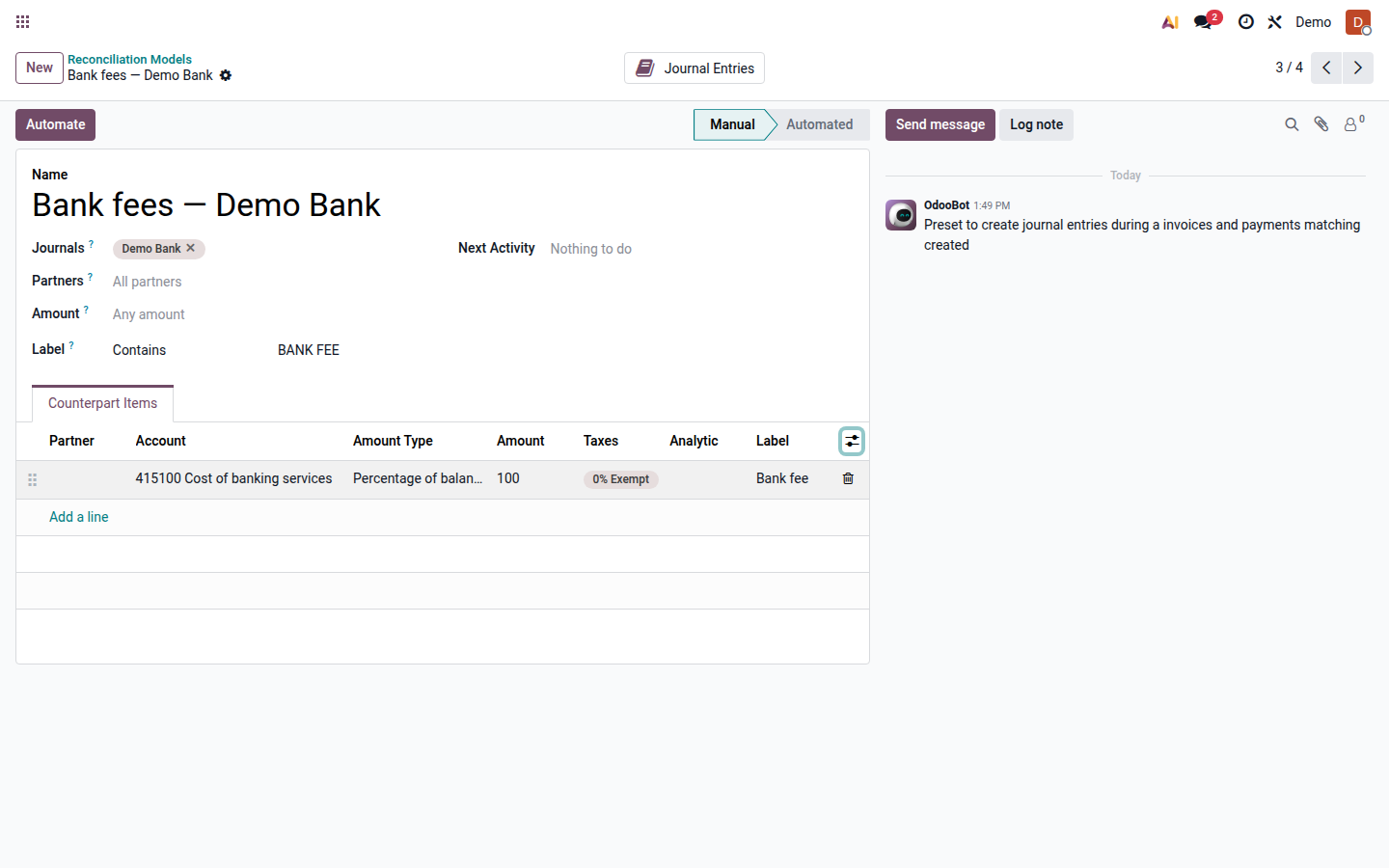
Open image at full size (new tab) -
Save the model. In Bank Matching, open a representative fee transaction and confirm that the model is offered. Apply it manually, then verify the generated journal entry, account, amount, tax, analytic distribution, company, and transaction status.
-
Test descriptions and amounts that must not match. If the condition is too broad, return to the model and make it more specific.
-
When the tests are correct, review the model order and all unreconciled transactions that could meet the rule. Resolve unintended matches or make the conditions more specific before you open the model and click Automate. Enabling automation can immediately apply the rule to existing unreconciled transactions, not only to future imports.
Check the result
Section titled “Check the result”Review any existing transactions processed when you enabled automation. After each subsequent bank import or synchronization, compare automatically reconciled fees with the bank statement. Open the model’s Journal Entries smart button to inspect entries it created. If a bank changes its descriptions, switch the model back to Manual until the condition has been tested again.
For the complete matching workflow, see importing bank transactions and reconciling payments. See also Odoo 19 — Reconciliation models.