

Import and export record translations
Quick summary: In developer mode, an Odoo administrator can export the translatable text of records, edit the value column in a CSV file, and import it back. This guide exports the Slovenian names of products; the same process works for other record models with translatable fields.
Before you start
Section titled “Before you start”- You need administrator rights with access to Settings. The complete import workflow is restricted to administrators.
- Enable developer mode. It is required to display the Translations > Import / Export menus, but it does not grant additional permissions.
- Make sure Slovenian / slovenščina is installed under Settings > Translations > Languages.
- Use a desktop browser. Exported translation files can contain confidential business text, so store and share them only in an approved location.
This guide covers translations stored on records, such as product names and descriptions.
Export record translations
Section titled “Export record translations”-
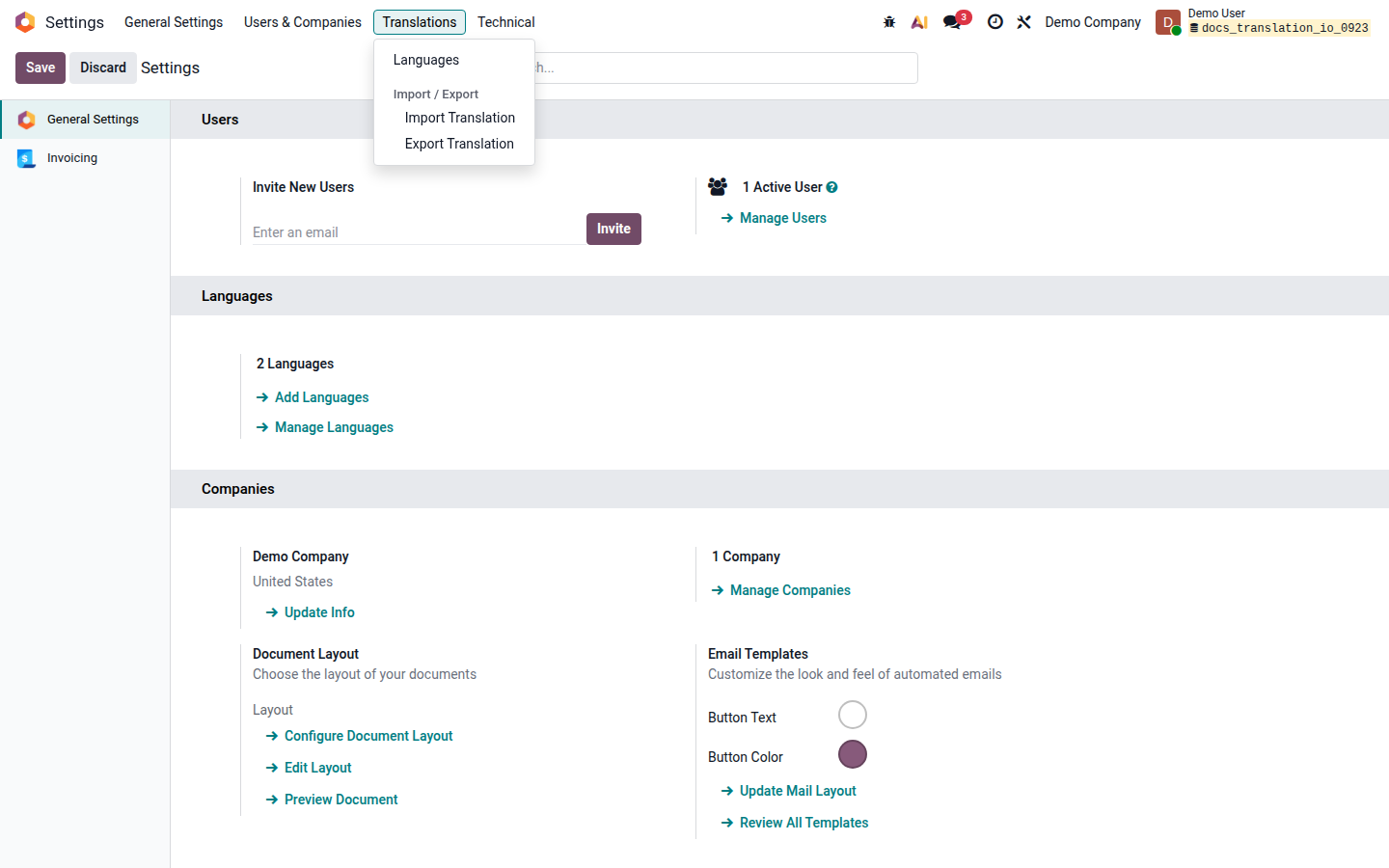
Open Settings with developer mode active. Click Translations, then under Import / Export click Export Translation.
Open image at full size (new tab) -
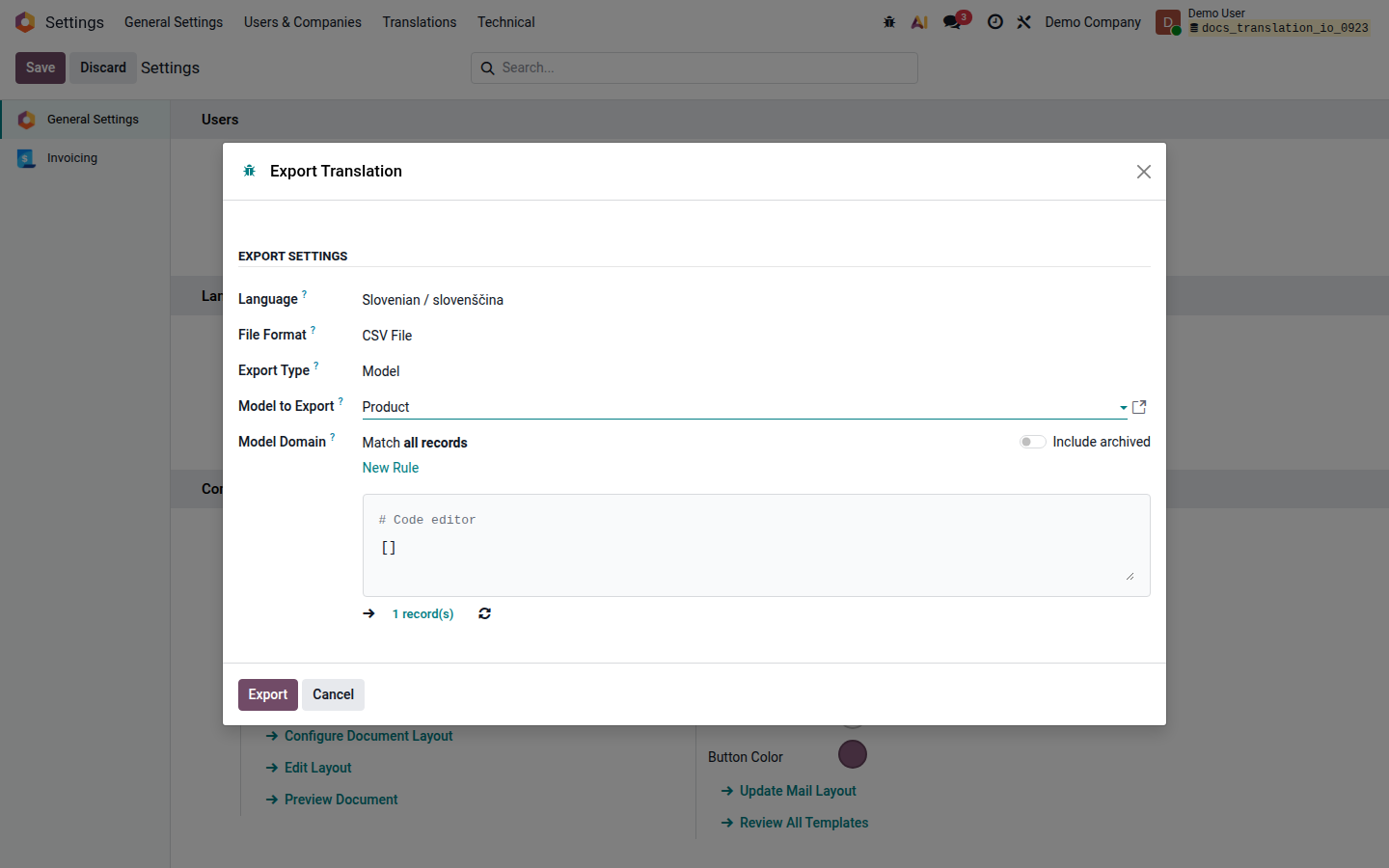
Configure Export Translation:
- Select the Language, for example Slovenian / slovenščina.
- Set File Format to CSV File.
- Set Export Type to Model. The wizard initially selects Module, so change it explicitly.
- Select Model to Export, for example Product. This is the model for product templates and exports their translatable record fields.
- Review Model Domain.
[]matches every product you are allowed to access. Add a domain rule when you only need a defined subset, especially in a large or sensitive database.
Open image at full size (new tab) -
Click Export. When Export Complete appears, click the
sl_SI.csvfilename to download it, then click Close.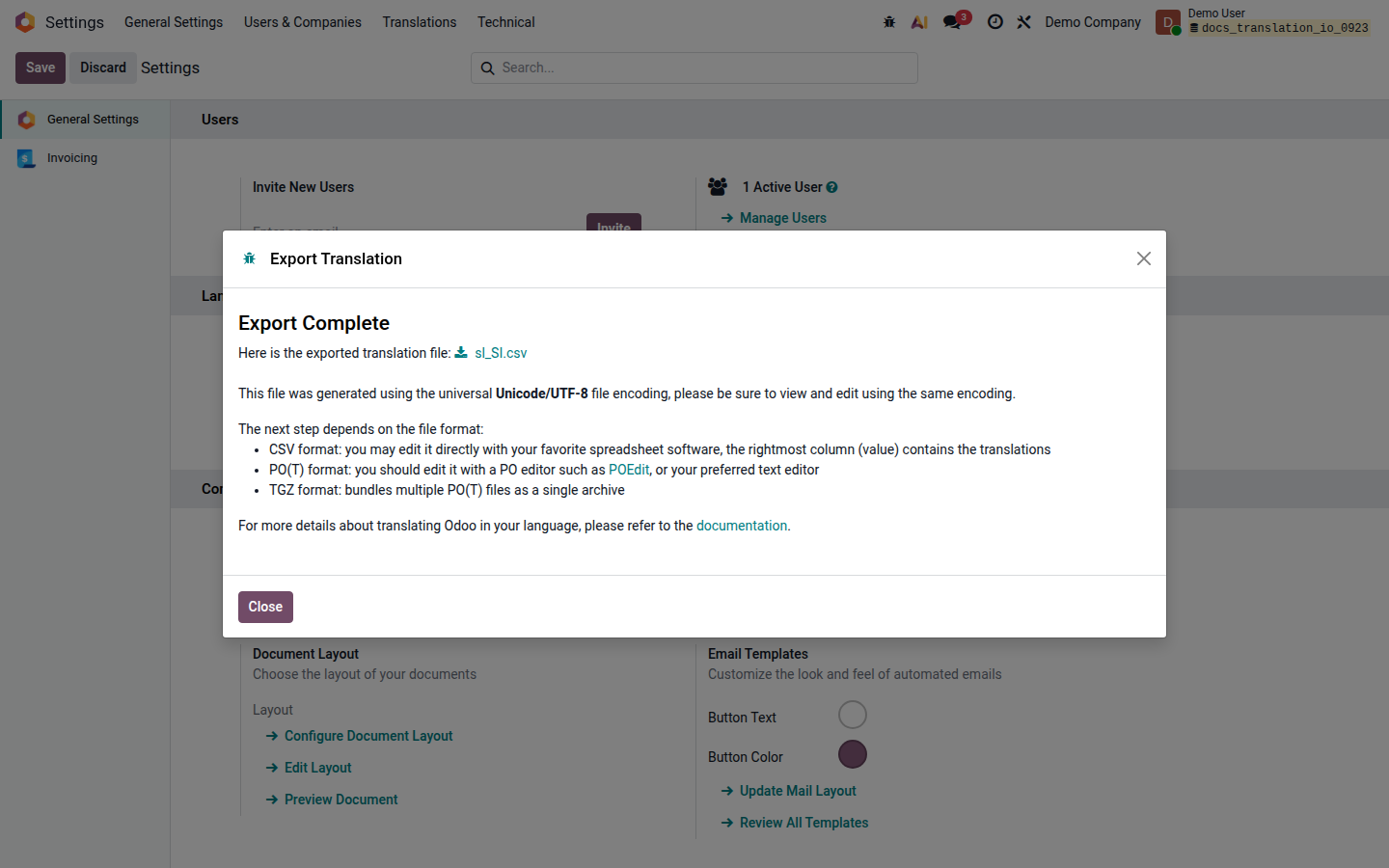
Open image at full size (new tab)
Only already populated fields are included. For products, this can include the product name and descriptions.
Edit the CSV file
Section titled “Edit the CSV file”Open sl_SI.csv in a UTF-8-compatible spreadsheet or text editor. Its columns are:
| Column | Meaning | What to do |
|---|---|---|
module, type, name, res_id |
Technical identification of the record and field | Preserve these values exactly. |
src |
Source-language text | Use it to identify the text; do not replace it with the translation. |
value |
Translation | Edit this column. |
comments |
Optional translation context | Preserve it when present. |
Save the result as CSV with UTF-8 encoding. Do not rename or delete the headers. An empty value cell is skipped during import; clearing the cell does not delete an existing translation.
The import wizard accepts CSV and PO files. A TGZ archive can be produced by some exports, but it cannot be uploaded through Import Translation.
Export a template for a language with no translations
Section titled “Export a template for a language with no translations”To obtain source strings with empty translation values, open Export Translation and choose New Language (Empty translation template). Select CSV File, Model, and the required record model—Product in this example.
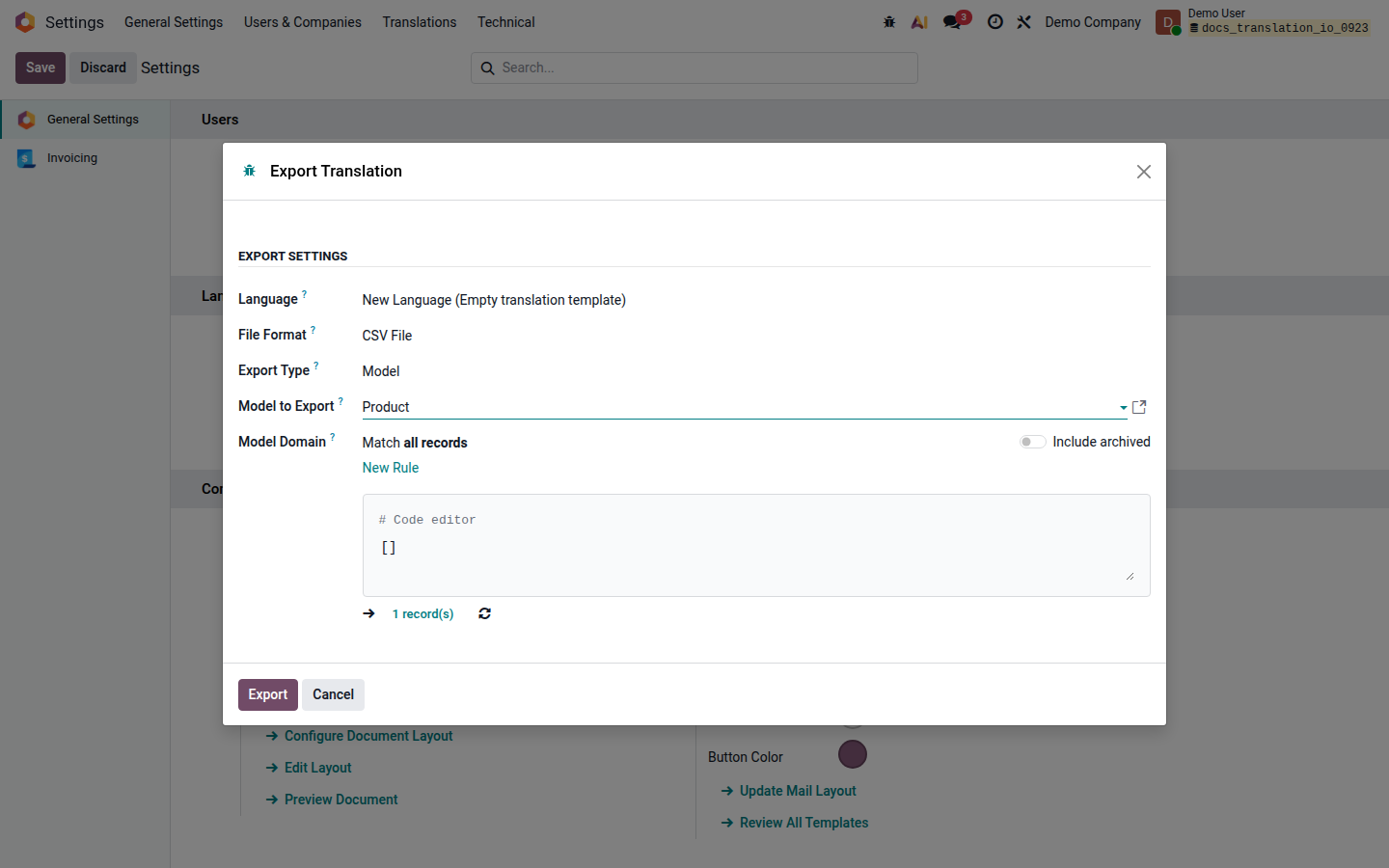
Click Export to download product_template.csv. Use this option as a starting template for a language that has no translations yet. The exported file will containt all translatable fields. Before importing the completed file, obtain the exact Odoo locale code for the target language.
Import the translations
Section titled “Import the translations”-
Return to Settings > Translations > Import / Export and click Import Translation.
-
Complete the fields:
- Language Name: enter any useful label. It can be the same as the code, for example
sl_SI. - Code: enter exact ISO locale code. This is the crucial value that assigns the file to the language. Example for Slovenian is
sl_SI. Do not shorten it toslor substitute another code. - File: upload the edited
sl_SI.csv. - Overwrite Existing Terms: leave this enabled when the reviewed values in the file should replace current or customized translations.
When the code already exists, Odoo uses that language; the entered Language Name does not rename it. For an unknown code, Odoo creates and activates a language using the entered name, which is why the code must be verified before import.
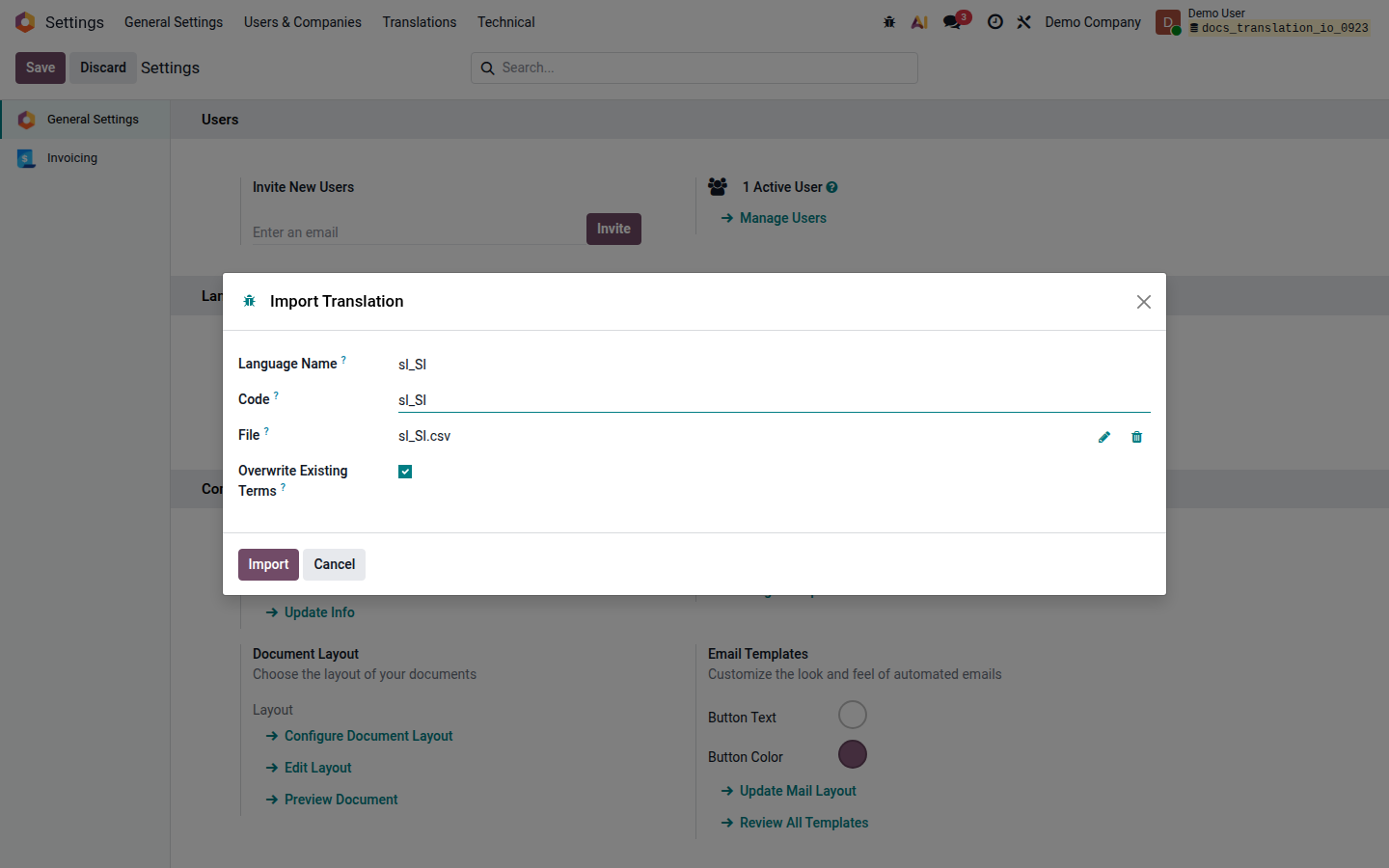
Open image at full size (new tab) - Language Name: enter any useful label. It can be the same as the code, for example
-
Recheck the code, file, and overwrite choice. Click Import only after this review. The import starts immediately without a preview.
-
Open one of the affected records and verify the text in Slovenian. When the field is editable, use its translation control to compare the source and translated values directly.
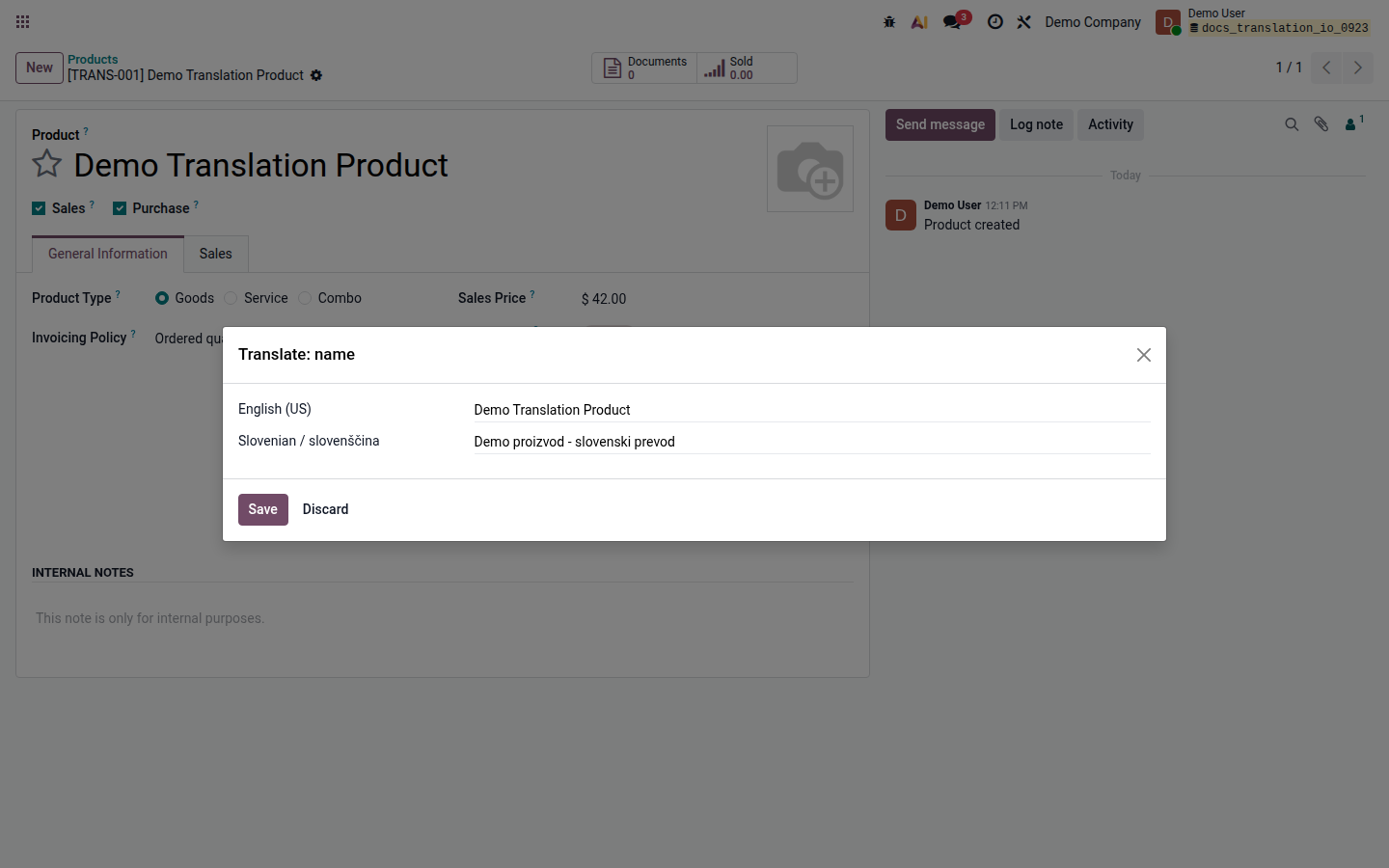
Open image at full size (new tab)
If the result is not as expected
Section titled “If the result is not as expected”- If no rows change, confirm that the file is CSV, its technical columns are unchanged, and the intended translations are in
valuerather thansrc. - If the translation appears under the wrong language, check the imported language Code. For Slovenian it must be
sl_SI. - If some record data is absent from the file, confirm that the field is translatable. Translation export does not export ordinary business values.
- If the file is too broad and it includes too many records, export it again with a narrower Model Domain.