

Find and organize your records
Quick summary: Combine a precise search with the correct company and filters; save repeated searches for later.
Find a record
Section titled “Find a record”-
Open the relevant application list. Check existing search chips before adding another condition.
-
Enter a name or reference in the search bar and choose the suggested field that you want to search.
-
Open the search dropdown. Use Filters to restrict results and Group By to organize them by a field such as salesperson or status.
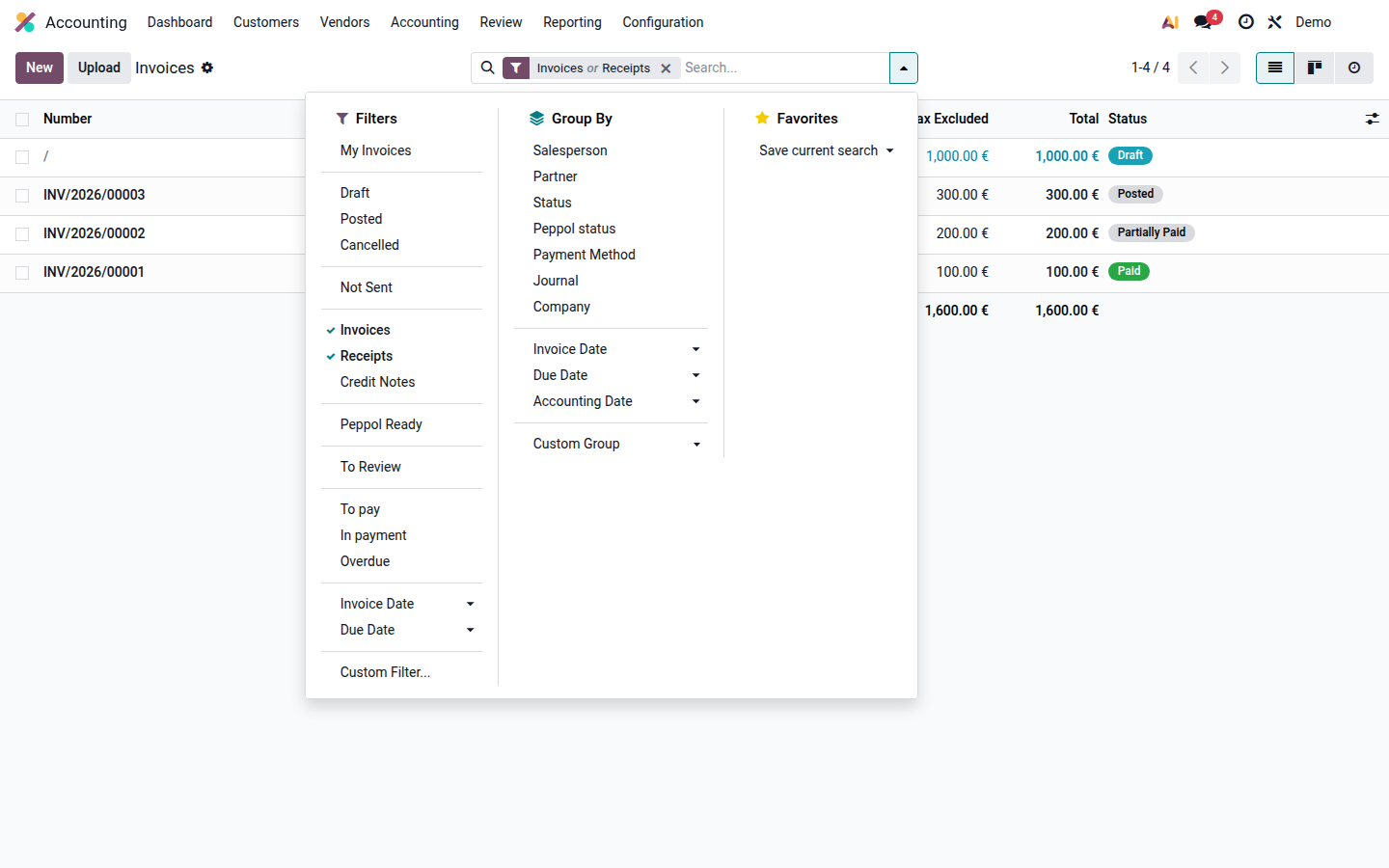
Open image at full size (new tab) -
Open a result and verify its company, partner, and reference. Similar names do not necessarily identify the same record.
-
For a repeated search, use Favorites > Save current search. Give it a meaningful name and avoid making it the default unless you want it applied every time.
Filters on different fields usually narrow the result together; multiple values for the same field can broaden that condition. Read the resulting chips and check the result count instead of assuming every selection means “and”.
Lists and exports
Section titled “Lists and exports”Use the list’s column selector to show optional fields. For an export, filter first, select the intended rows, then choose Export from the actions menu. Review the selection count, fields, and format before downloading. An exported file can contain personal or commercial data; store it in an approved location.
For spreadsheet updates and safe imports, see Import and export records.
Archiving hides eligible records from normal searches without deleting their history. Use the archived-record filter to find them again; restore them only if you have permission and they should be active. Transactional documents may have cancellation actions instead of archive.
If a saved search looks incomplete, remove its chips, check archived records, and verify company access.