

Import and export products
Quick summary: Use the standard export and import tools to create new products or update existing ones. Always click Test, resolve the reported issues, and verify a small sample before the real import.
Create new products
Section titled “Create new products”-
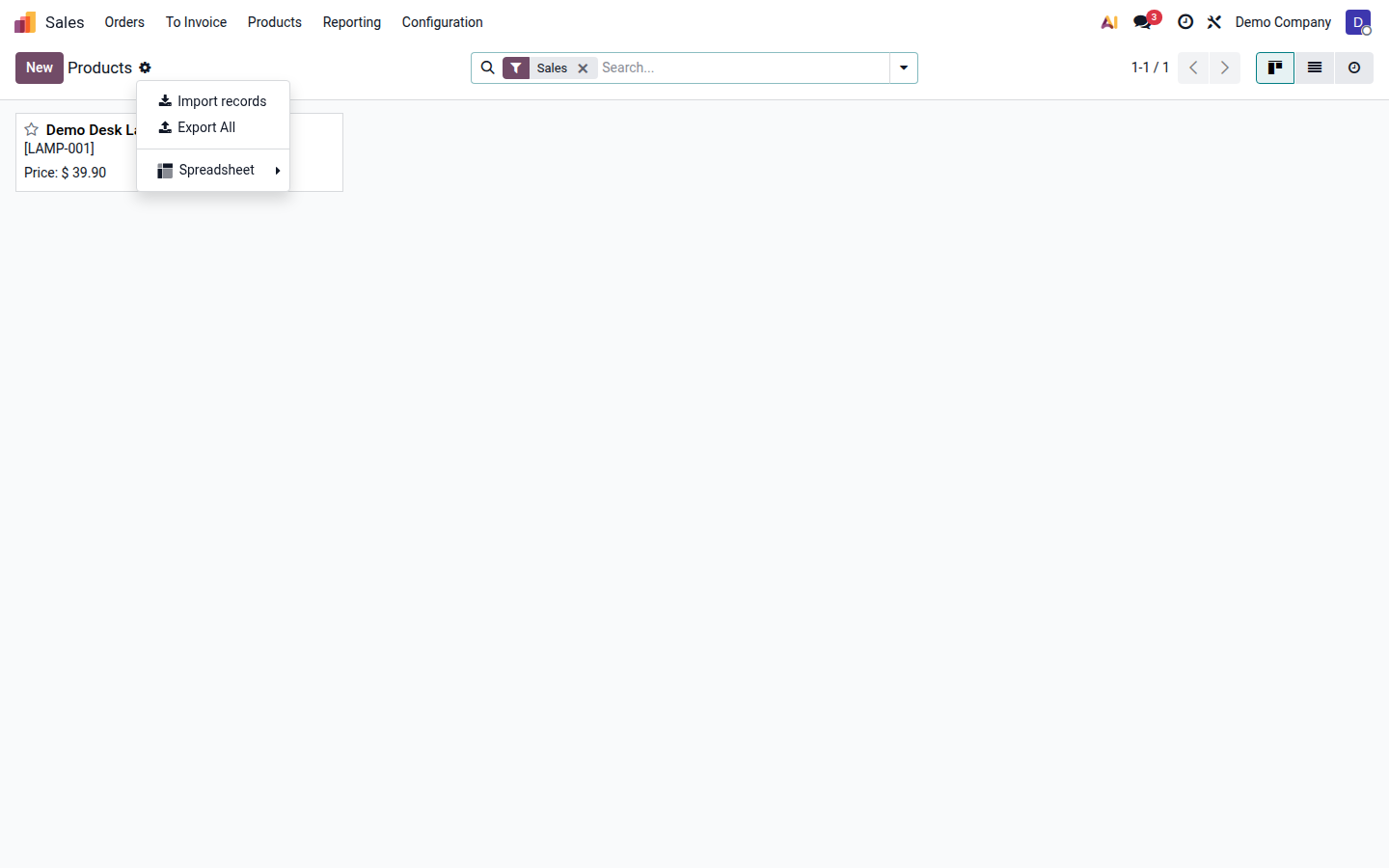
Open the Sales > Products > Products list. At the upper left of the list, click the gear icon immediately to the right of the Products title, then choose Import records.
Open image at full size (new tab) -
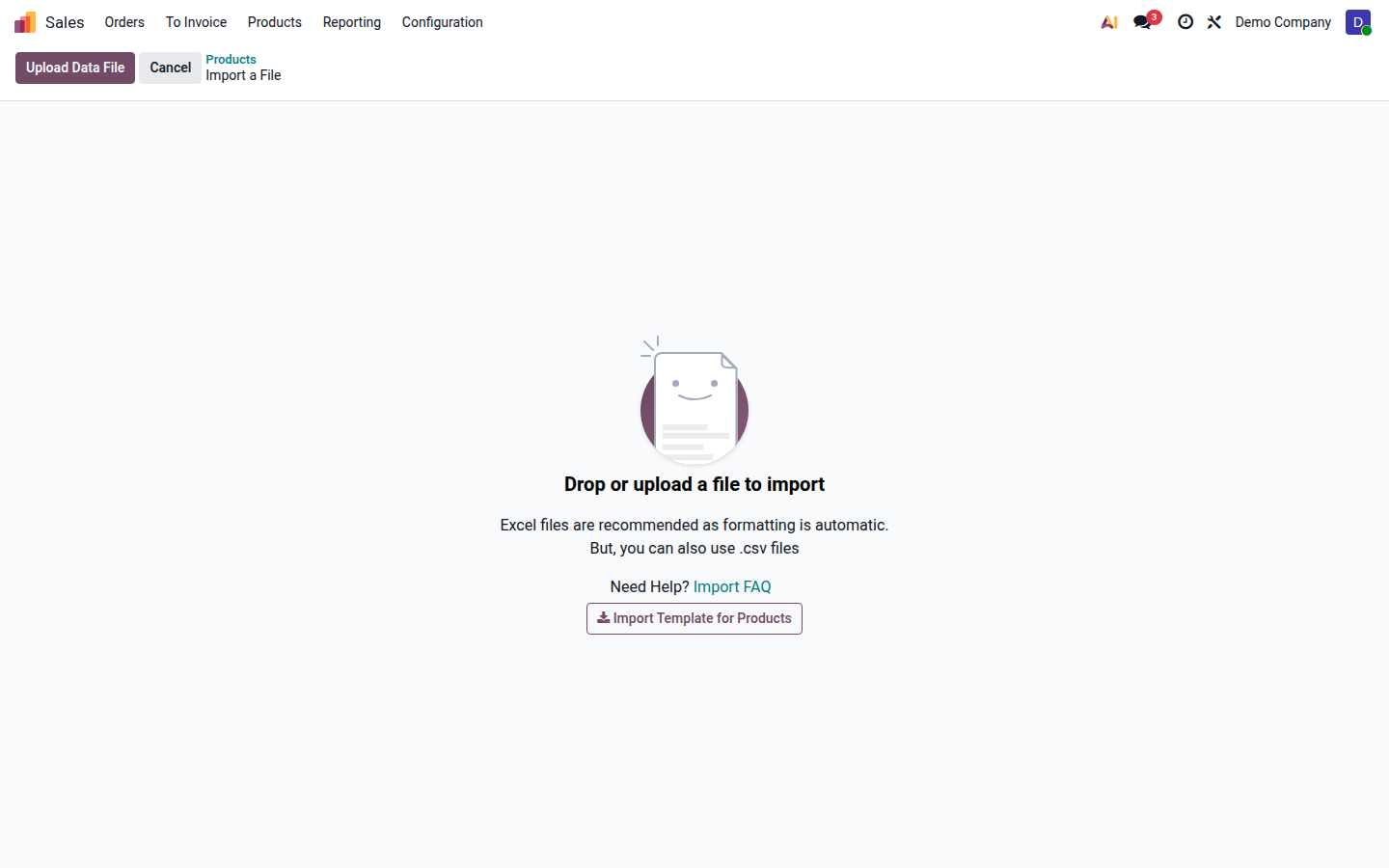
Click Import Template for Products and work on a copy of the downloaded template. Delete its sample data but keep the column headings unchanged. You can also use your own XLSX or CSV file with one header row and one row per product.
Open image at full size (new tab) -
For every new product, enter Name. This is the only value without which Odoo cannot create a basic product; Product Type and Unit have defaults. Add Product Type, Internal Reference, Barcode, Sales Price, Cost, Product Category, Unit, Sales, Purchase, and taxes only where needed.
-
Assign a stable, unique External ID, such as
catalog_product_001, to every new product. It is not required for the first creation, but it lets later imports update the same product safely instead of creating a duplicate. -
Use a valid Product Type, such as Goods or Service. Categories, units, and taxes must already exist and match unambiguously. Use their external IDs when names are not unique.
-
Format references, barcodes, and external IDs as text so the spreadsheet preserves leading zeroes.
A minimal file for creating products therefore contains Name. The recommended minimal file also contains External ID:
| External ID | Name |
|---|---|
catalog_product_001 |
Demo Desk Lamp |
If you import variants, agree on the attributes and values first. In Product Values, enter each combination as Attribute:Value,Attribute:Value, without a space after the comma, and use one row per variant. Trial the structure with one product; changing variant structure on a product already in use can affect its existing variants. See also create products and variants.
Export existing products for an update
Section titled “Export existing products for an update”Use an import-compatible export to get the correct external IDs. Do not build an update file by matching names or internal references.
-
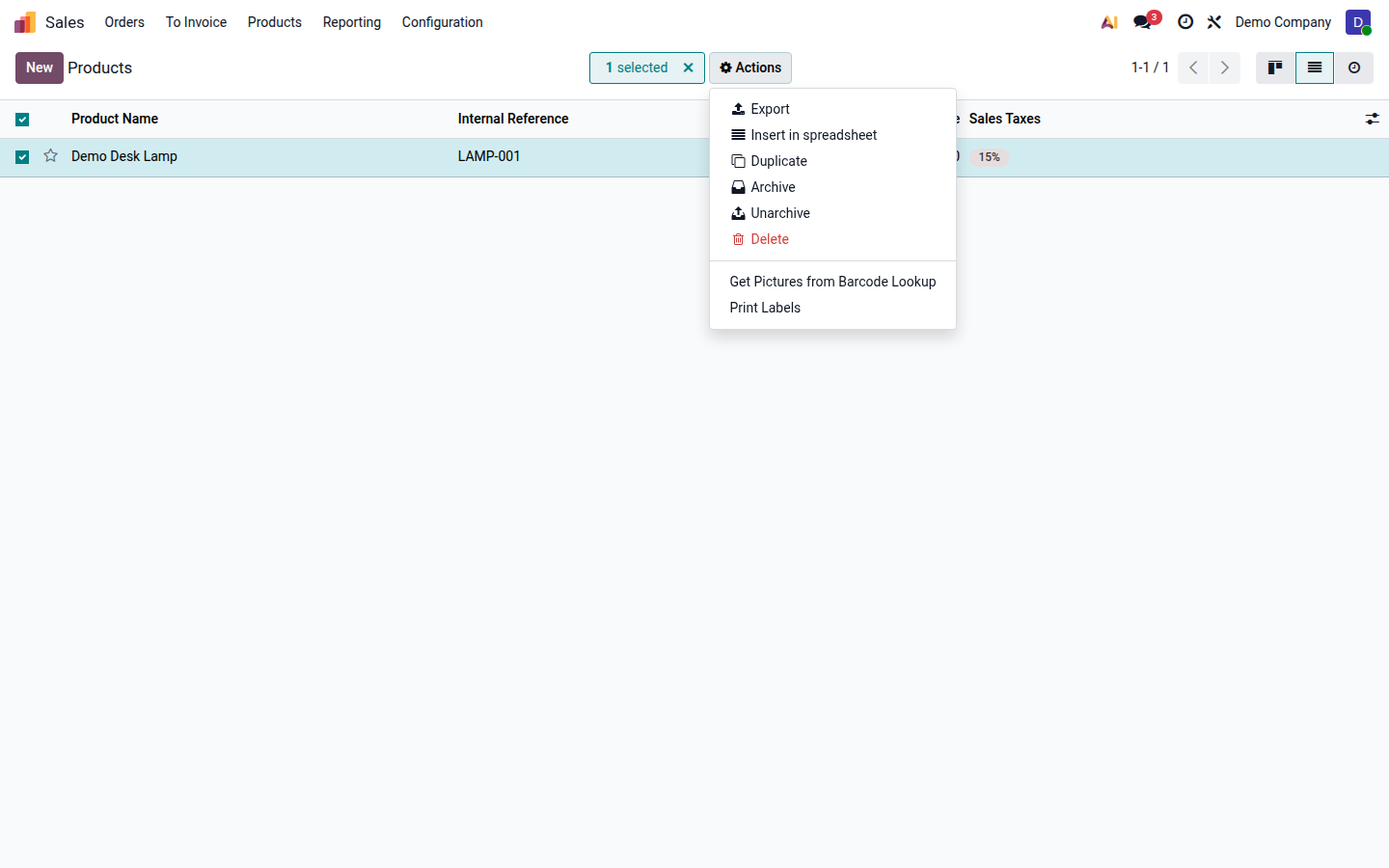
Open Sales > Products > Products, switch to the list view, and select the products you intend to update. Click Actions > Export.
Open image at full size (new tab) -
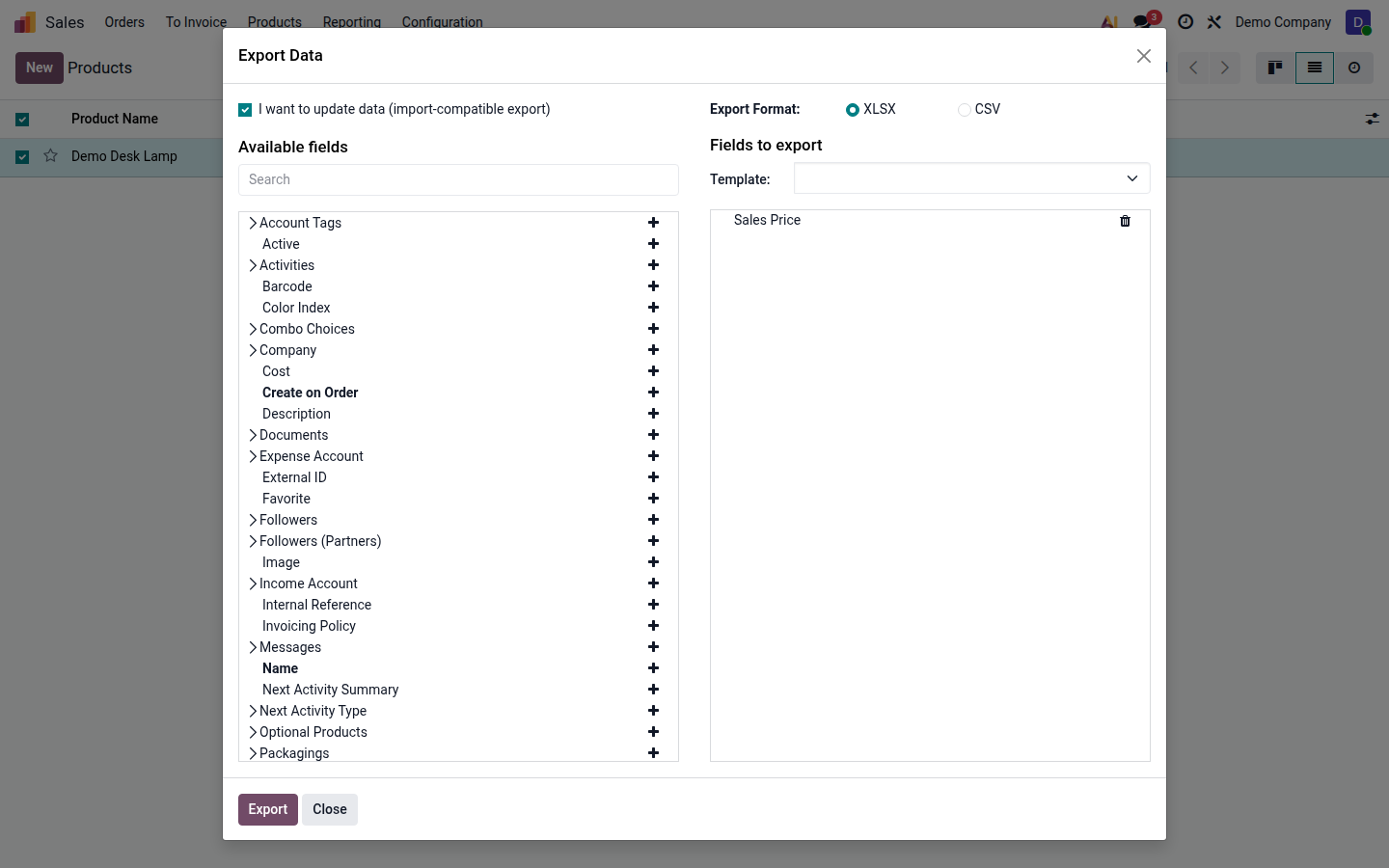
In Export Data, enable I want to update data (import-compatible export). Add only the fields you intend to edit, choose XLSX or CSV, and click Export. Odoo automatically adds External ID to the downloaded file.
Open image at full size (new tab) -
Keep an untouched copy of the export and edit a separate working copy. Never change the exported External ID values. Name is not required for an update when the unchanged external ID identifies an existing product; include Name only if you want to change it.
-
Keep only External ID and the columns you deliberately want to change. An omitted column remains unchanged, while a mapped empty cell can clear the existing value.
For example, this file changes only the sales price:
| External ID | Sales Price |
|---|---|
docs_demo.product_desk_lamp |
44.90 |
See the general import and export records guide for other record types and privacy precautions.
Import product translations
Section titled “Import product translations”For regular translatable text fields, add a separate import column for each language using <field name>@<language code>. The language must already be active in Odoo, and the suffix must use its exact code.
For products, common examples are:
- Name (
name): usename@sl_SIfor the Slovenian name. - Sales Description (
description_sale): usedescription_sale@sl_SIfor the Slovenian sales description.
For example:
id |
name@en_US |
name@sl_SI |
description_sale@en_US |
description_sale@sl_SI |
|---|---|---|---|---|
catalog_product_001 |
Office Chair | Pisarniški stol | Ergonomic office chair | Ergonomski pisarniški stol |
This shortcut is for importing regular text-field translations. The regular export does not create the language-suffixed columns. Keep the unchanged External ID when translating an existing product, then use Test before importing.
Import translations of product HTML fields separately. These include Description (description), Description for the website (website_description), and eCommerce Description (description_ecommerce). For those fields, follow Import and export record translations.
Test and import the prepared file
Section titled “Test and import the prepared file”-
Return to Sales > Products > Products, open the gear menu beside Products, and choose Import records. Click Upload Data File and select the prepared XLSX or CSV file.
-
Review the preview and every file-column-to-Odoo-field mapping. Correct an inaccurate mapping and leave unwanted columns unmapped. In a non-English interface, the template’s English External ID heading may require manual mapping to the localized External ID field. For CSV, also verify the separator, encoding, number format, and date format.
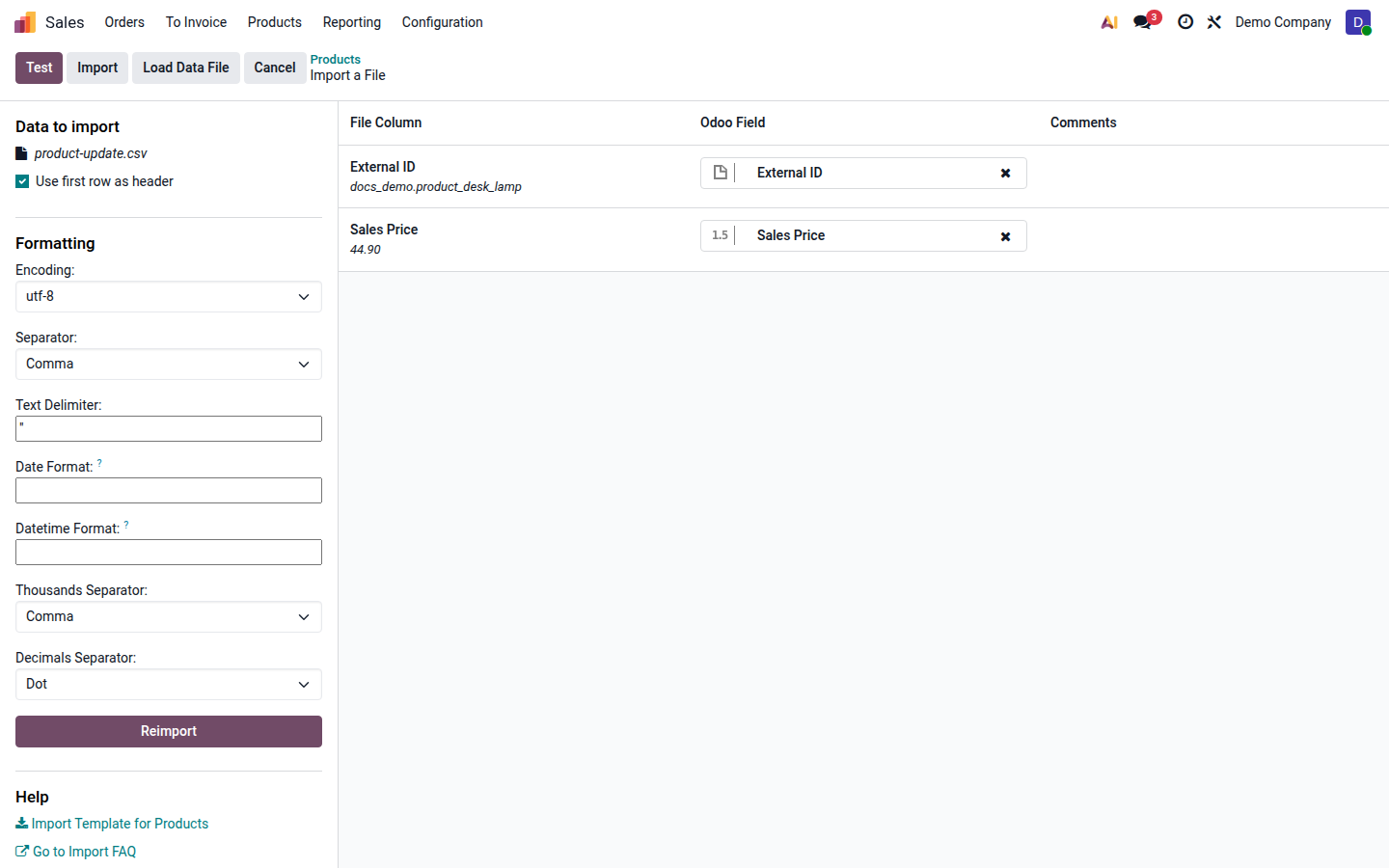
Open image at full size (new tab) -
Click Test. Odoo performs the import operations and validations but rolls back record changes, so the test does not create or update products. Resolve every error and review warnings about rows, fields, or ambiguous relations, then run Test again.
-
When Everything seems valid. appears, review the names, types, prices, units, taxes, external IDs, and mapping yourself. A successful test confirms technical validity, not that the business data is correct.
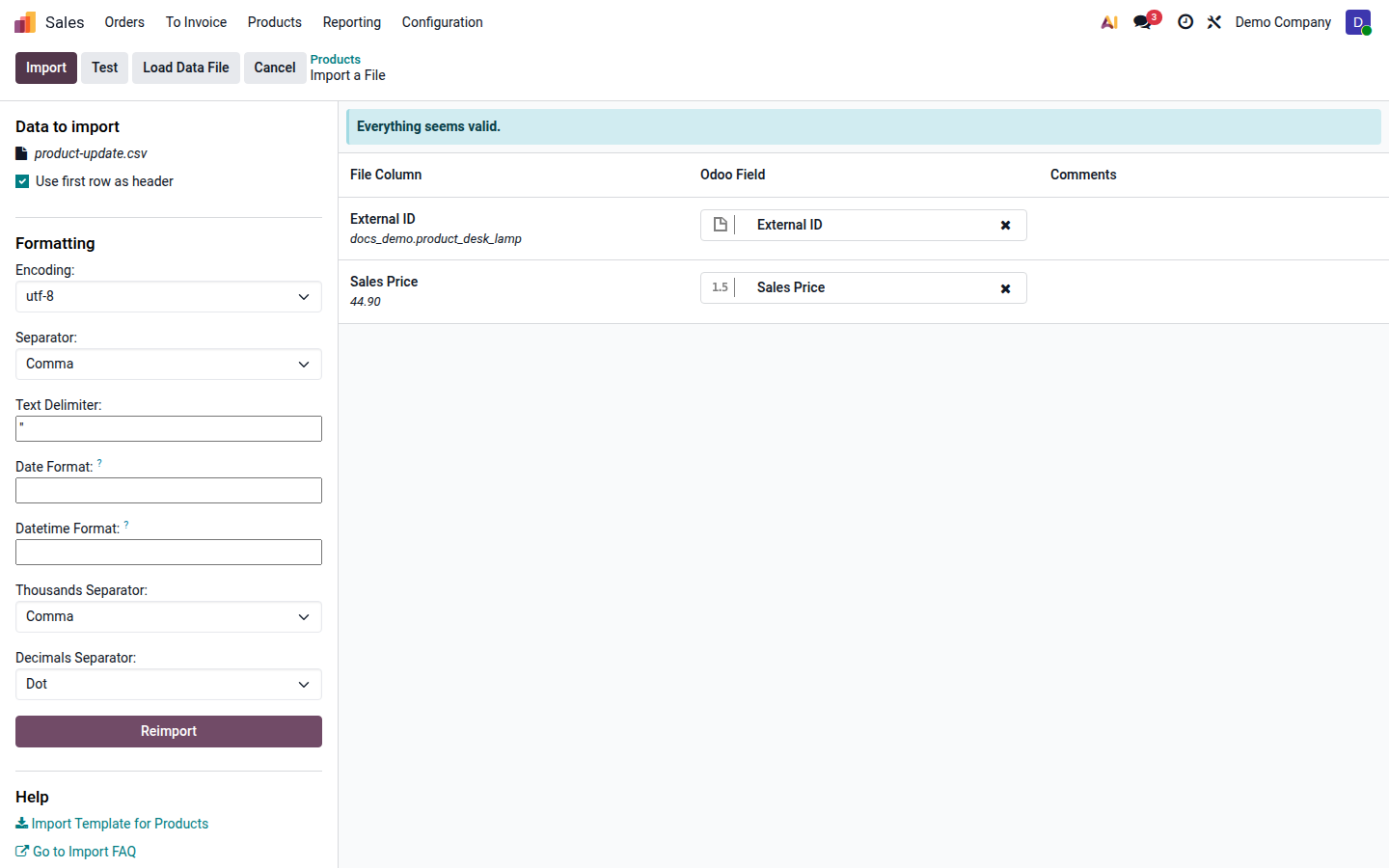
Open image at full size (new tab) -
Click Import. This is the real import. Odoo opens the imported records and reports how many were imported.
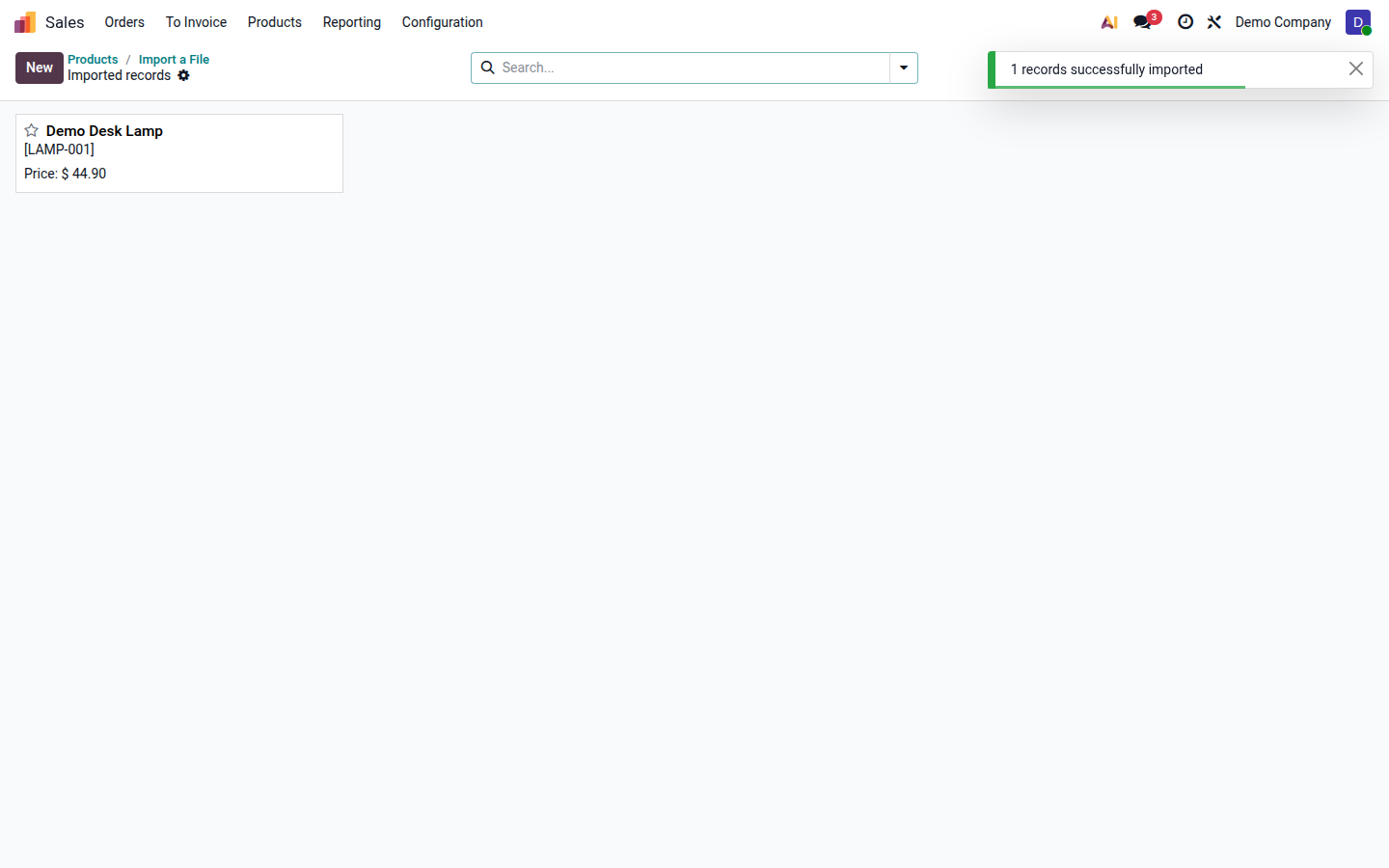
Open image at full size (new tab) -
Start with a small sample, then open several products and verify their names, references, barcodes, type, prices, category, unit, taxes, and variants. When the sample is correct, import the remaining rows with the same structure and stable external IDs.
Result and common problems
Section titled “Result and common problems”New products are created, while existing products with matching external IDs are updated. Check a representative sample before using the records on real quotations, orders, or inventory movements.
- Import records is missing: use a desktop browser and the product list. If the action is still absent, ask your administrator to check create and import permissions.
- A column is not recognized correctly: select the correct Odoo field manually. If the field is absent, check the first values’ data type and enable Allow matching with subfields where needed.
- A category, unit, or tax is not found: correct the value so it matches an existing record exactly, or use the related record’s external ID.
- Duplicates were created: do not import the file again until you have checked its external IDs and the actual results. A matching name or internal reference does not by itself make the row an update.
- A price or reference is wrong: check the cell format and column mapping. Keep barcodes and references as text.
- Variants are unexpected: check Product Values and the attribute and value names on every row before running Test again.