

Correct completed receipts and deliveries
Quick summary: For an open transfer, enter the quantity actually moved and decide whether a backorder is needed. Correct a completed transfer with a return; never delete completed movements.
Choose the correct correction
Section titled “Choose the correct correction”Answer questions about the transfer status, subsequent movement, and related accounting. The tool then identifies the procedure that preserves stock traceability.
Start in
Recommended procedure
Create a backorder
Enter the quantity actually moved, validate the transfer, and select Create Backorder.
Recommended procedure
Finish without a backorder
Enter the quantity actually moved, validate the transfer, and select No Backorder.
Recommended procedure
Create a return and replacement transfer
Open Return on the completed transfer and use Return for Exchange to retain the link to the replacement transfer.
Recommended procedure
Create a return
Open Return on the completed transfer, enter the quantity to reverse, and validate the return.
Recommended procedure
Coordinate the accounting correction first
Use a return with a replacement transfer, but have accounting review the invoice, date, and period before validation.
Recommended procedure
Coordinate the accounting correction first
Use a return, but have accounting review the invoice, date, and period before validation.
Transfer is not done yet
Section titled “Transfer is not done yet”- On the delivery or receipt, enter the Quantity actually processed.
- Click Validate.
- If you will process the difference later, select Create Backorder.
- If you will not process the difference, select No Backorder.
Transfer is already done
Section titled “Transfer is already done”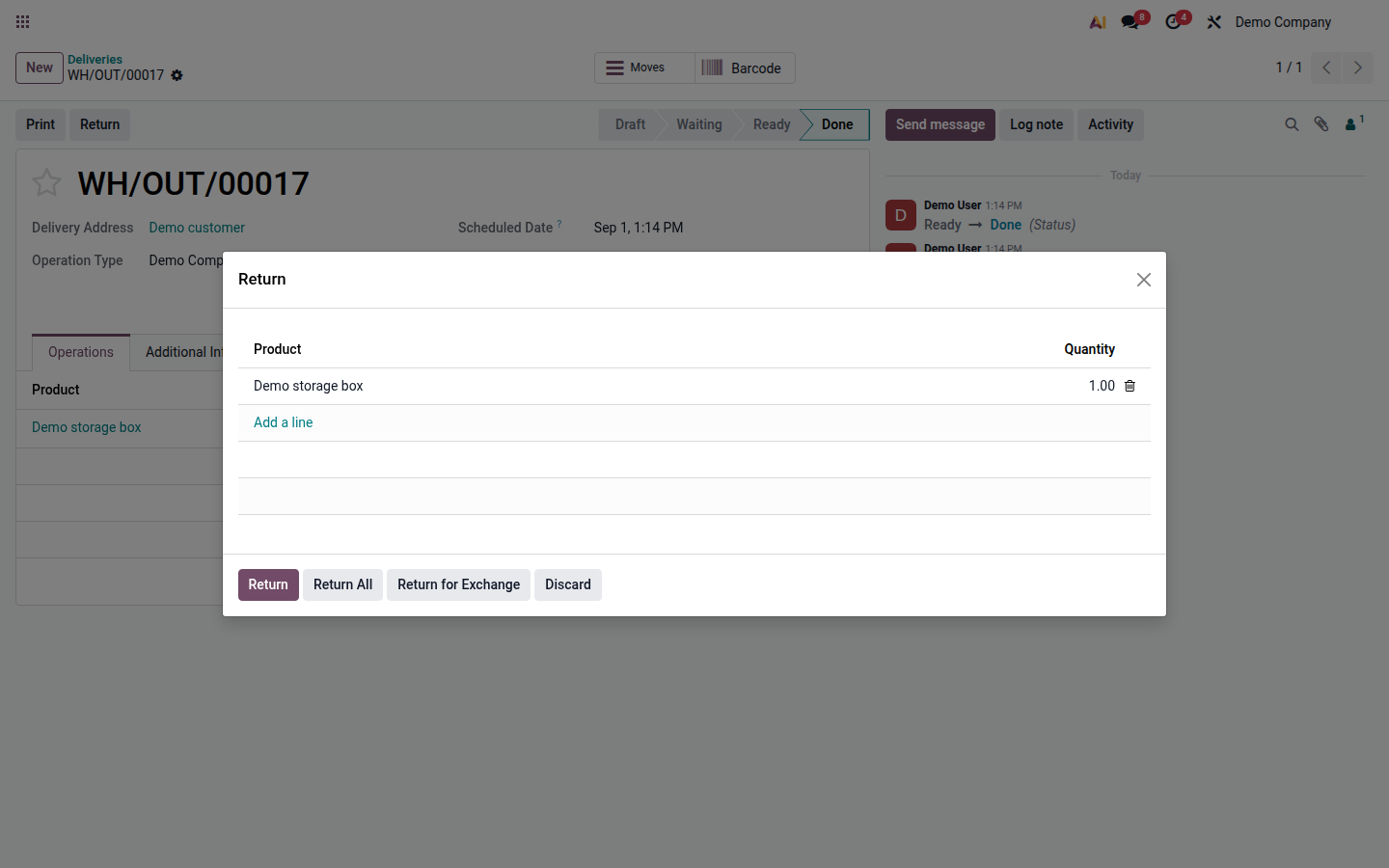
- Open the completed delivery or receipt and click Return.
- Enter the quantity to move back.
- If the goods must subsequently be sent or received again, select Return for Exchange. Otherwise, click Return.
- Check the source and destination locations, lot or serial number, and validate the generated return.
- For an exchange, review and validate the replacement delivery or receipt when the goods are actually moved again.