

Employee certifications and validity
Quick summary: Use Employees to track who holds each certification and when it expires. HR staff and managers can check qualifications for work and plan renewals.
What the register is for
Section titled “What the register is for”Use a certification for a documented qualification, such as operating particular equipment or passing a professional examination. The register links the employee, certification, achieved level, and validity period.
Training attendance records completed learning, its date, duration, and an optional certificate file. If training also awards a certification with an expiry date, create both records: training for the learning history and a certification to track validity. Uploading a certificate file to a training record alone does not create an entry in the certifications list.
Example: occupational safety and medical examinations
Section titled “Example: occupational safety and medical examinations”Use certifications to track the validity of occupational safety qualifications and periodic medical examinations. All names and data in the examples and screenshots are fictional.
- Occupational safety: name the certification Occupational safety training. Enter the validity start after completed training and the renewal deadline from the supporting document and job requirements.
- Periodic medical examination: use a Fitness for work certification. Enter the validity start and end from the medical fitness certificate or the specified date of the next examination.
For example, Nika Zelenik completes occupational safety training. Record the completed session under training with its date, duration, and supporting document, and use a certification to track its validity. After a medical examination, add a separate fitness-for-work certification.
Set deadlines for the specific job position using the issued documents; Odoo does not calculate them automatically. Keep only the necessary fitness validity information in the general HR register. Restrict access to medical supporting documents appropriately; do not enter diagnoses or medical findings in the general certification register.
If a job position requires these certifications, add them to its required skills with the appropriate level and assign the employee to that position. The automatic renewal check described below can then include them.
Set up certification types
Section titled “Set up certification types”An administrator performs this step when introducing a new certification type. To record a certification of an existing type, continue to the next section.
- Open Employees > Configuration > Skill Types and click New.
- Enter a category such as “Equipment licences” in Skill Type and enable Certification.
- Under Skills, add individual certifications, such as “Forklift operation”.
- Under Levels, add at least one level. If one is sufficient, name it “Qualified”, set Progress to 100%, and enable Default Level. This percentage represents the skill level; it does not set the certification expiry date.
- Save. The type must contain at least one skill and one level.
Record an employee certification
Section titled “Record an employee certification”-
Open Employees > Learning > Certifications and click New.
-
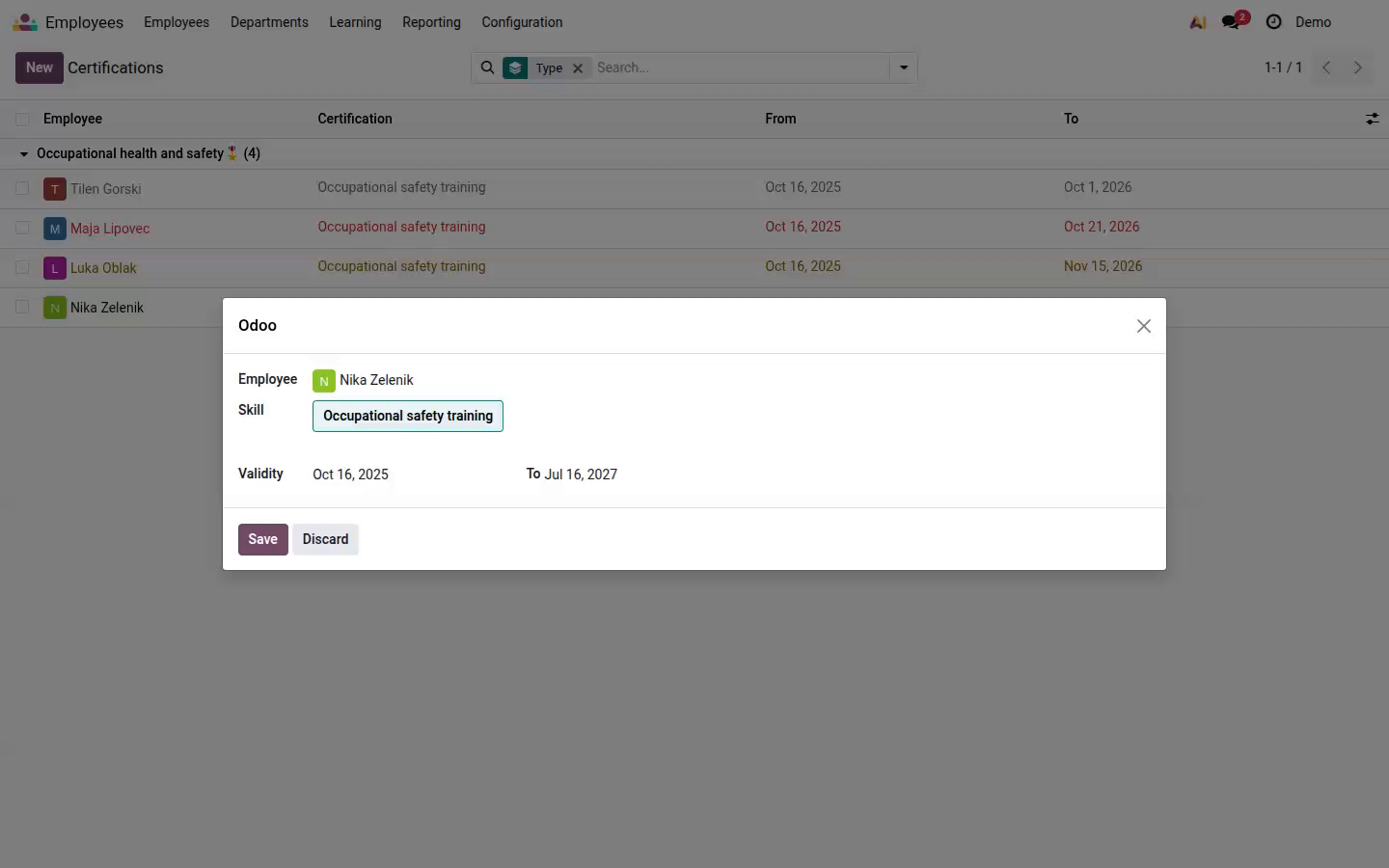
Select the employee in Employee. If several certification types are available, select the appropriate Category.
-
Choose the certification in Skill. If it has several levels, select the achieved Skill Level.
-
Under Validity, set the start date and the expiry date in To. The start date defaults to today; correct it using the supporting document. Leave the end date empty only if the certification has no expiry date.
Open image at full size (new tab) -
Click Save and check the employee, certification, and From and To dates in the list.
The certification also appears on the employee’s Certifications tab. This tab becomes visible when at least one skill type has Certification enabled.
Review validity and renewals
Section titled “Review validity and renewals”In Employees > Learning > Certifications, search for the employee or certification. The list is grouped by type by default; you can change the grouping to certification or employee.
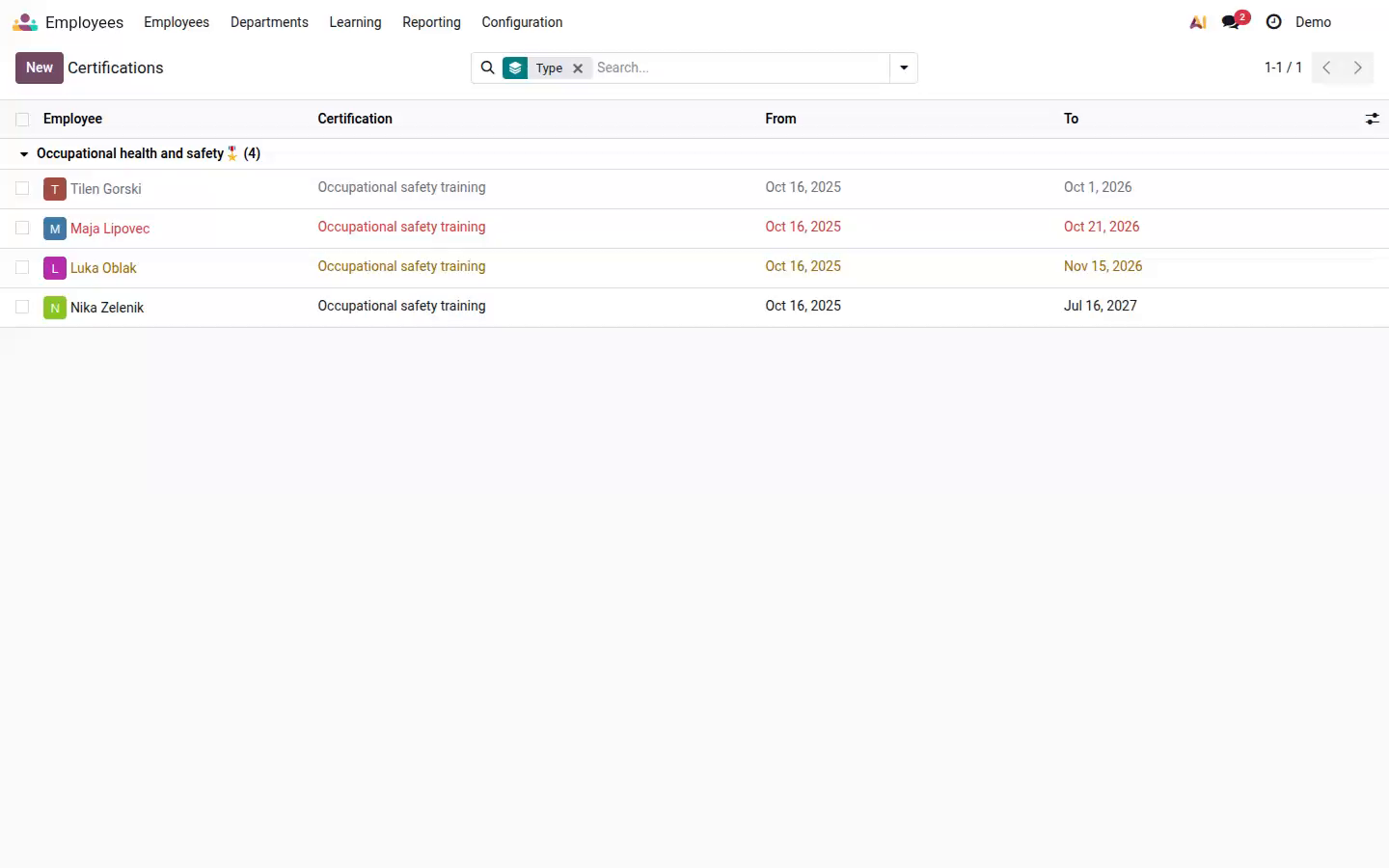
- Regular text indicates a record without an approaching-expiry warning.
- Orange indicates expiry within the next three months, except the final seven days.
- Red indicates expiry within the next seven days.
- Gray indicates a certification whose end date is before today.
Always check the actual To date, especially on the expiry date itself. An empty end date means indefinite validity in the register, so do not expect an expiry warning for that record.
After renewal, add a new certification with the new validity period and retain the previous record. To correct an entry error, open the existing row. Do not duplicate a certification with the same level and identical dates for the same employee.
When a job position requires certifications, a daily automatic check can create activities for missing or expired certifications and those expiring within the next three months. This requires configured job requirements and a linked user. The activity is assigned to the employee’s user first, otherwise their manager’s user, then the person responsible for the job position. Its deadline is the expiry date, or today if the certification is missing. An existing open activity for the same requirement is not duplicated. A color warning alone does not mean an email reminder was sent. You can schedule an activity for the person responsible for an agreed renewal.
Common problems
Section titled “Common problems”- The certification is not available: ask an administrator to check that it belongs to the correct category, the category is active, and Certification is enabled.
- The employee completed a course but has no certification entry: check the separate training and certification registers; course completion or an attachment does not replace this entry.
- The menu is missing: ask an administrator to check HR access and the availability of skills management.