

Create products and variants
Quick summary: Prepare a product for sale or purchase and choose how its stock, variants, and invoicing behave.
Create a product
Section titled “Create a product”-
Open Sales > Products > Products, search the name and Reference, and select New only when no suitable record exists.
-
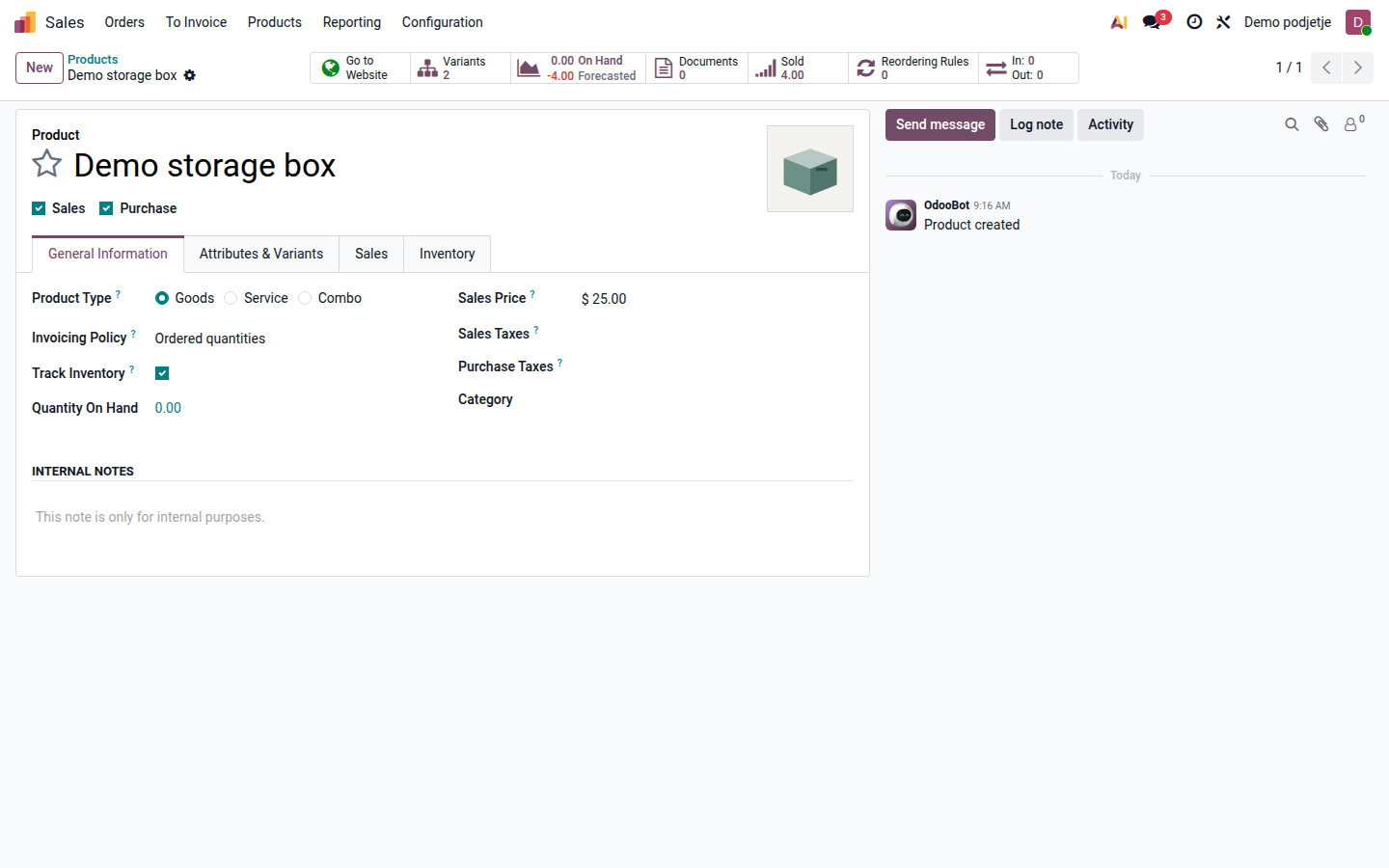
Enter a clear product name and enable its sales and/or purchase use as appropriate. Set Product Type to Goods for physical items or Service for work that does not move through stock.
-
For goods, enable Track Inventory when you need on-hand quantities and inventory valuation. With tracking disabled, Odoo does not maintain stock quantities in the same way. Agree lot or serial tracking with the warehouse before the first movement.
Open image at full size (new tab) -
Set the unit of measure used to count the product. Review its purchase unit where available. Do not treat a box as one piece without the agreed conversion.
-
Review Sales Price, Cost, and the sales and purchase taxes with the responsible owner. A cost is not automatically the supplier’s agreed purchase price.
-
In General Information, check Invoicing Policy: ordered quantities allow invoicing from the confirmed order; delivered quantities require a delivery or recorded service quantity first. On the purchase tab, enter the supplier and agreed price and lead time where applicable.
-
Save and test the product on a draft quotation or purchase request. Check unit, taxes, price, and intended invoice behavior before confirming a real transaction.
Add variants
Section titled “Add variants”-
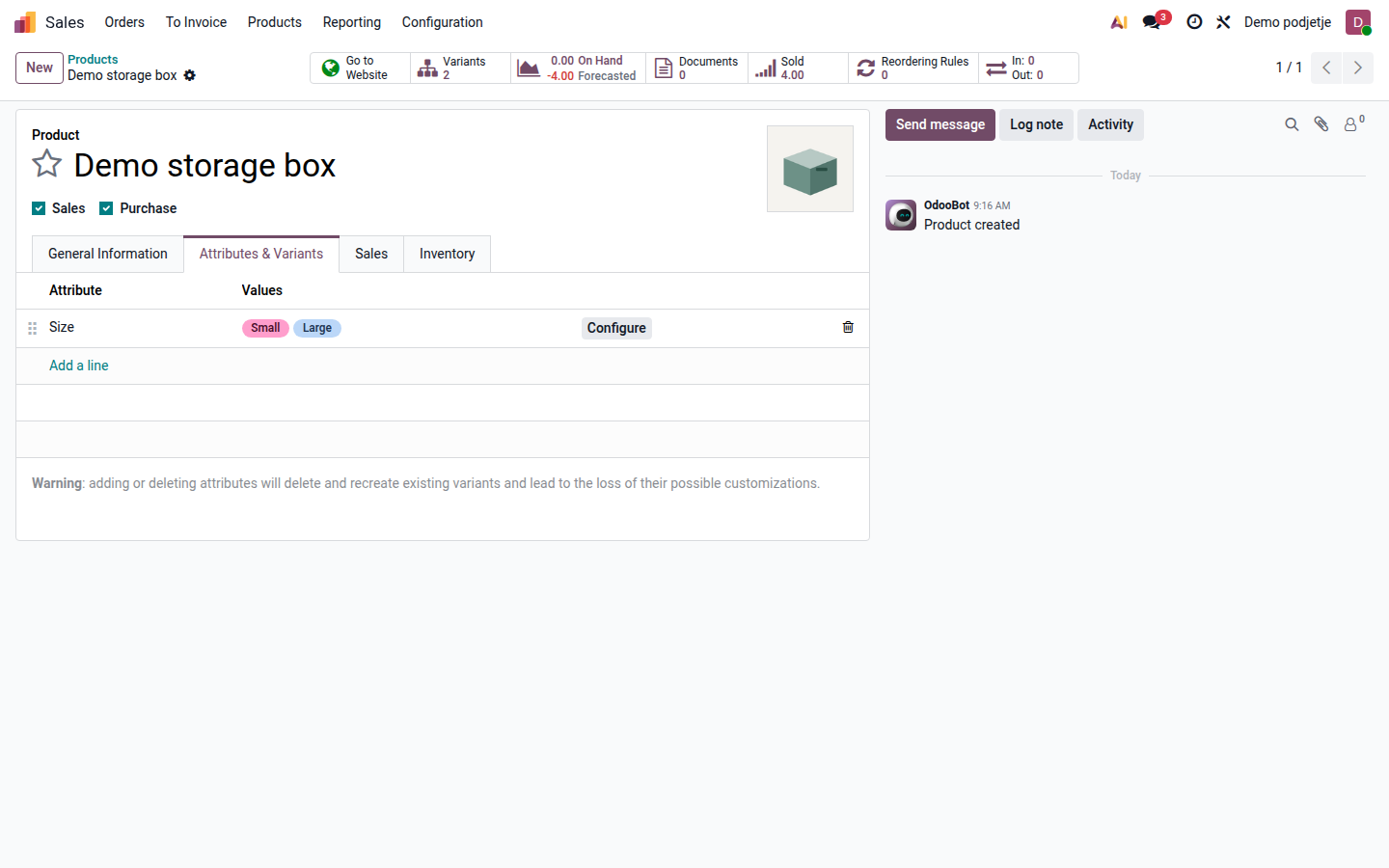
Open Attributes & Variants on the product and add the existing attribute, such as size, with only the values actually offered.
-
Add the other required attributes. Two sizes and three colors can produce six combinations; remove or exclude combinations that cannot be supplied using the configured variant rules.
-
Save and open Variants. Check each variant’s Reference and barcode where used. Stock is tracked per variant.
Open image at full size (new tab) -
Review any price extras and create a draft quotation for a specific combination. The template price, attribute extras, and applicable pricelist determine the proposed sales price.
Result and common problems
Section titled “Result and common problems”The product can be selected on the intended documents; variants identify the exact item ordered and stored.
- No stock quantity: check that it is goods with inventory tracking enabled; a service has no warehouse stock.
- Wrong item selected: compare the variant attributes, reference, and barcode rather than the shared product name alone.
- Cannot invoice: review ordered versus delivered quantities and the invoicing policy; do not change the product policy simply to bypass missing delivery evidence.
- Unexpected number of variants: ask the product owner to review attribute combinations and the variant creation mode.