

Record attendance and work exits
Quick summary: Record the start and end of your working day and distinguish a break from an exit for work. Check the resulting status after every action.
Check in and out
Section titled “Check in and out”- At the kiosk, select Check In/Out, then identify yourself using your badge or the employee selector and PIN if required. With a personal Odoo login, open the attendance indicator at the top right and click Check in.
- Verify that the displayed name is yours and that you are checked in. A successful scan changes the attendance state; repeatedly scanning can change it again.
- At the end of work, first end any active break or work exit. Then use Check In/Out at the kiosk, or Check out in your personal attendance menu.
- Check that you are now checked out and review the daily total.
Choose the correct exit
Section titled “Choose the correct exit”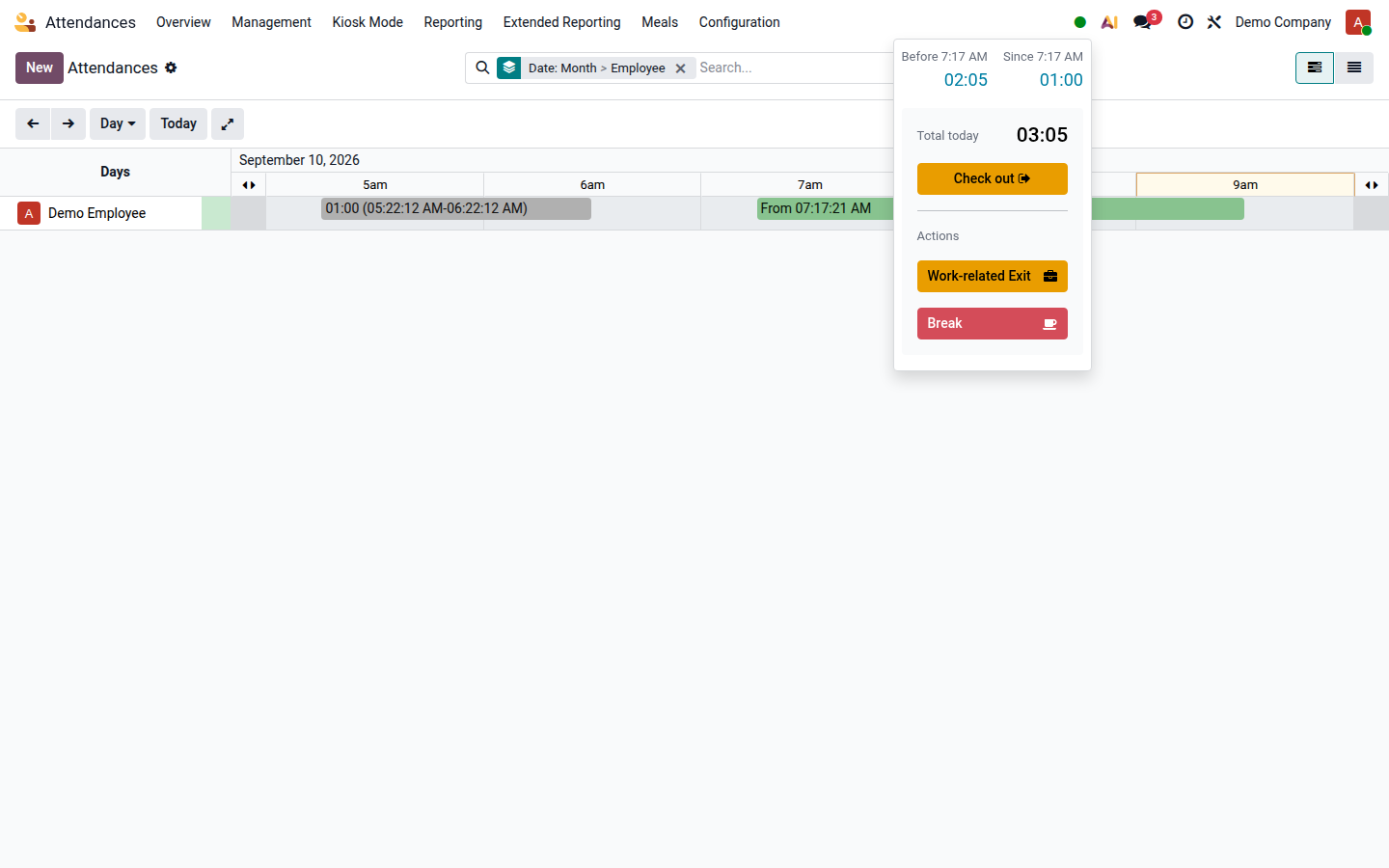
| Situation | Control | What to check when returning |
|---|---|---|
| Leaving temporarily for a work assignment | Work-related at the kiosk; Work-related Exit in the personal menu | End the exit and confirm that you remain checked in. |
| Taking a break or personal exit covered by the configured break allowance | Break | End the break and check your status. |
| Finishing work, or leaving after the allowed personal-exit time is exhausted | Check In/Out or Check out | You should be checked out. Check in again only when returning to work. |
In the personal menu, End Break ends either kind of active exit. At the kiosk, identify yourself again to end the active exit. Ending an exit does not also check you out: verify the status before performing another action.
Result and common problems
Section titled “Result and common problems”The attendance contains your arrival/departure and a separate exit log. Reported times may be rounded according to your working schedule; they can differ from the actual recorded times.
- Exit or break controls are missing: the personal menu may not display them during your first attendance of the day. Follow your employer’s reporting procedure or contact your supervisor.
- The break is refused: you must be checked in, have no other active exit, and have remaining break allowance. Do not select a work-related exit to bypass the limit.
- The system has changed your status: configured automation can end an overlong break, check you out, or close an unclosed attendance. Check the current state before scanning again.
- A scan or time is wrong: send the date, actual arrival/departure and circumstances to your attendance approver. See Review and correct attendance.
Break allowance, rounding and automatic closure depend on your employer’s configuration. The on-screen total is not a promise of payable overtime.