

Refund a sale and close the register
Quick summary: Keep refunds linked to the original sale and reconcile the actual cash before posting the session close.
Before you start
Section titled “Before you start”You need permission for refunds and register closing, the original sale for a return, and the agreed refund policy. Closing posts the session’s accounting entries, so review orders, payments and cash differences before confirming it.
Refund the original sale
Section titled “Refund the original sale”-
In the open register, open Orders and select the paid-order filter, or choose Refund from the register’s additional actions.
-
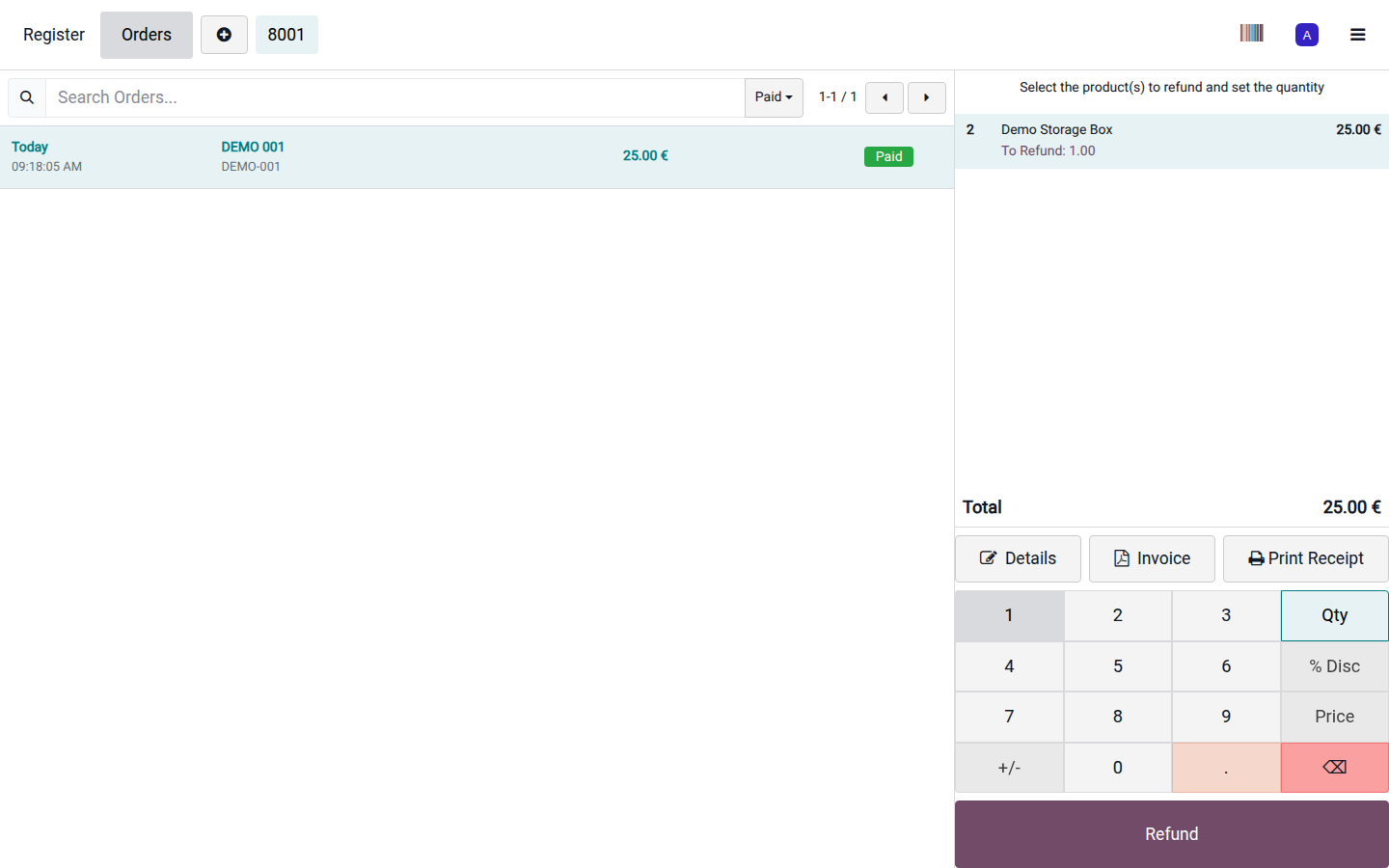
Find the original receipt and check the customer, products and previous returns. Select only the returned lines and quantities.
Open image at full size (new tab) -
Click Refund and review the negative quantities and total. Use the authorized payment method for returning the money; for a terminal refund, verify the terminal result.
-
Click Validate once the refund is correct and processed. Give the customer the refund document and verify the return is linked to the original sale.
A returned item and a cash refund are related but separate checks: inspect the goods and follow your process for damaged items. Do not also create a warehouse return for the same automatically returned units without first checking the stock movements.
Count and close
Section titled “Count and close”-
Review active orders. Complete legitimate sales and resolve abandoned drafts through the authorized process. Do not charge an unfinished order simply to clear a closing warning.
-
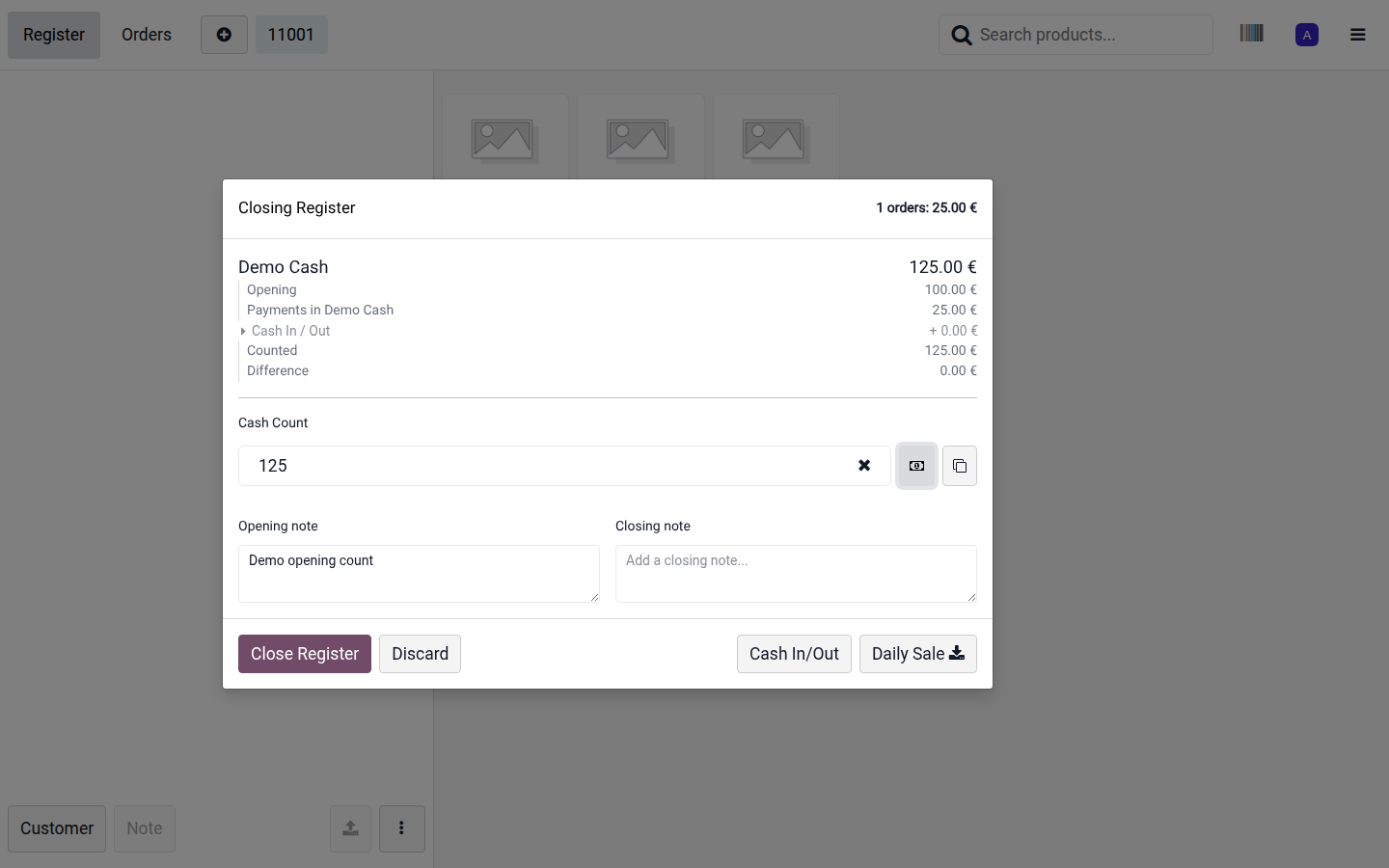
Open the register menu and choose Close Register. Review the order count and totals by payment method, including refunds and cash-in/out entries.
-
Count the actual cash in the drawer, using the denomination counter if helpful. Enter the count rather than copying the expected figure. Compare card totals with the terminal’s settlement information.
Open image at full size (new tab) -
Investigate any difference by recounting and reviewing payment methods, change, refunds and cash movements. Add an explanation. If the difference exceeds your permitted limit, request the manager’s review.
-
Click Close Register after the review. Accept a difference only when explained and authorized. If closing reports a missing accounting setup, leave the issue with the responsible manager/accountant rather than entering false cash to force a match.
-
Verify that the session is closed and save or share its report through the agreed shift-handover process.
Result
Section titled “Result”The session is closed with recorded payments and accounting entries. POS closing is not bank reconciliation: the accountant still matches bank and terminal settlements where required. If a closed session contains an error, report the original order and payment details for a traceable correction instead of editing the posted history.