

Complete worksheets, record parts and finish a visit
Quick summary: Record what was actually done and consumed, then review the customer report before completing the field task.
Complete the worksheet and materials
Section titled “Complete the worksheet and materials”-
Open the task and review its customer and appliance. If Last Worksheet is available, consult the previous visit for context; do not copy old measurements as current findings.
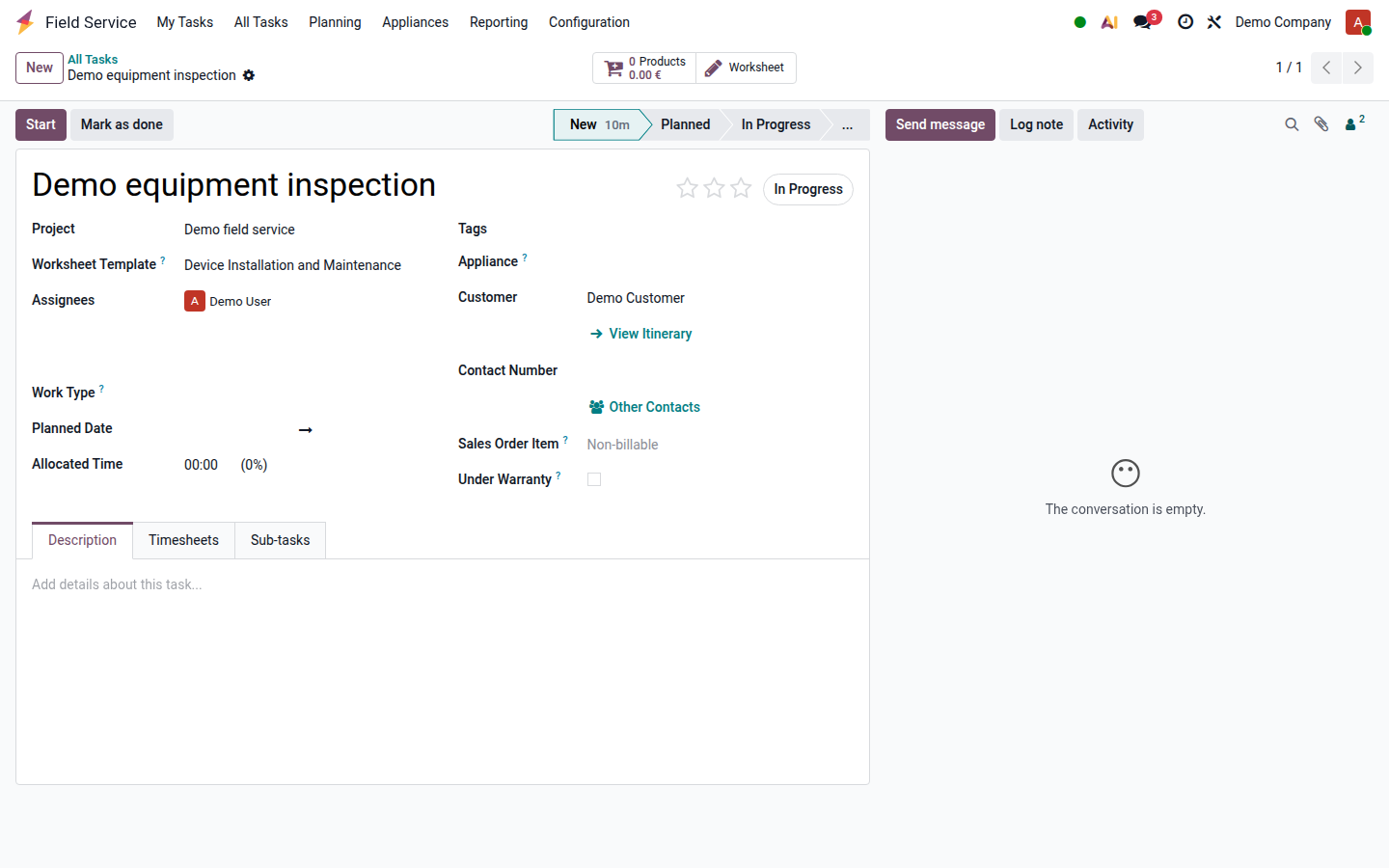
Open image at full size (new tab) -
Open Worksheet, check the template and complete required checks, measurements and findings. Save and reread the result. A saved worksheet can be labelled complete even when optional fields remain blank.
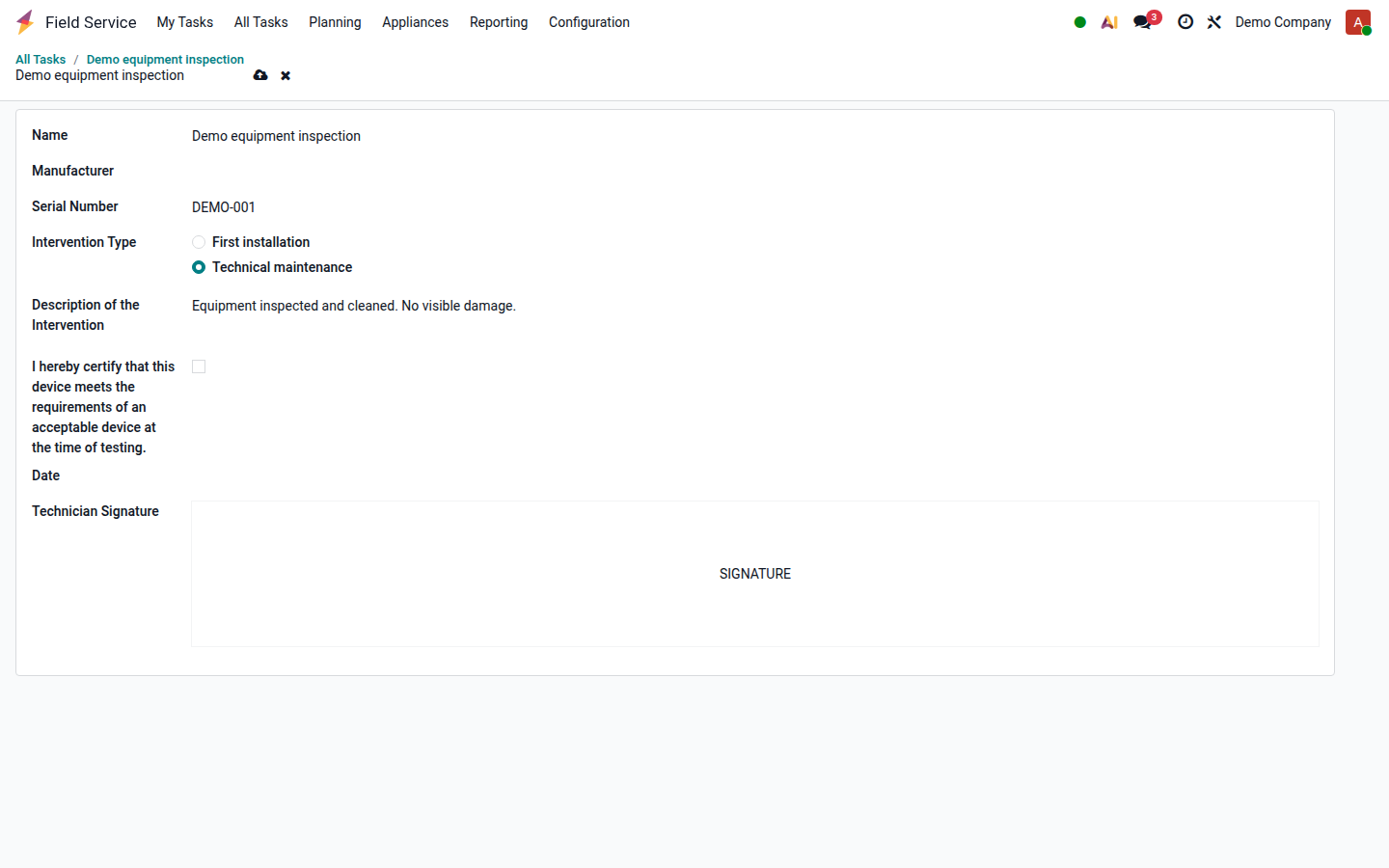
Open image at full size (new tab) -
Open Products where available. Add the actual products used and verify quantities; remove unused items. A list of suggested replacement parts is preparation information, not proof of consumption.
-
Where stock tracking applies, verify the source warehouse and required lot or serial details. Ask the dispatcher or stock manager to resolve shortages or a wrong source before completion.
-
Stop any running timer and review time entries, product quantities and commercial conditions, including warranty and any task work type.
Review the report and finish
Section titled “Review the report and finish”- Preview the service report and check the work description, times, products and worksheet results.
- If required by your service process, use Sign Report and have the customer review and sign the report. Do not sign on their behalf.
- Click Mark as done when work and required review are complete. Resolve any request to stop an active timer before continuing.
- Use Send Report when appropriate, check the recipient and attachments, and send the report.
- Confirm that the task is done and pass any linked sales document or remaining billing issue to the responsible colleague.
Result and common problems
Section titled “Result and common problems”The completed visit has recorded time, materials and its report. Task completion and a signed report do not themselves mean that an invoice has been issued or paid.
- Worksheet or Products is missing: the project or required extension may not enable it; ask the service manager rather than creating an unrelated record.
- The previous worksheet cannot be opened: check that an appliance is linked and has an earlier worksheet accessible to you.
- More work is needed: keep the task open or arrange a documented follow-up under the dispatcher’s process.
- A completed quantity or price is wrong: check with service management and accounting before changing a task that has already affected sales or stock.