

Process warehouse operations with Barcode
Quick summary: Scan the goods for an existing operation, check quantities and tracking details, and validate the actual movement.
Before you start
Section titled “Before you start”You need the Barcode app, warehouse access, configured product/location barcodes and a working scanner or supported camera. Tracking, packages and required scan order depend on the warehouse configuration. Use the labels and scan sequence prepared for your warehouse.
Scan a receipt or delivery
Section titled “Scan a receipt or delivery”-
Open Barcode > Operations, choose receipts or deliveries and select the existing operation. Alternatively, scan its document barcode. Verify the reference, company and warehouse before scanning goods.
-
Follow the on-screen request for a source location when required. Scan the product or packaging barcode, then the lot or serial when requested.
-
Watch the quantity after each scan. A packaging barcode can add several units; scanning the same packaging twice can double the recorded quantity.
-
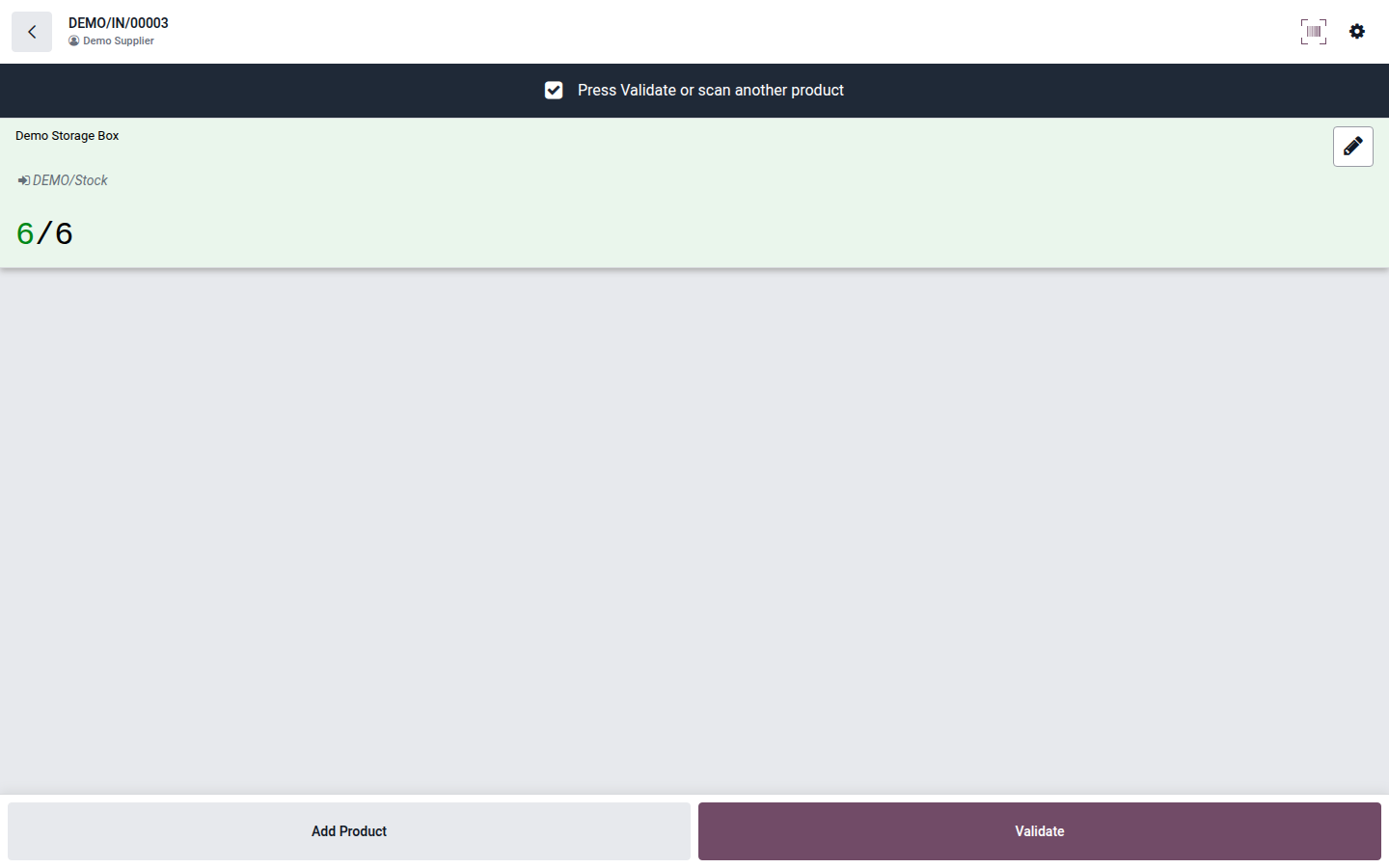
Use the line’s pencil control to correct an accidental scan, adjust quantity or check the location and tracking data. Confirm the corrected line before continuing.
Open image at full size (new tab) -
Compare all scanned quantities with the goods physically handled. Do not use the button that fills the remaining quantity unless that quantity was actually received or picked.
-
Click Validate when the movement is complete. Handle the remaining quantity as a backorder if it is still due, according to the operation’s policy.
Result and common problems
Section titled “Result and common problems”The validated operation updates stock just like validation from the regular Inventory form. In a multistep warehouse, continue with the next generated operation.
An unknown barcode needs a product or label check; do not create a duplicate product to continue scanning. If a scan selects the wrong unit or packaging, stop and ask the person maintaining product barcodes to correct the assignment. A required lot, serial or location must be completed before validation.
When opening inventory adjustments from Barcode, Odoo includes counts assigned to you or still unassigned, scheduled for today or earlier, in the available company locations. Confirm your assigned counting scope before editing an unassigned line. If your count is absent, ask the count organizer to check assignment, date, company and location. The Stock Manager approval boundary still applies where Implex Stock is installed; see inventory counts.