

Plan and review analytic budgets
Quick summary: Use analytic accounts to identify the work, separate budgets to classify potential and confirmed revenue, and posted transactions to measure what has actually happened. When an opportunity is won, move its planned amount manually so it is counted only once.
Set up the analytic structure
Section titled “Set up the analytic structure”An Analytic Plan defines a reporting dimension, such as projects. Its Analytic Accounts identify the individual opportunities or projects within that dimension. Use one account consistently for each piece of work; reuse the account attached to an existing project instead of creating a duplicate. See assign analytic costs for distribution on invoices and bills.
- Open Accounting > Configuration > Analytic Accounting > Analytic Plans and confirm which plan will identify projects. Review its applicability rules with accounting before making it mandatory.
- Open Accounting > Configuration > Analytic Accounting > Analytic Accounts. Create an account for a qualifying opportunity if none exists, and identify the analytic account of each confirmed project.
- Keep a clear manual link between each CRM opportunity and its analytic account. The opportunity’s Expected Revenue is a sales estimate; it does not create a budget line or an analytic entry.
Plan potential and confirmed work
Section titled “Plan potential and confirmed work”Keep potential revenue, confirmed revenue, and confirmed costs in separate budgets for the same period. Give each budget a clear name and choose Revenue or Expense as its Budget Type. Filter the report by revenue or expense before relying on its grand total.
- Open Accounting > Accounting > Analytic Budget and click New. Enter Budget Name, Period, and Budget Type.
- On Budget Lines, click Add a line. Choose the analytic account under the project plan and enter the planned amount in Budgeted. Add a line for each relevant opportunity or project.
- Check the company, period, accounts, and amounts, then click Open. The budget is now included by the report’s default Open Budget filter.
- For repeating monthly, quarterly, or yearly budgets, use Generate from the budgets list, choose Period and Analytic Plans, then Split. Fill the generated draft lines and open each budget after review.
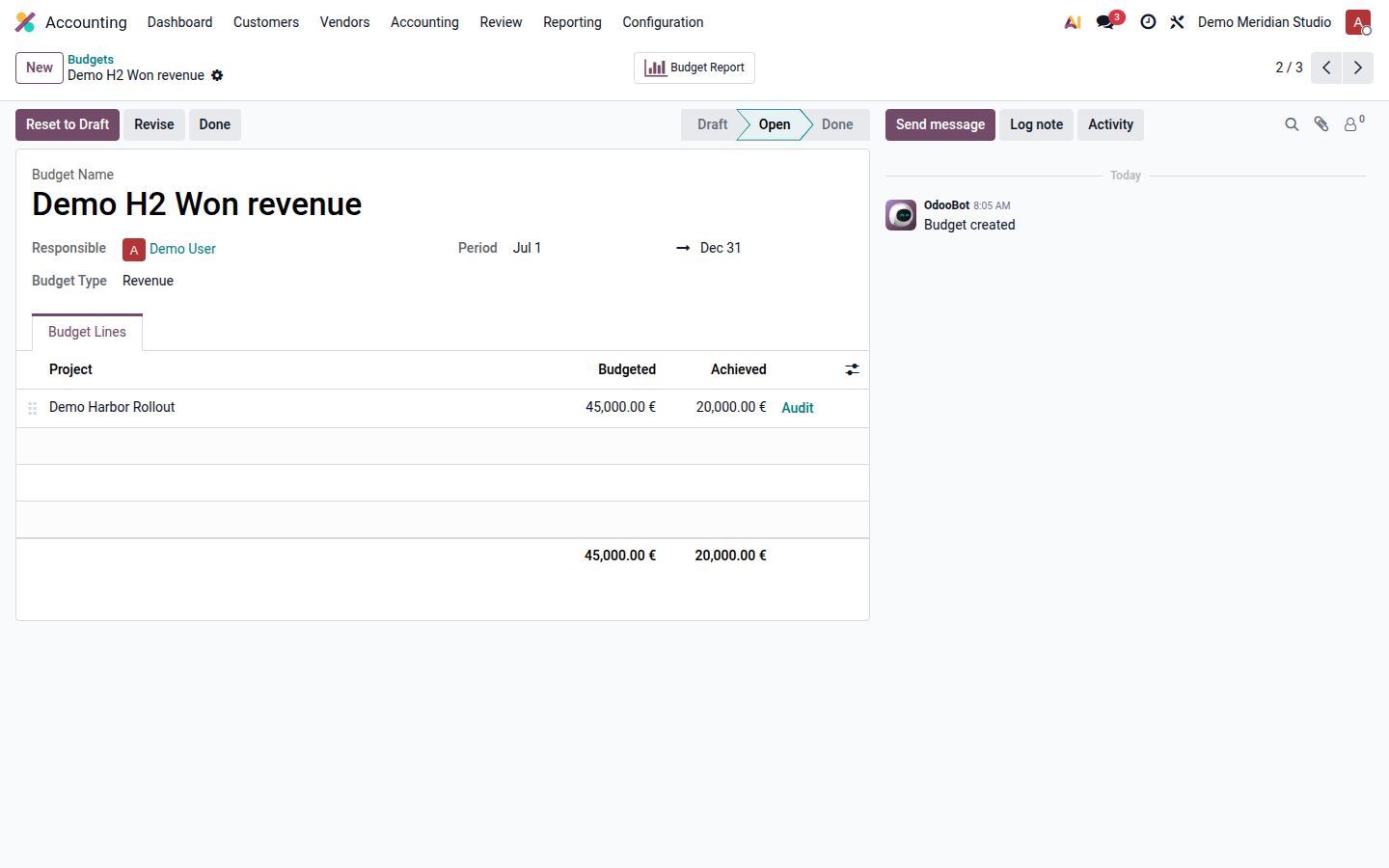
For example, a potential opportunity has a €30,000 revenue budget. A won project has a €45,000 revenue budget and an €18,000 cost budget. These are three different planned figures, not a €93,000 revenue forecast.
Move a won opportunity without double counting
Section titled “Move a won opportunity without double counting”- Confirm in CRM that the opportunity is won and check its agreed value and project account.
- Revise the potential budget and remove or reduce that opportunity’s line in the new draft revision. Revise the confirmed revenue budget and add or increase the line for the won project by the same approved planned value.
- Open both revisions. Odoo marks the previous open versions Revised. In Budget Report, keep Open Budget active so the superseded versions are excluded.
- Check the two revenue budgets together: the transferred amount appears under confirmed revenue and no longer under potential revenue. Record who made the change and the CRM decision date in your normal decision log.
If a bid is lost, leave its already recorded hours and costs on its original analytic account. Remove its future potential revenue from the active plan; do not reassign historical timesheets to a won project merely to tidy the report. Filter the lost account out of the confirmed-work view, or report it separately as a cost of unsuccessful bids.
Compare the plan with actuals
Section titled “Compare the plan with actuals”Odoo calculates Achieved from matching analytic entries in the budget period. A posted customer invoice with the project’s analytic distribution adds actual revenue; a posted vendor bill adds actual cost. Recorded timesheets and other agreed analytic entries can also contribute. A CRM amount, quotation, draft invoice, or budget line alone is not realized revenue.
- Check that invoice and bill lines have the correct Analytic Distribution before posting. For time costs, check that the timesheet is on the intended project and date.
- Open a budget. Compare Budgeted with Achieved on its lines and use Audit to inspect the matching entries.
- Use the same company, period, and analytic account when reconciling a difference. Correct the source document through the normal accounting process; changing a budget amount does not correct an actual transaction.
In the example, the won project’s posted invoice contributes €20,000 against €45,000 planned revenue, and its posted supplier bill contributes €6,500 against €18,000 planned costs. The potential opportunity has €30,000 planned revenue and €0 achieved.
Review and export the budget report
Section titled “Review and export the budget report”Open Accounting > Reporting > Budget Report. Keep Open Budget active, confirm the period and company, and group by Budget Line or Budget. The pivot compares Budget and Achieved; switch to list or graph when that makes a question easier to answer. Expand a line to inspect its underlying transactions.
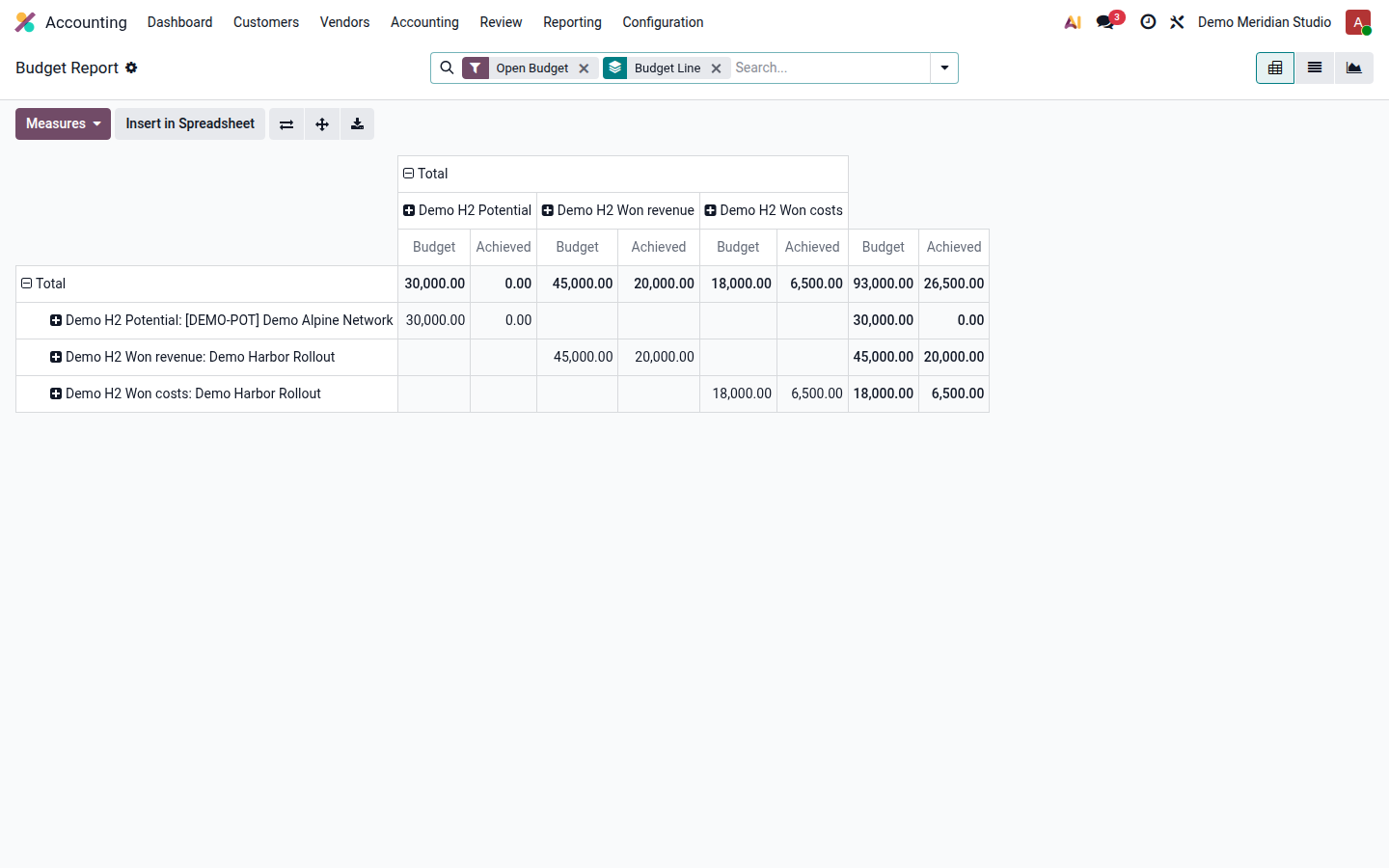
Filter revenue and costs separately before presenting a combined total. A pivot grand total that adds a cost budget to revenue budgets is an arithmetic sum, not profit. Export the reviewed pivot with its download control or insert it into a spreadsheet. Keep the company, period, active-budget filter, and grouping with the export so another reader can reproduce it.
The project profitability view answers a different question: how a specific project’s revenue and costs contribute to its margin. Use it alongside, not in place of, the period budget.
See Odoo 19 budgets and analytic accounting.