

Produce goods and record actual consumption
Quick summary: Complete a manufacturing order with accurate component use, finished quantities and any remaining production.
Before you start
Section titled “Before you start”A planner needs Manufacturing access, an approved bill of materials and the correct warehouse route. Operators need the assigned work orders and material. Confirm which person is responsible for closing production. This guide covers the production order; additional component-picking and finished-goods transfers depend on the warehouse setup.
Prepare and produce
Section titled “Prepare and produce”-
Open Manufacturing > Operations > Manufacturing Orders. Open the existing demand-linked order or click New for an approved manual order.
-
Select the product, Bill of Material, quantity and planned date. Check the company, component quantities and Work Orders before clicking Confirm.
-
Review component availability and reserve available material using the availability action when needed. Complete any component-picking transfer. Confirmation alone does not mean material is physically available.
-
Carry out the work orders in sequence, using Shop Floor where configured. Record the actual component quantities in Components, including tracked lots or serials. Report differences from the bill of materials to the responsible planner.
-
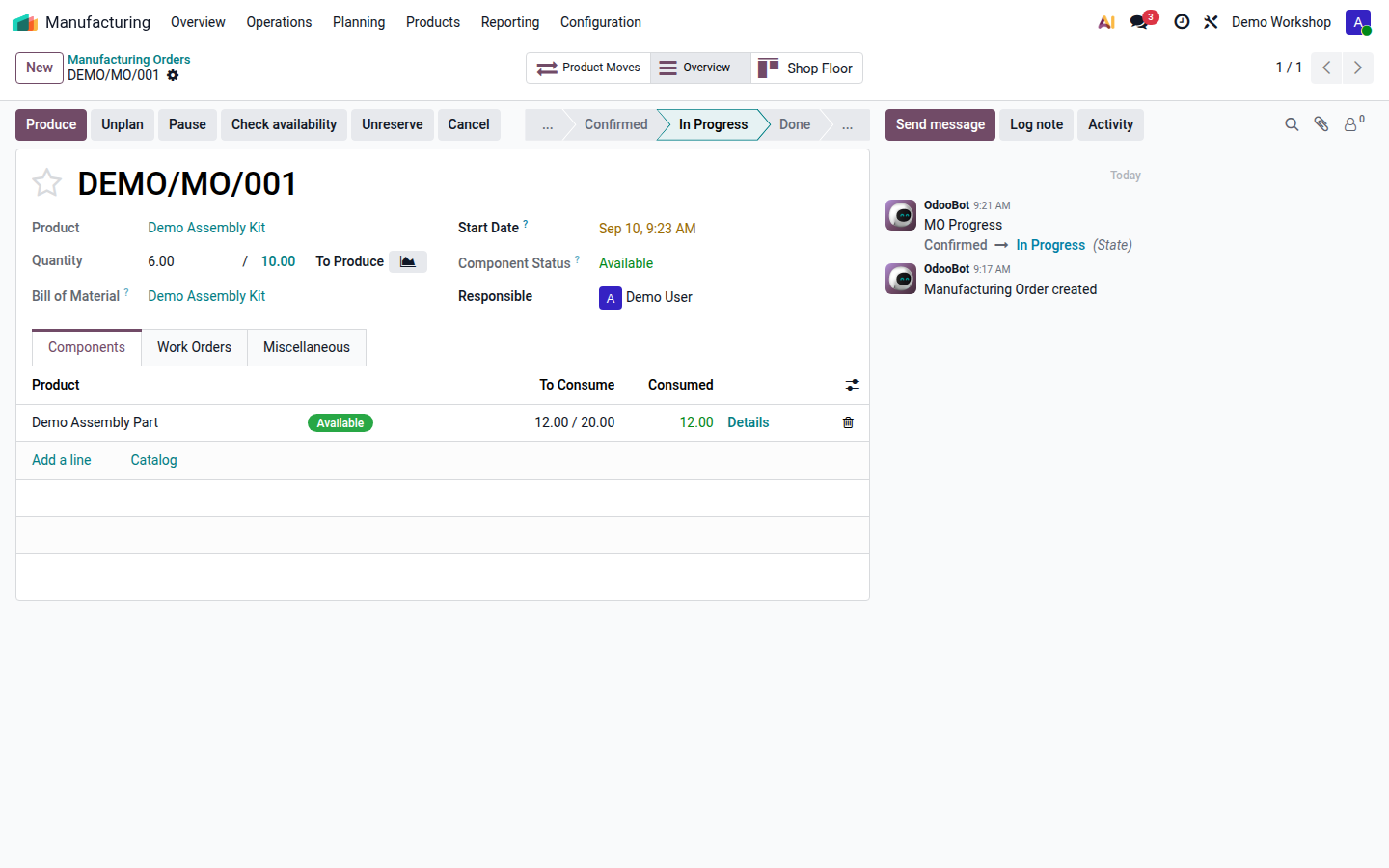
Enter the actual quantity produced in the produced-quantity part of Quantity, and the finished lot or serial where required. Do not reduce the original demand merely to conceal an unfinished remainder.
Open image at full size (new tab) -
Review consumption, finished quantities, scrap and required quality checks. Click Produce for the recorded quantity, or Produce All only when the full planned quantity was actually made. These actions post production stock movements; review any consumption warning before accepting a justified deviation.
-
If only part was produced and the remainder is still required, choose Create Backorder when prompted. Choose No Backorder only for an agreed cancellation of the remainder. Inspect the resulting order for the unfinished quantity.
Record scrap
Section titled “Record scrap”- On the manufacturing order, open the actions menu and choose Scrap for unusable material. Check whether you are scrapping an unconsumed component or a finished product that has already been produced.
- Select the exact product, quantity, source location and lot or serial; verify the scrap destination. Do not count the same unit both as consumed material and as additional scrap from stock.
- Confirm the scrap only after verifying the loss. Check the resulting scrap movement and adjust the production plan for any replacement material required.
Result and checks
Section titled “Result and checks”Closing production records component consumption and finished output. Finishing an individual work order is not the same as closing the manufacturing order. With a three-step route, complete the finished-goods storage transfer too.
For 10 planned units and 6 made, a retained backorder holds the remaining 4. Verify that the component quantities describe the 6 actually made, including documented deviations, rather than blindly accepting the original plan. If stock controls block completion, correct missing material movements or tracking details before retrying. Do not change the bill of materials during production just to remove a warning.