

Prepare and settle a travel order
Quick summary: Use a travel order to record the trip and its expenses. Preparation, travel completion, accounting posting and reimbursement are separate steps.
Prepare and record the trip
Section titled “Prepare and record the trip”-
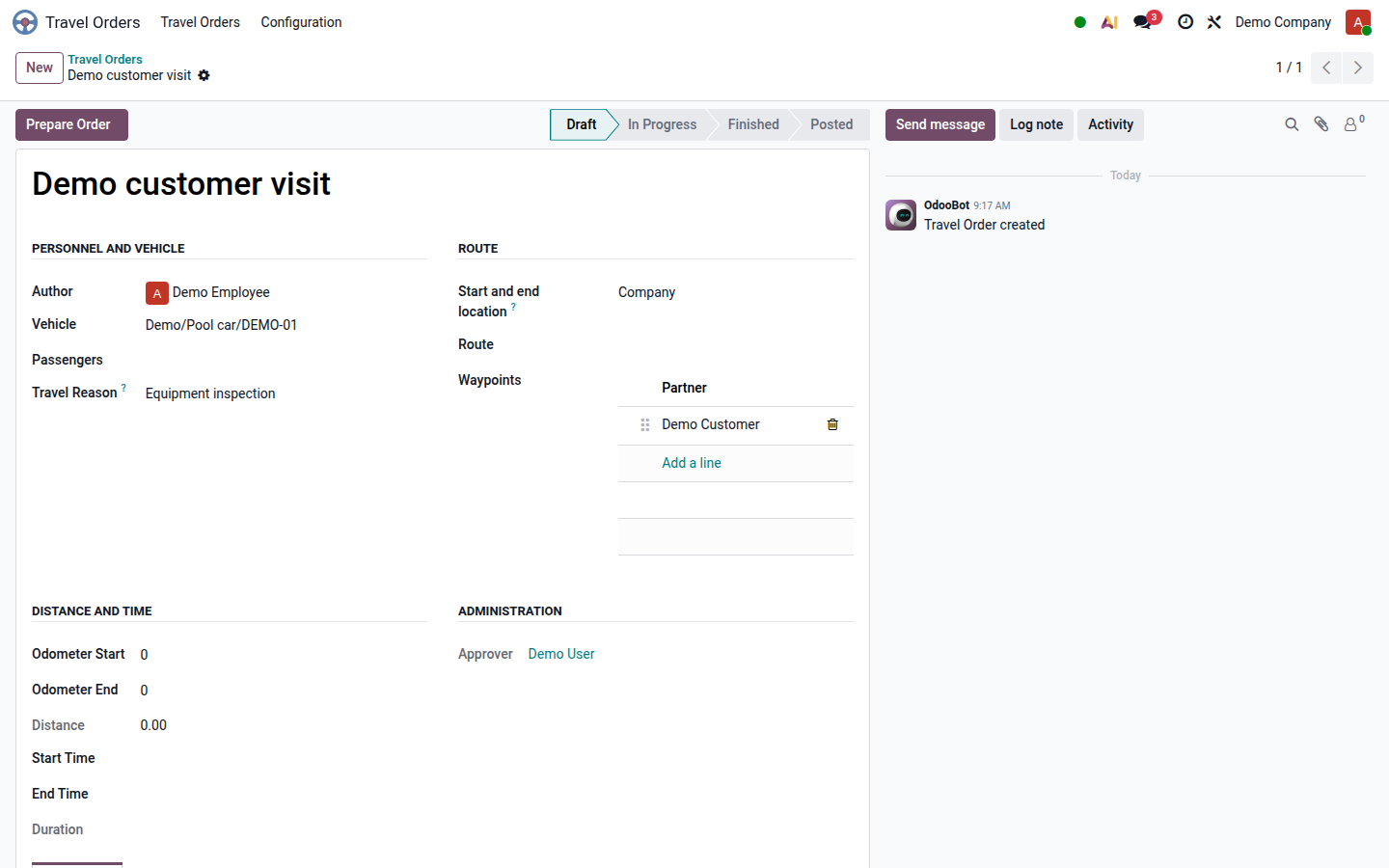
Open Travel Orders and create an order. Check Author, Vehicle, Passengers and Travel Reason.
-
Select the route or enter the start/end location and waypoints. Check that the route describes the intended business trip.
Open image at full size (new tab) -
Click Prepare Order and complete any requested approval. The order receives its number and becomes prepared.
-
Before departure, enter the starting odometer if the vehicle requires it. Click Start Travel at departure: this records the current time.
-
On return, enter the ending odometer if required and click End Travel: this records the current end time and finishes the trip.
-
Review the times, distance and Expenses. Check automatically generated mileage and daily allowance; add eligible manual expenses with readable receipts and the correct payer.
Review, post and reimburse
Section titled “Review, post and reimburse”- Submit the completed order to the responsible reviewer under your employer’s procedure. Check its approval, route, duration, distance, receipts and expense amounts.
- Resolve missing analytic information with the administrator before entering or posting expenses. Employee and vehicle analytic accounts must be configured.
- The authorized accounting user clicks Post after review and any configured approval. This submits, approves and posts the linked expenses; do not separately post them beforehand.
- Verify the posted order and related accounting documents. Arrange reimbursement of employee-paid amounts through the expense payment workflow and reconcile the payment with the bank.
Result and common problems
Section titled “Result and common problems”A posted order has accounting entries for its expenses. Posting alone does not prove that the employee has received payment. An expense already paid by the company must not be reimbursed to the employee again.
- Mileage or allowance looks wrong: check the trip dates, duration, distance, vehicle usage and country rules with the reviewer. Do not duplicate an automatically generated line with a manual one.
- You are a passenger: use Copy to Passenger where applicable, then verify your own copy; trip times can be synchronized from the main order.
- A posted order is wrong: refer it to accounting. Unpost reverses linked accounting entries and resets expenses; it is not a harmless edit action.
- The receipt is a bill issued to the company: use Expenses and reimbursements to select the correct accounting workflow and avoid duplicate recording.