

Review posted invoices
Quick summary: To Review identifies posted invoices awaiting an accountant’s check of the accounts, taxes, and supporting documents. After resolving any errors, mark the invoice Reviewed.
When does an invoice need review?
Section titled “When does an invoice need review?”Odoo determines the initial review flag when the invoice is posted, based on the rights of the user performing that action:
- A user with Invoicing or Basic access, without Bookkeeper rights, posts an invoice: it remains unreviewed and appears under To Review.
- A Bookkeeper or Accounting Administrator posts the invoice: Odoo marks it Reviewed automatically.
- A draft is not yet reviewed. Merely creating a draft with limited permissions does not decide the review flag after posting. If a bookkeeper posts that draft, it is marked reviewed automatically.
This applies to customer invoices, vendor bills, and credit notes. Entries posted in a miscellaneous journal are marked reviewed automatically, so the review filter is not a checklist of every accounting entry. Automated posting and integrations can also use a different execution user; verify their results when setting up the process.
The flag records an accounting review separately from the invoice’s posting and payment status. An unreviewed posted invoice already affects the accounts and applicable tax reports. To Review does not itself prevent issuing or sending the invoice, or require an accountant’s approval before posting. An automatically set Reviewed flag does not prove that another person inspected the document.
Find all invoices awaiting review
Section titled “Find all invoices awaiting review”Use the invoice lists for a review across journals. Customer invoices and vendor bills are separate lists; check both. The results cover only the selected companies and documents you have access to.
Open
- Go to Accounting > Customers > Invoices or Accounting > Vendors > Bills.
- Check the company selector. Remove unrelated search text and date, salesperson, payment, or journal filters that could hide invoices requiring review.
- Open the search-bar dropdown and select Filters > To Review. Also select Posted to focus on posted documents: To Review alone excludes drafts but can include cancelled documents.
- Review every result, then repeat the procedure in the other invoice list. If you also need to review credit notes, open their separate list and apply the same filters.
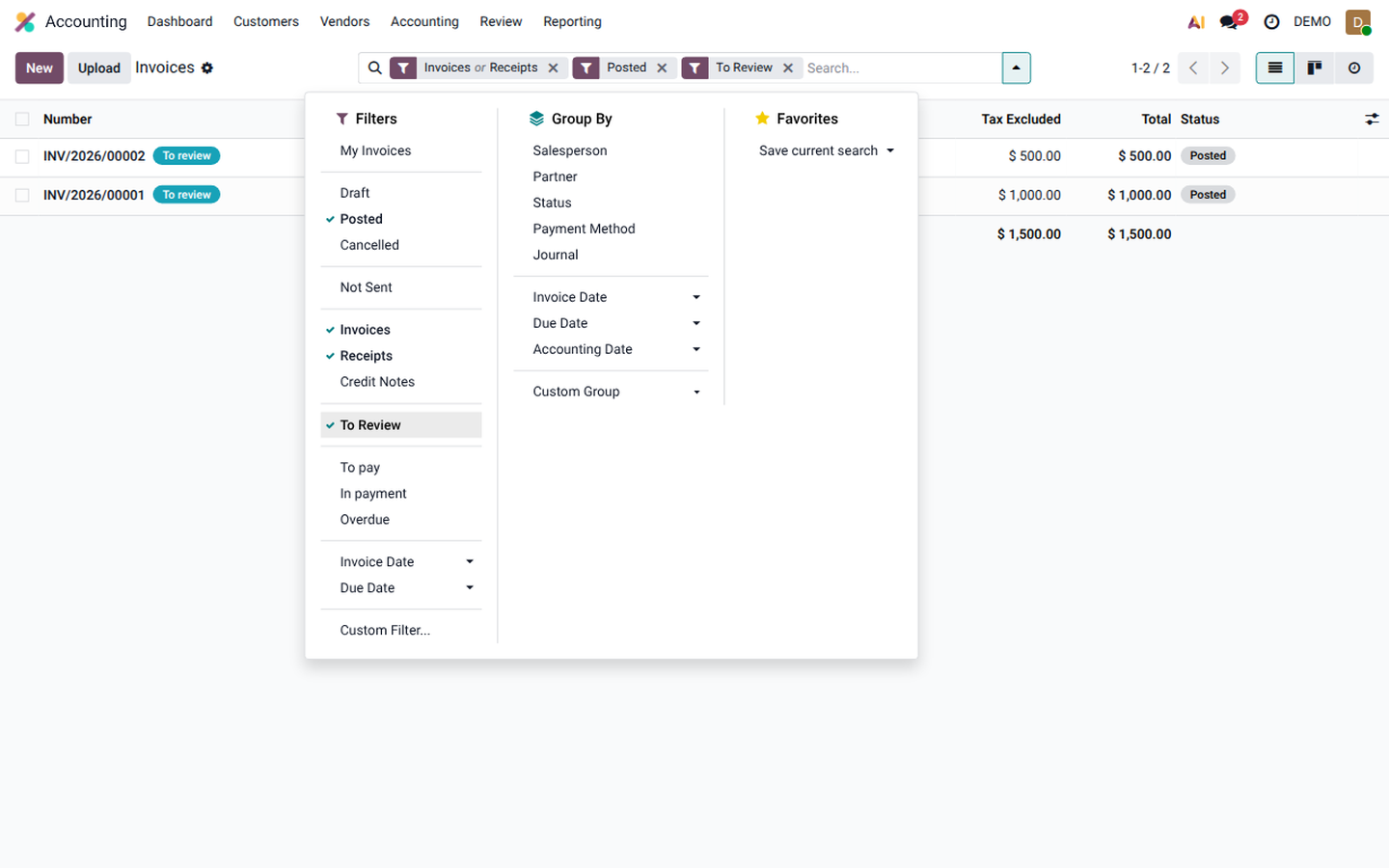
Open the queue from the Accounting dashboard
Section titled “Open the queue from the Accounting dashboard”- Open Accounting > Dashboard and find the relevant customer-invoice or vendor-bill journal card.
- Click the To Review link beside the number of documents, for example 2 To Review. Odoo opens that journal’s documents with the review filter already applied.
- Review the documents in this queue. Repeat for other journals, or use the full invoice and bill lists above to search across journals.
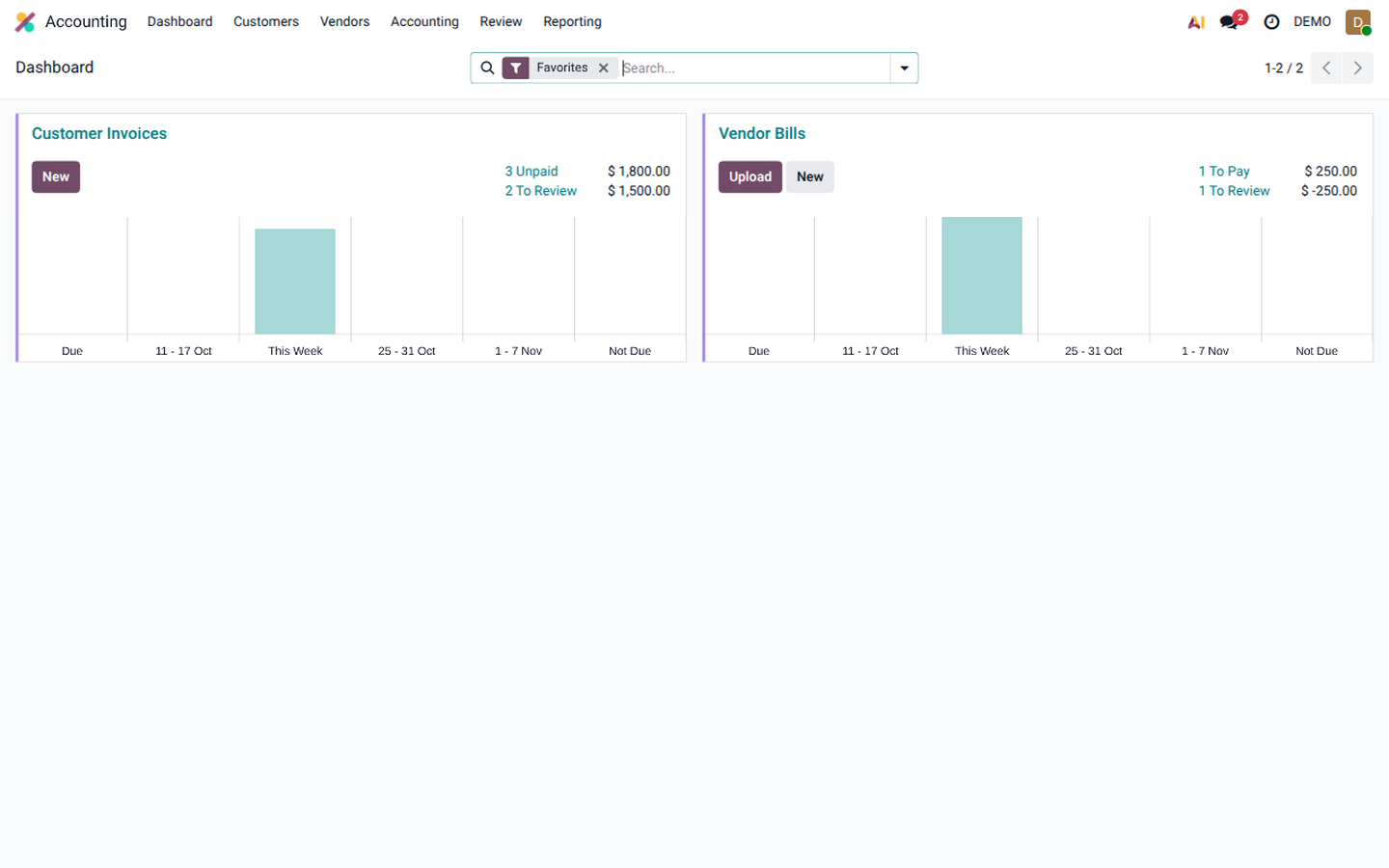
The shortcut appears only when that journal has posted documents awaiting review, and only for users with the accounting review rights. It covers that journal, including its credit notes; it is not a company-wide total. Other journals and companies may still have invoices awaiting review even when a particular card has no To Review link.
Check the accounts and taxes
Section titled “Check the accounts and taxes”- Open an invoice from the review queue and compare it with the original document and any related sales, purchase, or receipt documents. Verify the partner, reference, dates, currency, quantities, prices, and totals.
- On Invoice Lines and Journal Items, check the revenue, expense, or asset accounts and the receivable or payable account. Confirm that the accounts reflect the transaction’s purpose; a balanced entry alone does not establish correctness.
- Verify the taxes, rates, tax bases, fiscal position, and tax amounts. Check any required analytic distribution and supporting attachments. Use the tax guide when the tax treatment needs clarification.
- If anything is wrong, follow the correction procedure below. Otherwise click Reviewed in the invoice header.
The invoice leaves To Review and remains posted with the same payment status. Its Reviewed checkbox is also visible under Other Info > Accounting, and changes to the flag are tracked in the chatter.
For example, an invoicing user posts a supplier’s equipment invoice to an office-supplies expense account. The accountant must decide whether an asset account is required, check the VAT treatment, and correct the posting before completing the review.
Correct an error before completing the review
Section titled “Correct an error before completing the review”- If correction in place is permitted and Odoo offers the action, click Reset to Draft.
- Correct the accounts, taxes, or other details, then check the recalculated totals and journal items.
- Click Confirm to post the corrected invoice. Recheck its review flag: posting as a bookkeeper marks it reviewed automatically; posting as a user with limited rights leaves it for review again.
- Verify any affected payments and reconcile them again where necessary. If the invoice is still To Review, the accountant completes the check and clicks Reviewed.
Once an invoice is reviewed, a user without Bookkeeper rights cannot reset it to draft. Refer further corrections to accounting. The review flag does not override lock dates or other restrictions on changing a posted document.
Configuration and follow-up
Section titled “Configuration and follow-up”There is no standard company or journal setting to enable this review workflow, choose named reviewers, or require every invoice to be reviewed by a second person. The main control is the user’s Accounting access:
- An administrator opens Settings > Users & Companies > Users, selects the user, and checks their Accounting access rights.
- Keep invoice-entry users at the appropriate limited level, such as Invoicing or Basic. Give Bookkeeper or Administrator access only to users responsible for that wider accounting scope. Granting those rights also makes their own postings reviewed automatically.
- With the Invoicing app alone, without full Accounting, posting marks documents reviewed automatically; the permission-based separation described above is unavailable.
An accountant can clear Reviewed under Other Info > Accounting on a posted invoice to put it back in the review queue. This changes the review flag; it does not correct the accounts or taxes. Returning an invoice to draft also clears the flag, which is recalculated on posting.
For several invoices already inspected individually, select them in the list and use Review Entries from the actions menu. This marks the selected posted documents reviewed without checking their accounting content. Keep unverified documents out of the selection.
Assign responsibility and a review schedule within your organization. The flag alone does not assign an accountant or create a follow-up activity.