

Match credit card statements to vendor bills
Quick summary: Record card charges in a Credit Card journal and match them to the individual vendor bills. Record the later payment from your bank as a transfer to the card, not as another purchase.
Set up the card journal
Section titled “Set up the card journal”Open Configuration > Accounting > Journals, click New, and set Type to Credit Card. Give the journal a recognizable name. Ask your accountant to check the account assigned to it, especially if you use more than one card account. The card journal tracks what you owe the issuer; the bank journal tracks money leaving your bank.
Import the card transactions
Section titled “Import the card transactions”If the card journal is set up for manual or file import and your issuer provides transaction data, open Transactions on the card journal and click Upload. A journal set up for online synchronization uses its feed instead and does not show Upload. Odoo 19 can import these formats when the corresponding importer is installed:
| Format | When to use it |
|---|---|
| CSV, Excel | Use a spreadsheet export; map its date, description/reference, and amount columns during import. |
| CAMT.053, OFX, QIF | Use a transaction file exported by the card issuer. |
| PDF, JPEG, PNG | Use only with Odoo’s optional statement extraction feature; review the digitized transactions carefully. |
For CSV and Excel, check the formatting options and column mapping, click Test, then Import. Check the imported dates, charge signs, refunds, and duplicates before reconciling. If PDF extraction is unavailable, attach the issuer’s PDF to the statement and import a transaction file or enter the charges manually. Do not import the same period again if synchronization has already supplied its transactions.
Record and match the monthly charges
Section titled “Record and match the monthly charges”-
Open Transactions on the card journal. Synchronize or import the card transactions, or click New to enter each charge from the issuer’s statement. Card purchases appear as negative amounts. Check dates, amounts, references, and duplicates. Include refunds, fees, and payment credits as separate transactions when they appear on the issuer’s statement.
-
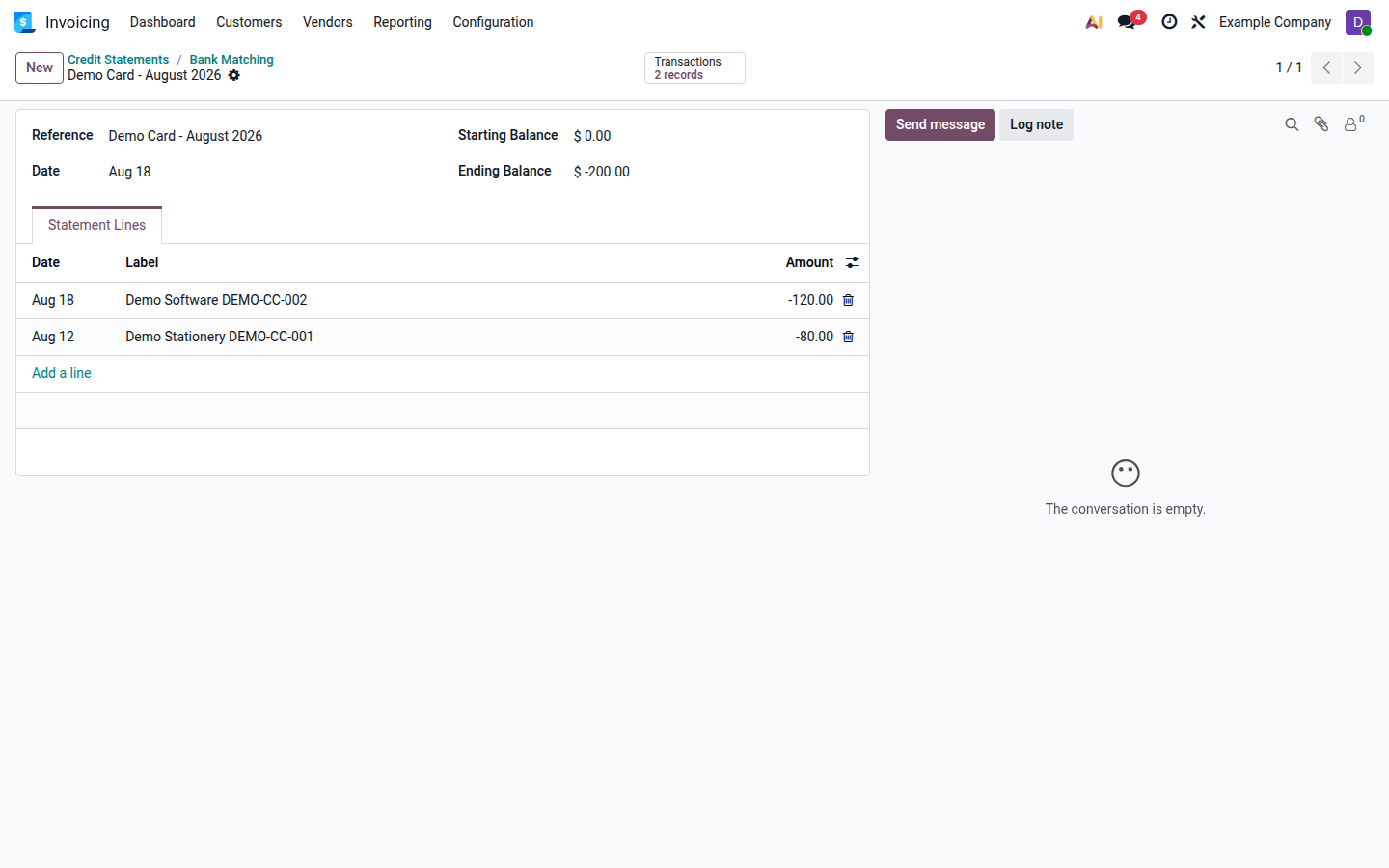
If the import has not already created a statement, group the period’s card transactions in Bank Matching. Use the Statement control above the newest transaction to include, then check the included lines: it takes all transactions since the preceding statement, including any older ungrouped lines. Enter the statement Reference, Starting Balance, and Ending Balance. Attach the issuer’s PDF if useful. The card journal’s Statements menu lets you review the credit statement. Grouping by statement is optional, but it makes the monthly balance check easier.
Open image at full size (new tab) -
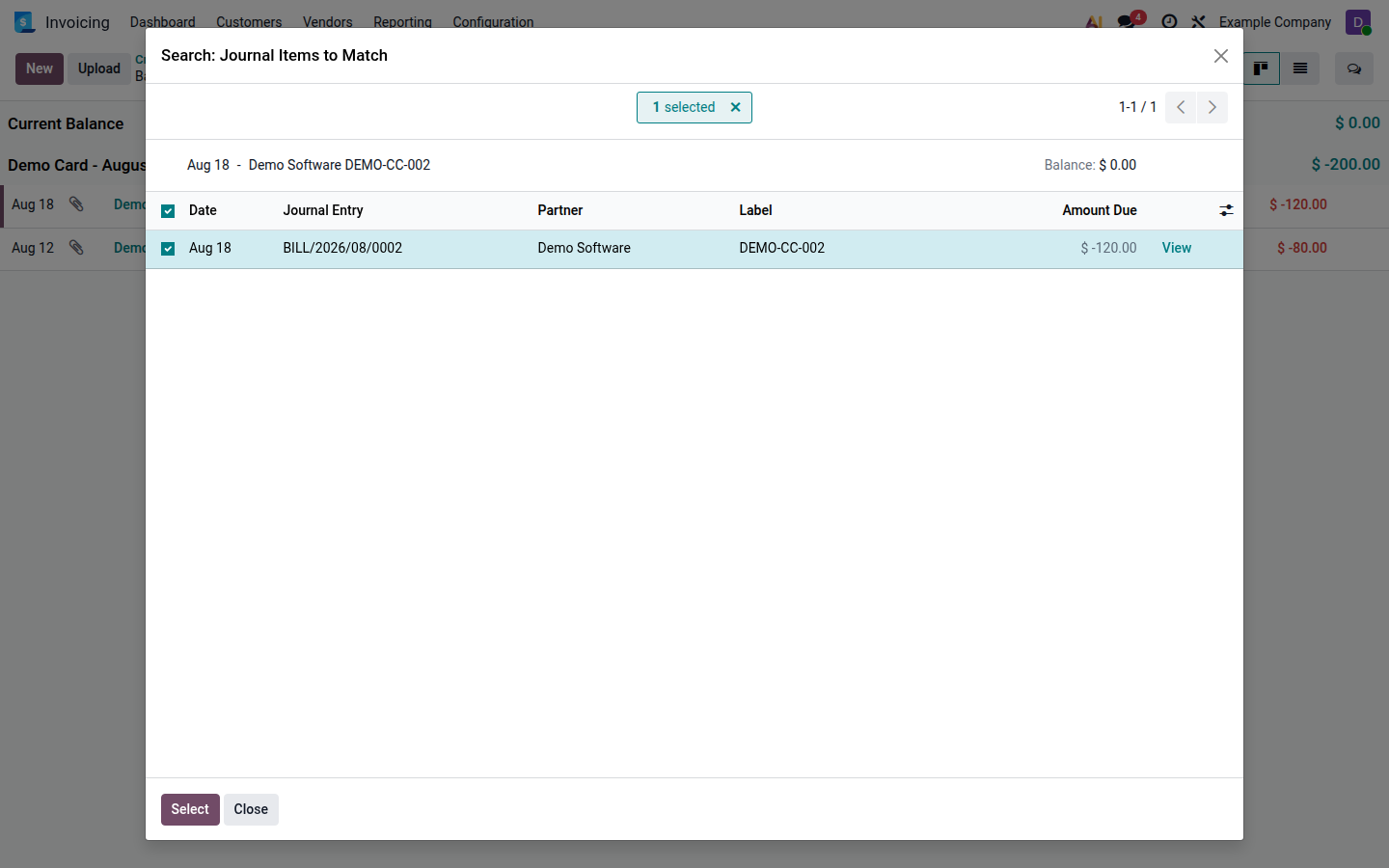
For each card charge, click Reconcile. Select the matching posted vendor bill and click Select. If you already used Pay on that bill with the Credit Card journal and its payment appears as a matching item, select that payment instead. Do not register a second payment for the same charge.
Open image at full size (new tab) -
Check that each charge is matched and that the bills show the expected payment status. For a fee without a bill, use an approved expense account; investigate an unidentified charge before assigning an account.
Record the single bank payoff
Section titled “Record the single bank payoff”The payment of the statement total is separate from the purchases. When the bank withdrawal appears, ensure the corresponding payment credit also appears in the card journal; enter that card transaction only if the card feed has not supplied it. It may appear on the next card statement.
If the Internal Transfers model is unavailable, ask your accountant to configure it using the Odoo 19 internal transfer guidance before matching the payoff.
- In Bank Matching, reconcile one side of the payoff with the Internal Transfers reconciliation model.
- On the other journal’s transaction, click Reconcile and select the transfer item created by the first side. This links the bank withdrawal to the card credit and reduces the card balance.
- Compare the card statement’s opening and closing balances with the issuer’s statement. Check that the bank withdrawal is matched and that the card payoff was recorded only once.
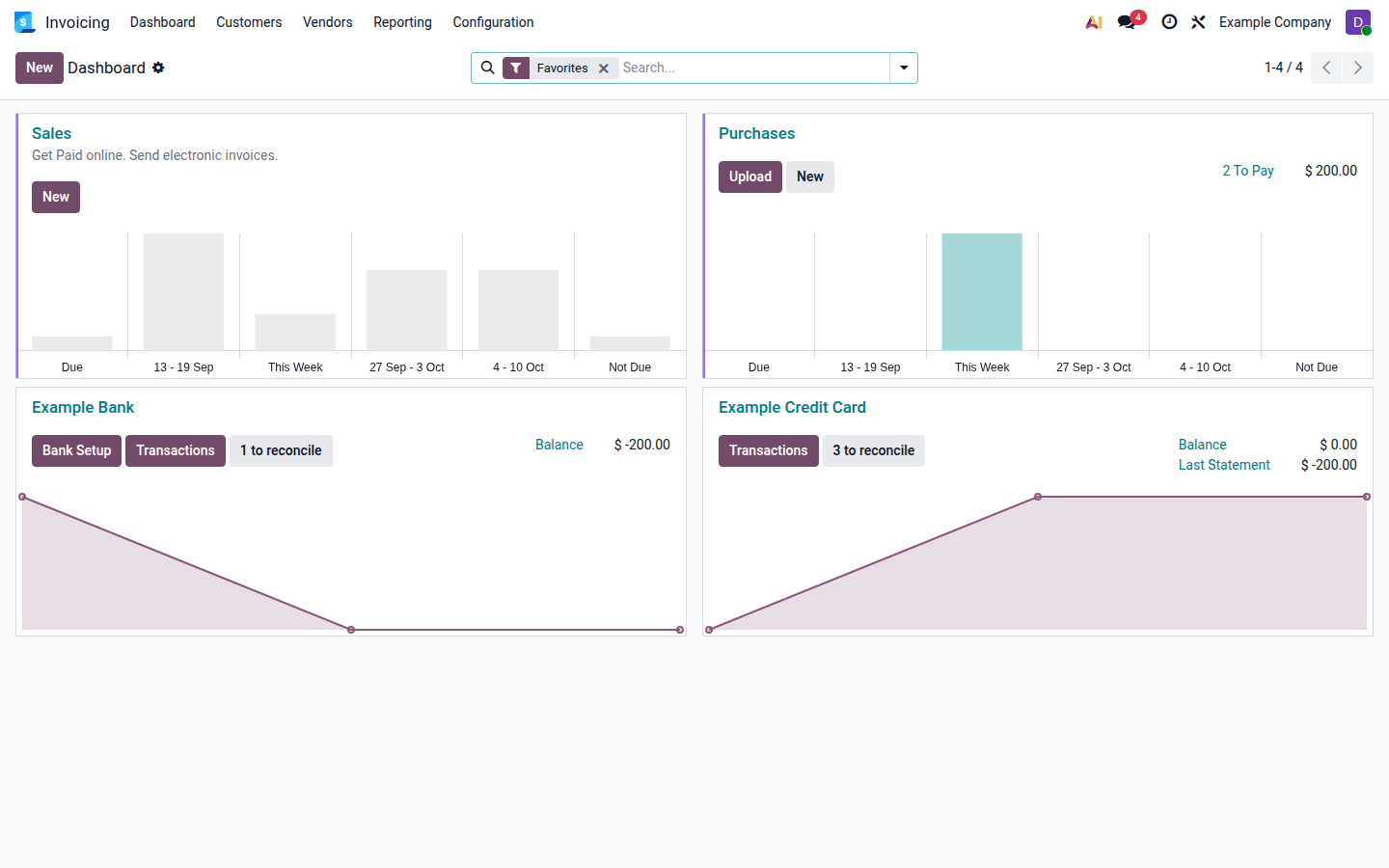
For example, with a zero opening balance, two card charges of $80 and $120 match two bills and produce a $200 amount owed on the card. Odoo shows this as a −$200 card balance, while the issuer may show $200 due. A later $200 bank payment clears that amount. Do not create a new $200 vendor bill for the card statement; the original bills already record the purchases.
See Odoo 19 — Import transactions, Bank reconciliation, and Internal transfers.