

Prepare and publish a webshop product
Quick summary: Review product content, prices, variants and website visibility before making the item available to visitors.
Before you start
Section titled “Before you start”You need access to eCommerce products and permission to edit or publish website content. The product’s sales, tax and stock setup must already be reviewed by the responsible owner. Publishing makes the page visible to visitors; saving a draft product does not.
Prepare and publish
Section titled “Prepare and publish”-
Open the eCommerce product list and remove Published from the search filters to find unpublished items. Search for the existing product before creating a new one.
-
Open the product and check its name, sale price, taxes, variants and image. Verify the sellable variants and any price differences; editing a shared product can also affect other sales channels.
-
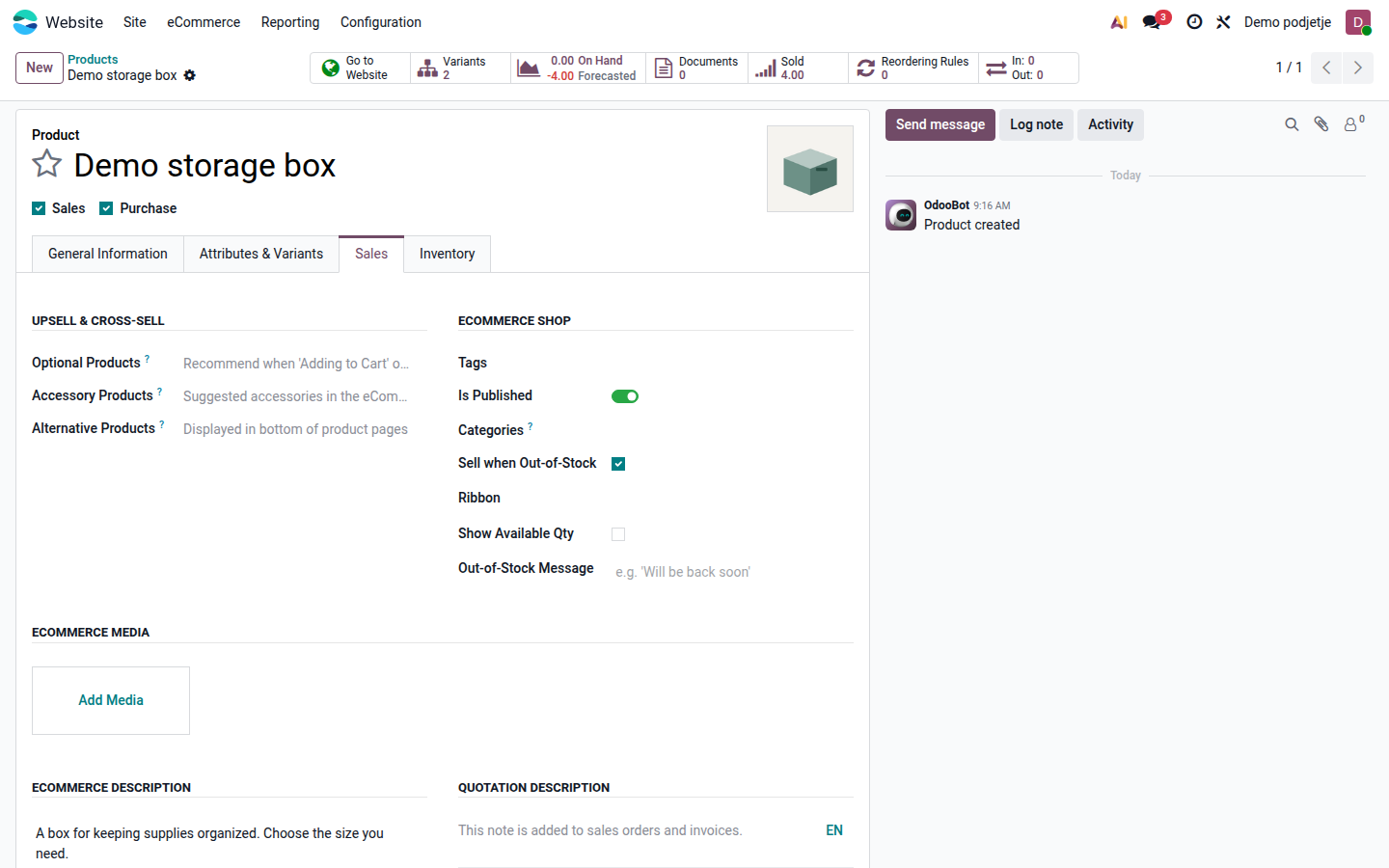
In Sales, add the e-commerce description and suitable product media. Keep technical specifications, included items and delivery information accurate. Translate the product name, description and variant labels for each website language.
-
Assign the relevant e-commerce categories. If several websites exist, review Website: a specific website restricts the product to that website; an empty field allows it on all websites. Do not leave it blank unintentionally.
Open image at full size (new tab) -
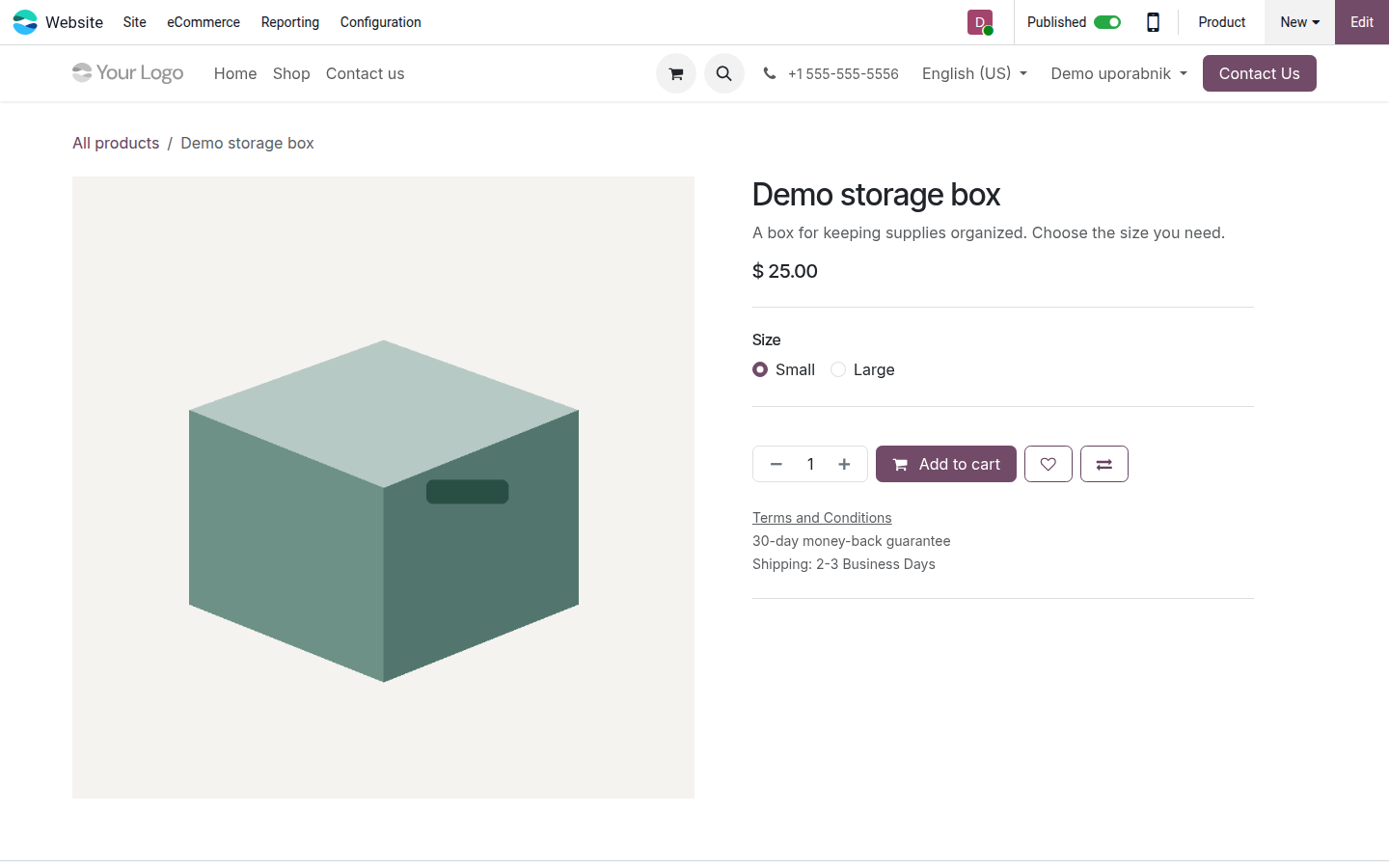
Click Go to Website. Inspect the product page on the intended website, including images, variant selection, displayed tax-inclusive or tax-exclusive prices and stock messages. If changes are needed in the editor, save them before publishing.
-
Change Unpublished to Published only after review. Check the shop and product page as a visitor, in each supported language and on a narrow screen.
Open image at full size (new tab)
Result and troubleshooting
Section titled “Result and troubleshooting”Visitors can find the published product within its website scope. Check both the catalog listing and the direct product page; publication and permission to buy are separate conditions. Stock policy, unavailable variants, website restrictions or inquiry-only pricing can prevent purchase even when the page is published.
To remove the product from public browsing, switch it back to unpublished and verify the visitor view. This does not cancel existing orders or remove the stock record. For catalog organization see shop categories; for incoming sales see process web orders.