

Enable developer mode
Quick summary: Enable developer mode, also called debug mode, when you need Odoo’s technical tools. You can activate it from Settings, by changing the URL, or through the command palette.
Before you start
Section titled “Before you start”- Sign in as an internal Odoo user. The Settings method requires administration rights; use the URL or command palette method if you cannot open general settings.
- Developer mode does not grant additional access rights. The technical tools and menus you can use still depend on your permissions.
Method 1: use Settings
Section titled “Method 1: use Settings”-
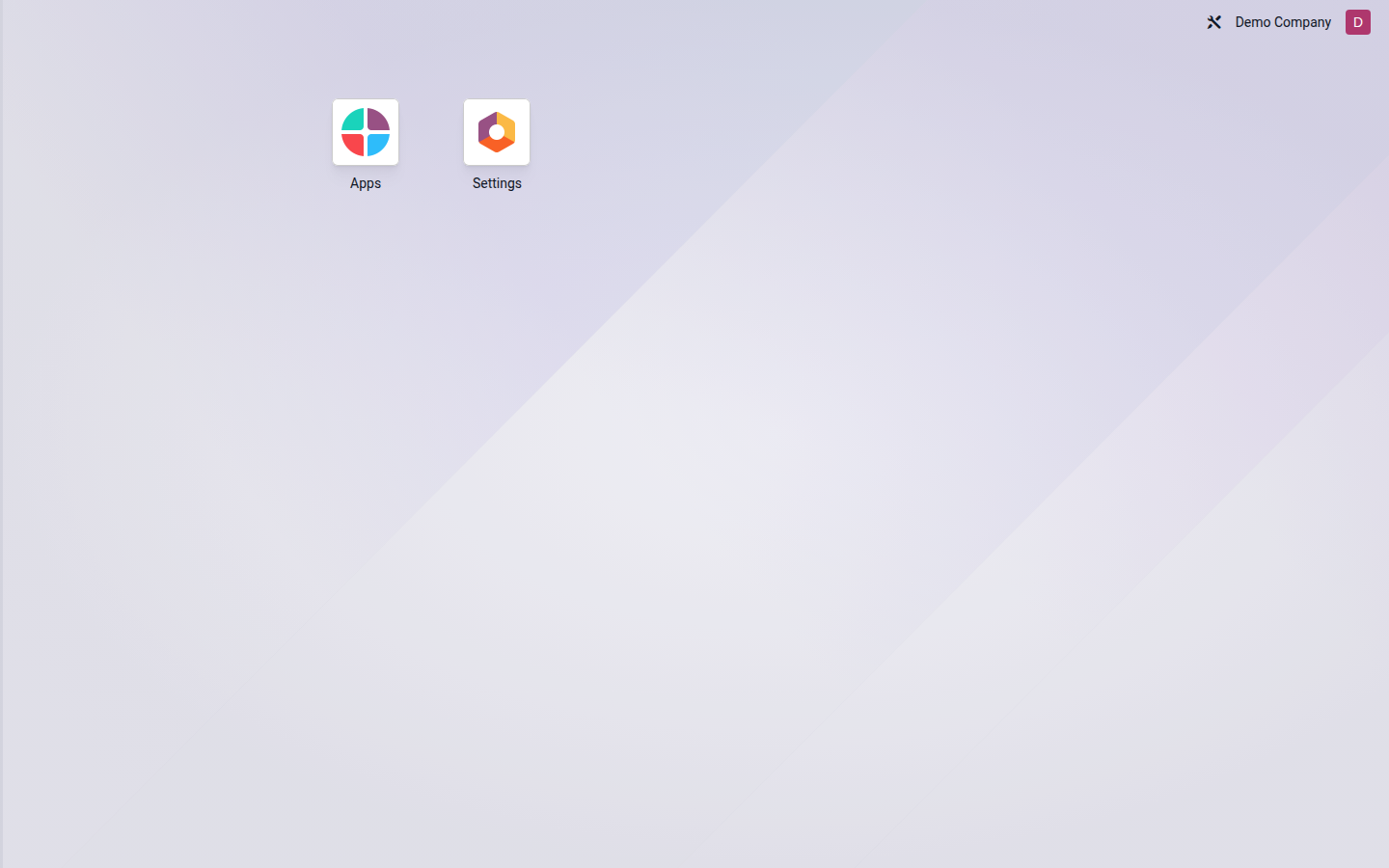
From the app launcher, click Settings.
Open image at full size (new tab) -
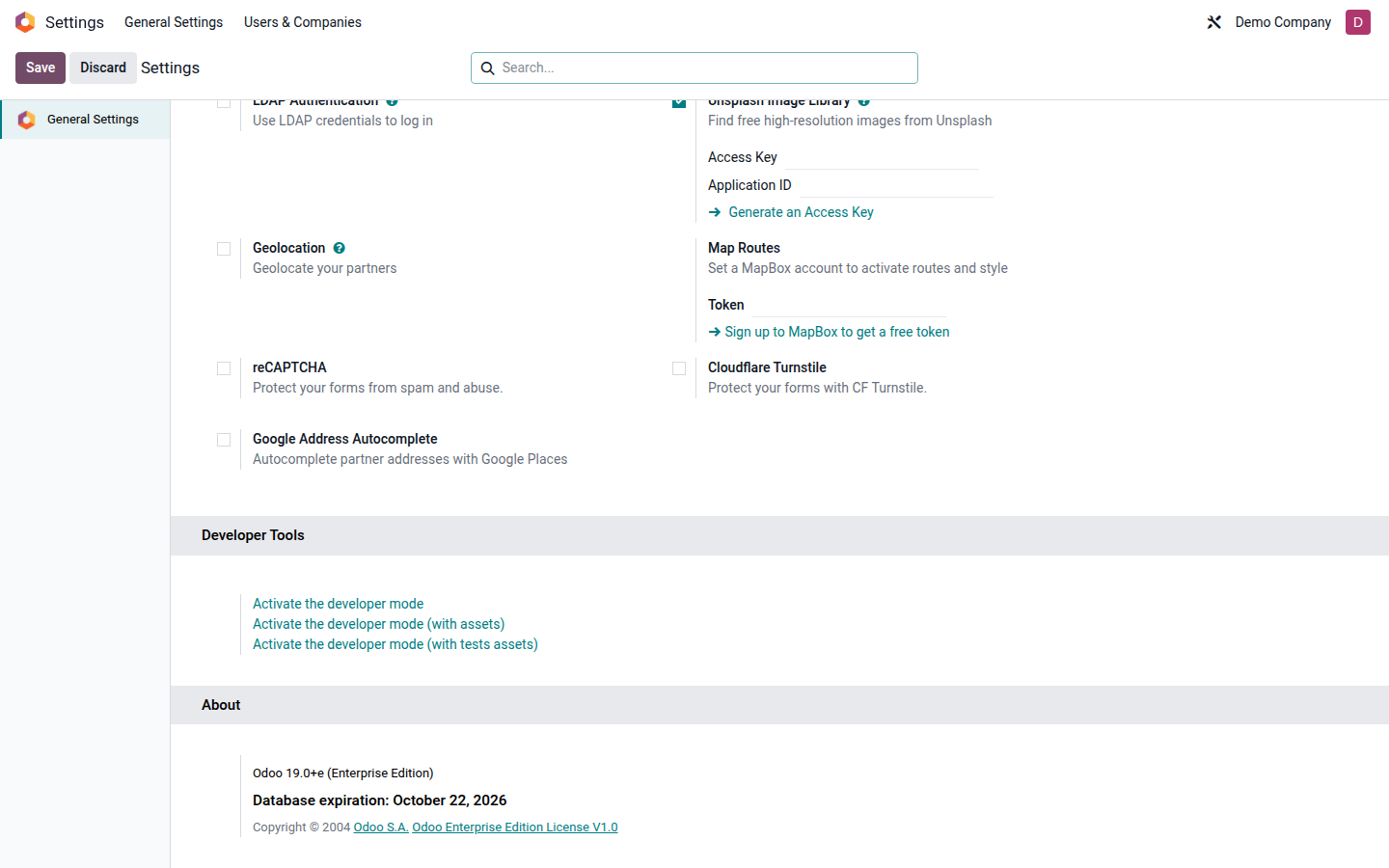
On General Settings, scroll to the bottom of the page until you reach Developer Tools.
Open image at full size (new tab) -
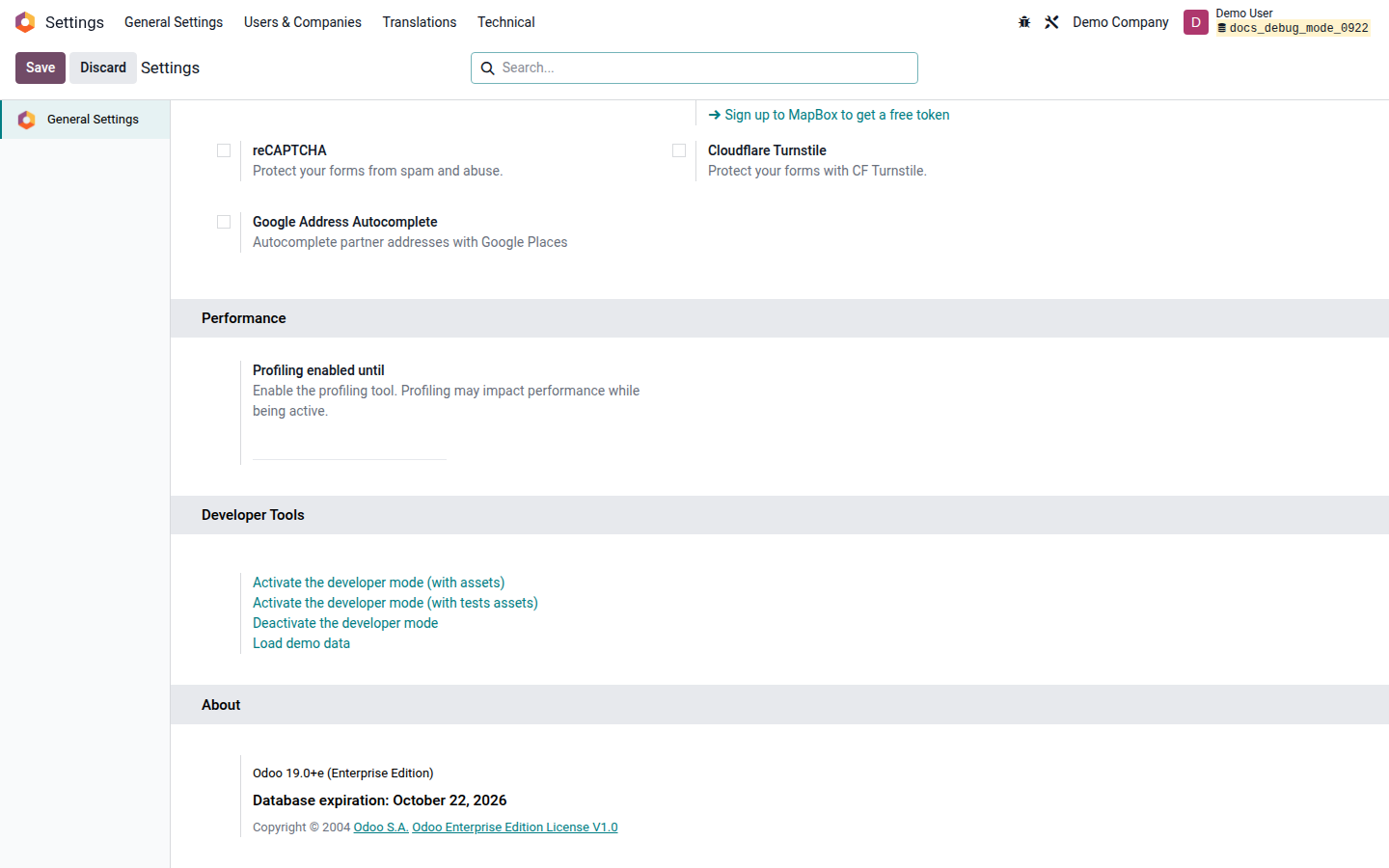
Click Activate the developer mode. Odoo reloads the page. The bug icon in the top bar and the Deactivate the developer mode link confirm that developer mode is active.
Open image at full size (new tab)
Method 2: change the URL
Section titled “Method 2: change the URL”Use this method from any page in the Odoo backend.
-
Click the browser’s address bar. If the address has no question mark, add
?debug=1at the end. For example:https://example.odoo.com/odoo?debug=1If the address already contains a question mark and other parameters, add
&debug=1instead. For example,https://example.odoo.com/odoo?existing_parameter=valuebecomeshttps://example.odoo.com/odoo?existing_parameter=value&debug=1. -
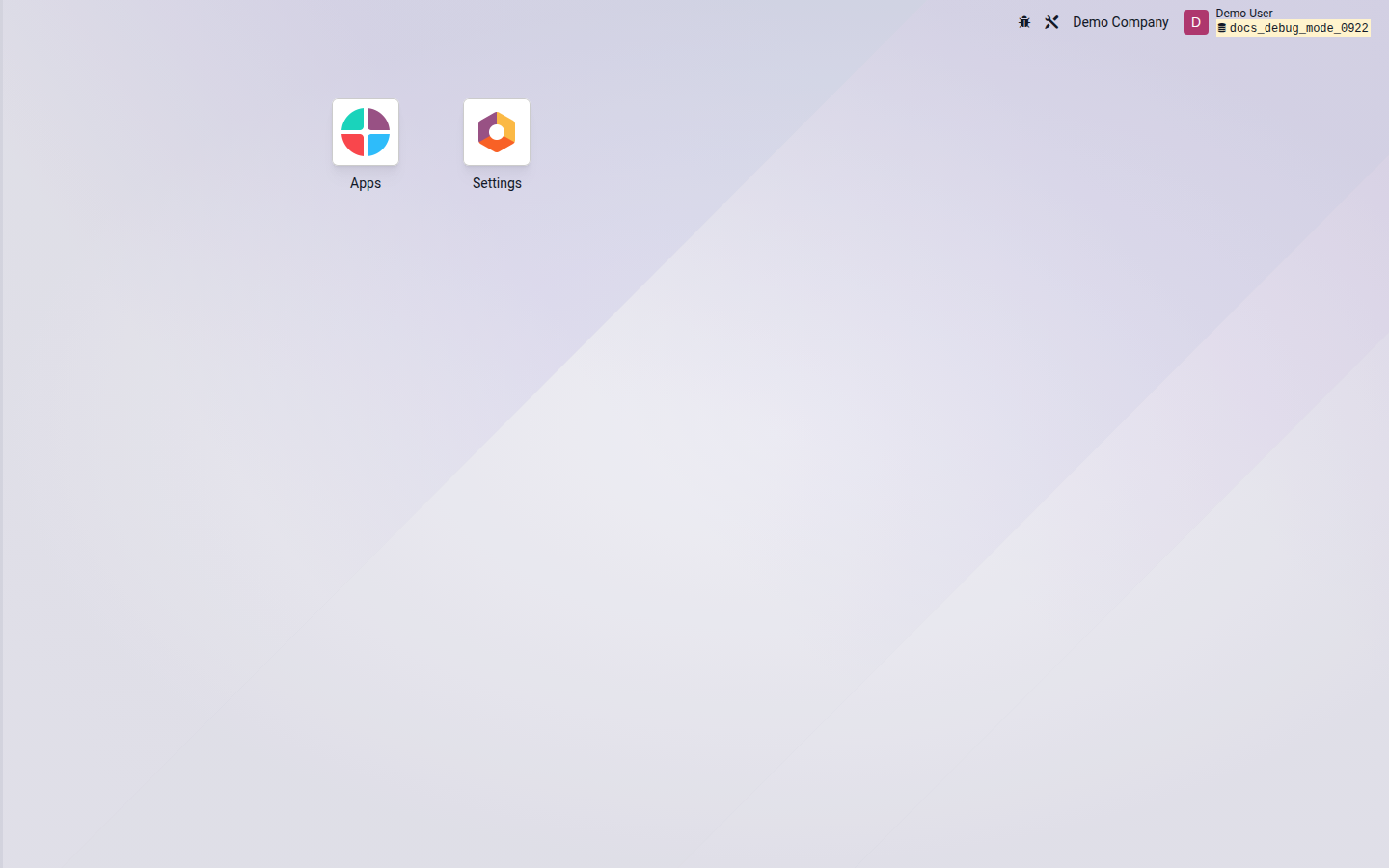
Press Enter to reload the page. The bug icon in the top bar confirms that developer mode is active.
Open image at full size (new tab)
Method 3: use Ctrl+K or Cmd+K
Section titled “Method 3: use Ctrl+K or Cmd+K”-
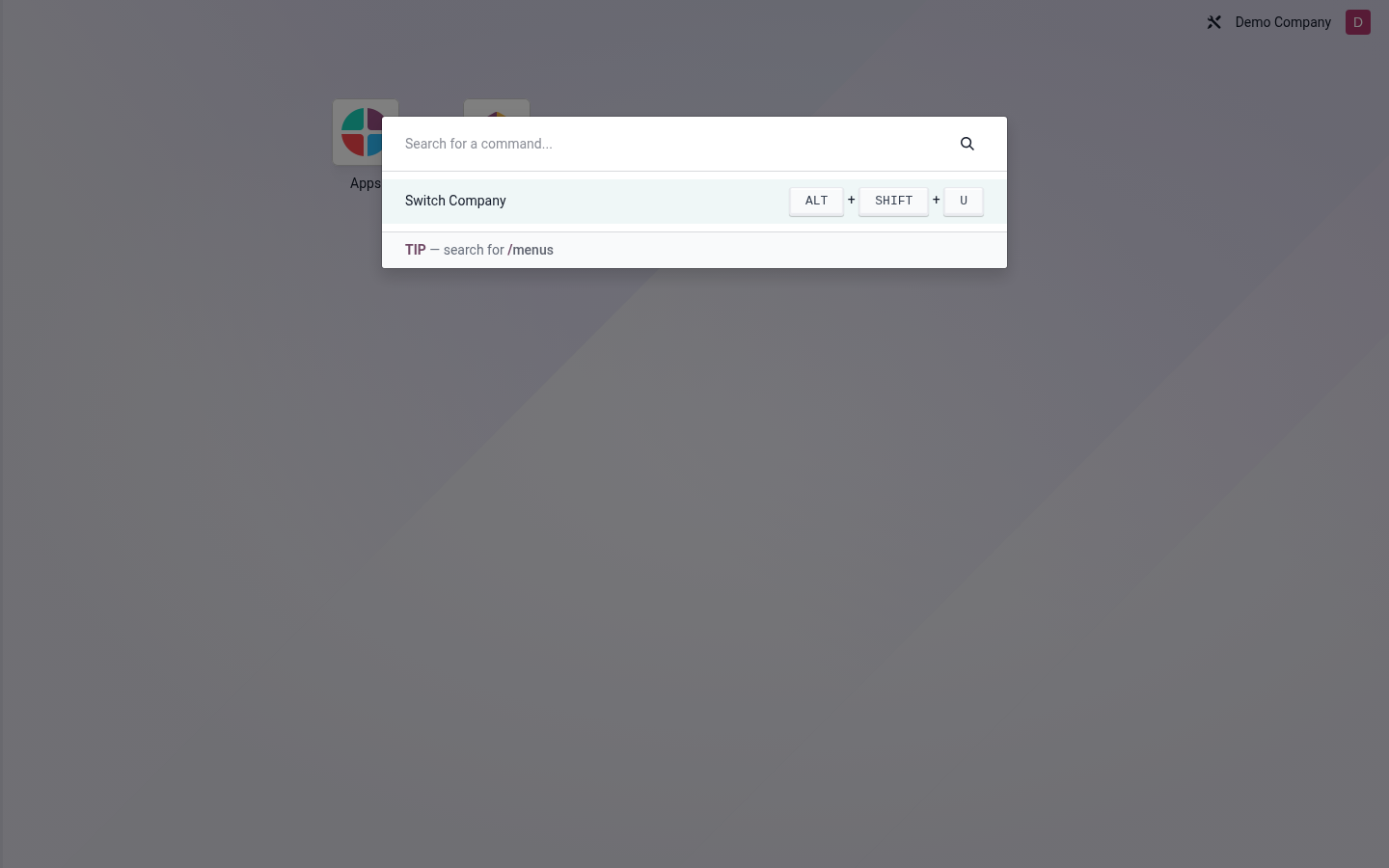
From any page in the Odoo backend, press Ctrl+K on Windows or Linux, or Cmd+K on macOS. The command palette opens.
Open image at full size (new tab) -
Type
debug. Odoo displays the available debug commands.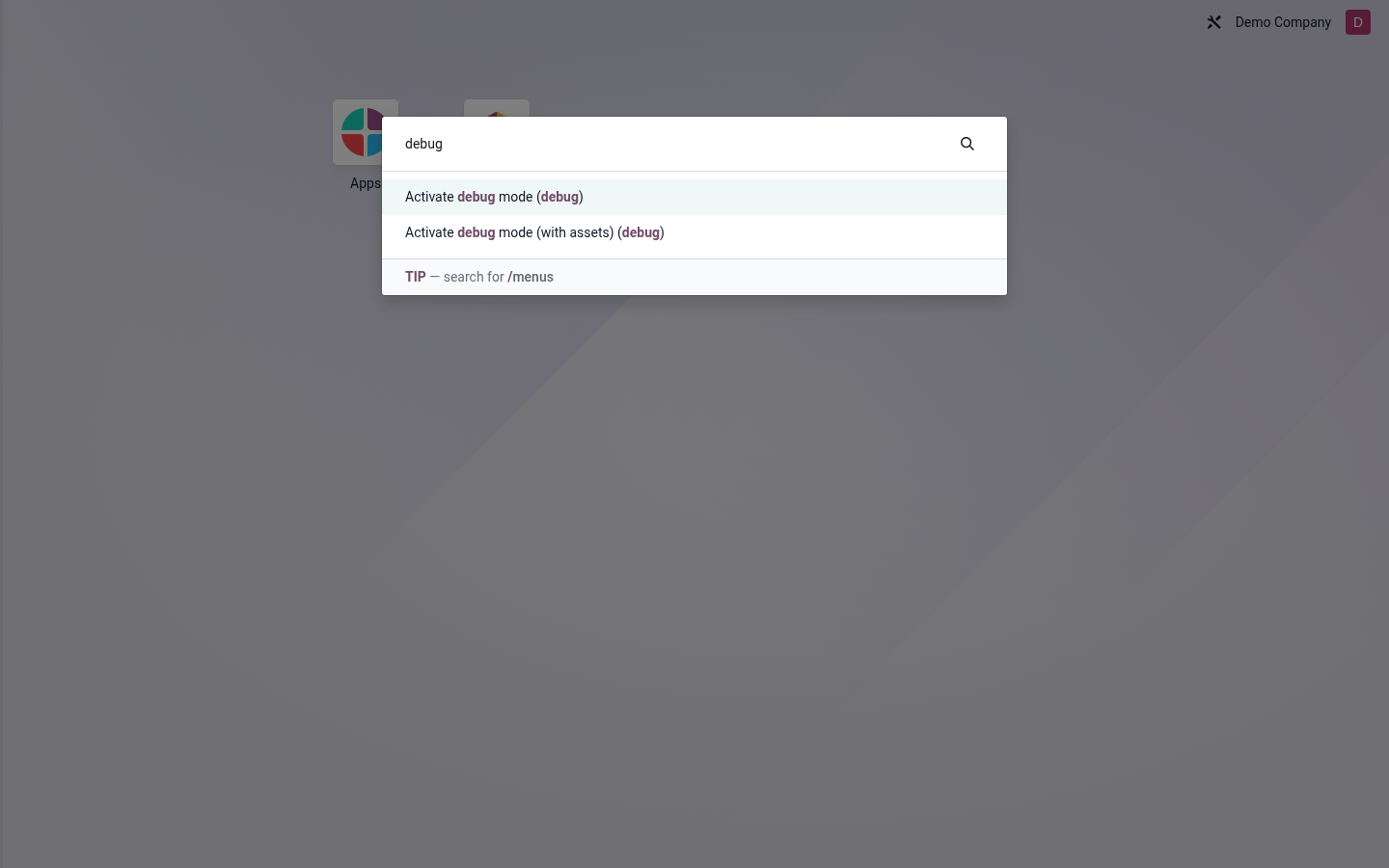
Open image at full size (new tab) -
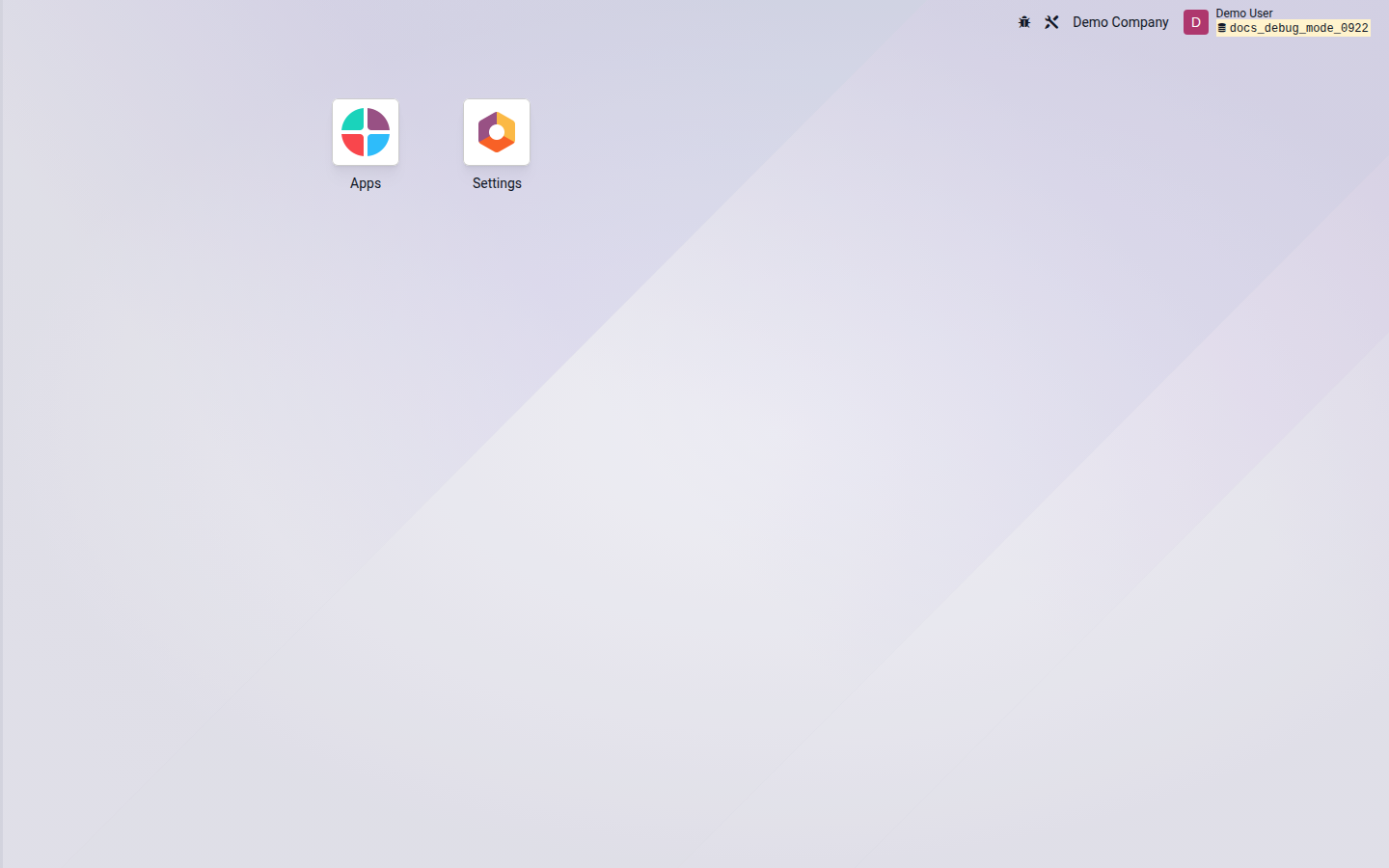
Press Enter to select the highlighted Activate debug mode (debug) result, or click that result. Do not choose Activate debug mode (with assets) (debug) for ordinary use. Odoo reloads the page, and the bug icon confirms that developer mode is active.
Open image at full size (new tab)
Turn developer mode off
Section titled “Turn developer mode off”Use any of these options:
- In Settings > General Settings > Developer Tools, click Deactivate the developer mode.
- Replace the URL parameter with
?debug=0and press Enter. - Open the command palette, type
debug, and select Deactivate debug mode.
After Odoo reloads, the bug icon disappears. See Odoo 19’s official developer mode guide for additional technical options.