

Access your portal and documents
Quick summary: The portal shows documents shared with your account; it is separate from the employee workspace.
Sign in and find a document
Section titled “Sign in and find a document”-
Open the invitation or document link sent by your supplier. Check the sender and website address before entering your credentials.
-
Complete the account invitation if required, or sign in with the invited email address. Use the website’s account menu to open My Account.
-
Choose the available quotation, order, or invoice section. The sections depend on the supplier’s applications and what is shared with you.
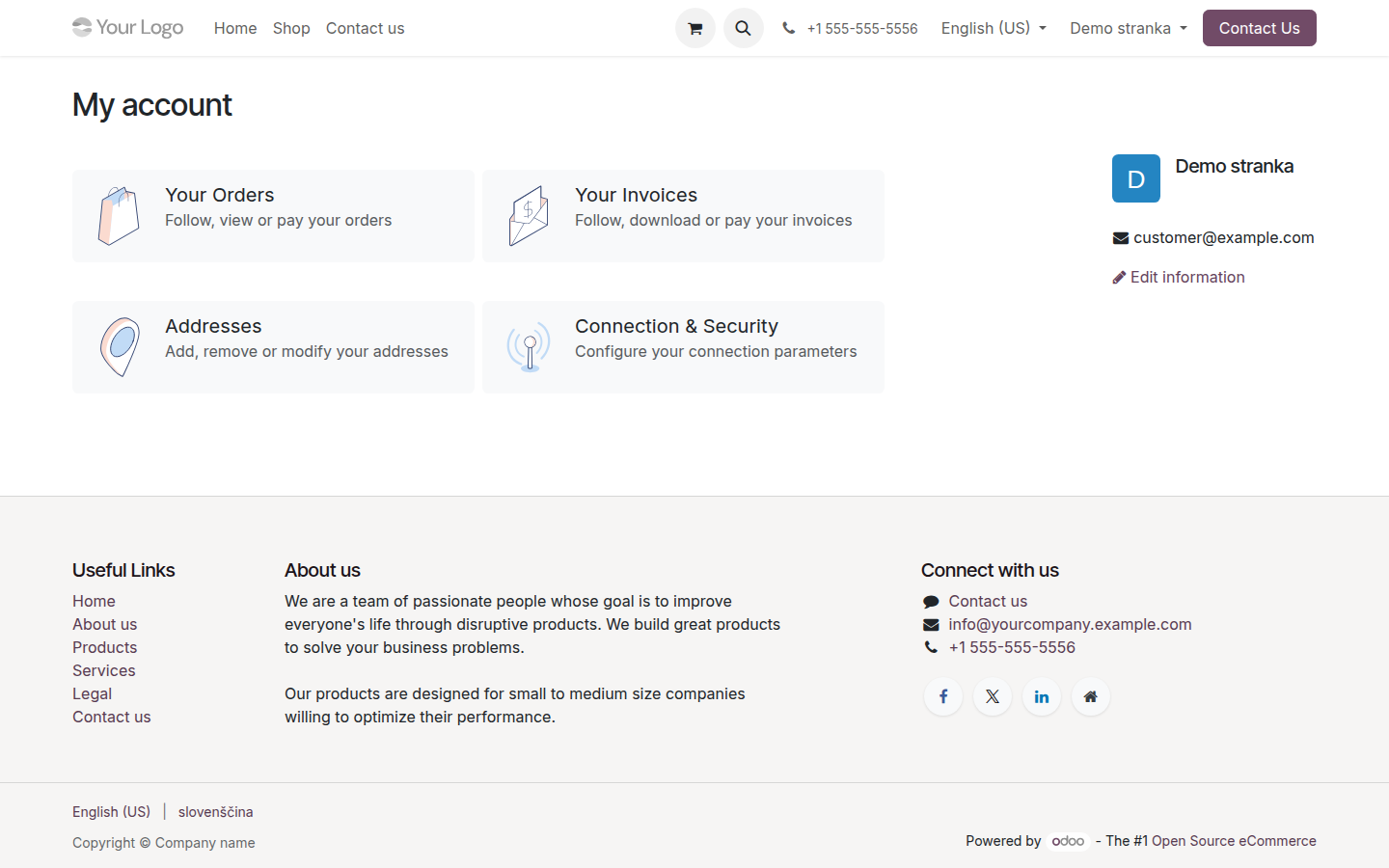
Open image at full size (new tab) -
Search or filter the list, then open the document and check the company, reference, date, and amount.
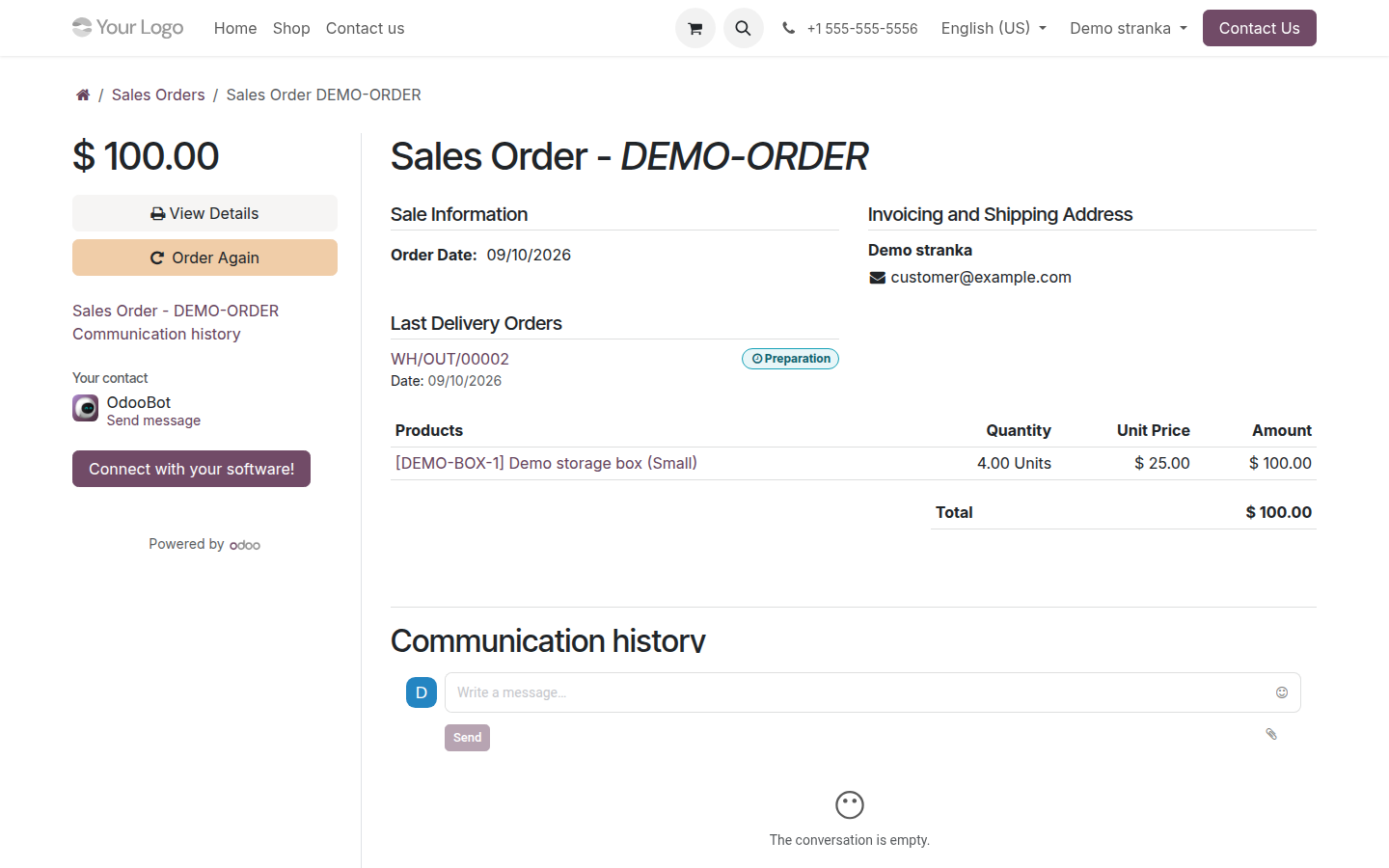
Open image at full size (new tab) -
Use the document’s download or print action to keep a copy if needed. Review its status before acting on it.
Missing documents or access
Section titled “Missing documents or access”Confirm that you are using the invited account and the correct supplier website. A contact at the same company does not necessarily have the same access. Ask the supplier to check the sharing and contact relationship; do not create duplicate accounts to recover missing documents.
Use the password-reset option when available. Account details that affect issued invoices may require the supplier to update them. Do not forward private document links to people who should not see the document.
Next: accept or pay a document or follow support and project work.