

Employee training and attendance records
Quick summary: Use Employees to collect records of completed employee training. Dates, hours, and supporting documents provide a learning history for onboarding, skills development, and checking job requirements.
Choose the appropriate approach
Section titled “Choose the appropriate approach”| Need | Use | What you record |
|---|---|---|
| An employee completed an external seminar, workshop, or other training | Training Attendances | Employee, title, date, hours, and an optional certificate file |
| Employees should work through online learning material in Odoo | eLearning | Course content, attendees, and progress |
| You are organizing group training on a particular date | Onsite through Events | Event, schedule, and attendee registrations |
| You need to track the validity of an awarded qualification | Certifications | Certification, level, and validity period |
Training Attendances records completed learning. Use a course, event, or agreed activity to arrange future training; a future date is not evidence of attendance. This register also does not replace working-time check-in and check-out in the Attendances app.
For example, when Nika Zelenik completes occupational safety training, record its date, hours, and supporting document here. Add a separate qualification certification to track its renewal deadline. Track a periodic medical examination as a separate fitness-for-work certification; the examination itself is not completed training. All names and data in the screenshots are fictional.
Record completed training
Section titled “Record completed training”-
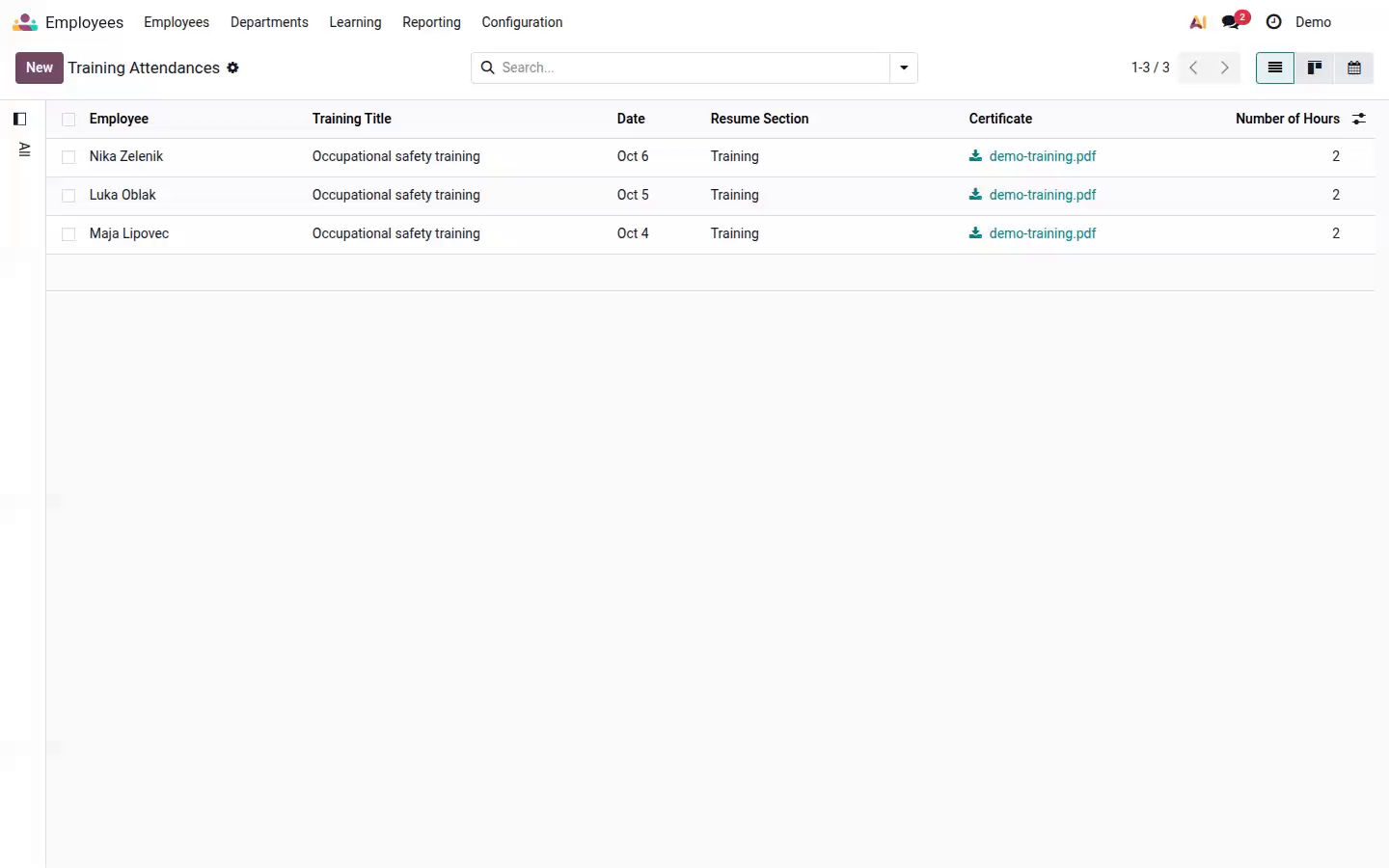
Open Employees > Learning > Training Attendances and click New. A new row opens in the list.
-
Select the employee in Employee and enter a recognizable Training Title, such as “Occupational safety training”.
-
In Date, enter the date the training was completed. Correct the default of today if needed.
-
In Resume Section, select Training or another configured training section.
-
Upload supporting documentation in Certificate, if available. Enable the optional Number of Hours column and enter the duration in hours; enter 2 for a two-hour session.
Open image at full size (new tab) -
Finish editing the row to save it. Refresh the list and check the employee, date, and attachment. For several attendees, create one record per employee.
To add a description or link, open the existing training entry on the employee record’s Resume tab. You can update the description, duration, and optional External URL, then click Save & Close. Edit the existing record to avoid duplicating the training.
Online courses in eLearning
Section titled “Online courses in eLearning”This option is available when eLearning and its Employees integration are installed.
Open Employees > Learning > Courses > eLearning. The person responsible prepares the course, adds material, and manages attendees here. Before sending invitations, check recipients and wording: an invitation can send email to employees.
When the employee’s linked user completes a course, the eLearning integration adds the completed training to their employee record. Enrolling in a course alone does not mean it is complete. Before adding a manual entry, check whether the record already exists to avoid duplication.
Training through Events
Section titled “Training through Events”This option is available when Events and its Employees integration are installed.
Open Employees > Learning > Courses > Onsite. Use an event for the schedule, location, and registrations. This overview shows events with registered employee contacts, so it may differ from the full events list. Creating an event here can also register the current employee user automatically; check the attendee list.
Before inviting attendees or publishing, check the event’s communications: registrations can trigger configured confirmation messages, invitations send email, and publishing makes the event visible on the website. Registration alone does not confirm completed training. After the session, verify attendance and the training register, and add missing records as needed.
Result and common problems
Section titled “Result and common problems”Completed training appears in Training Attendances and the employee’s resume. Review records by employee, department, or company where available, and check the date and supporting document.
- The record is missing from the shared list: check that it uses a training section. Ordinary education or work-experience entries do not appear here.
- The eLearning or Onsite menu is missing: ask an administrator to check installed apps, their Employees integrations, and access rights.
- An online course is complete but no entry appears: check that the user who completed it is linked to the correct employee.
- You need a renewal date: use certifications and schedule an activity to arrange the next training session.