

Request a document from a coworker or customer
Quick summary: Create one tracked request in Documents. A coworker gets an assigned activity and document access; an external customer contact without an Odoo user gets an email with a secure upload link and does not need to sign in.
Create the request
Section titled “Create the request”- In Documents, select the folder where the completed file belongs. You cannot request a file directly in the company root.
- Click New > Request.
- Enter a clear Document Name, such as
Signed agreement. - In Request To, select the recipient:
- For a coworker, select the contact linked to their Odoo user.
- For an external customer, select a contact with no Odoo user when they should use the public upload page shown below.
- Set Due Date In. Check the prefilled Folder, and add Tags and a Message when they help the recipient or your team.
- Click Request. Odoo creates a placeholder in the selected folder and sends the request email immediately.
What happens for each recipient
Section titled “What happens for each recipient”Coworker
Section titled “Coworker”Odoo assigns the upload activity to the coworker’s user and gives them edit access through the activity deadline. They can open the request from the email or their activities and upload the file into the placeholder.
External customer
Section titled “External customer”For a contact without an Odoo user, Odoo keeps the activity assigned to the requester and emails the customer a secure upload link. The customer can upload without signing in. Do not forward this link. Before completion, anyone who has it can submit the requested file; afterward, the same link permits viewing and downloading the uploaded file.
What the customer sees
Section titled “What the customer sees”-
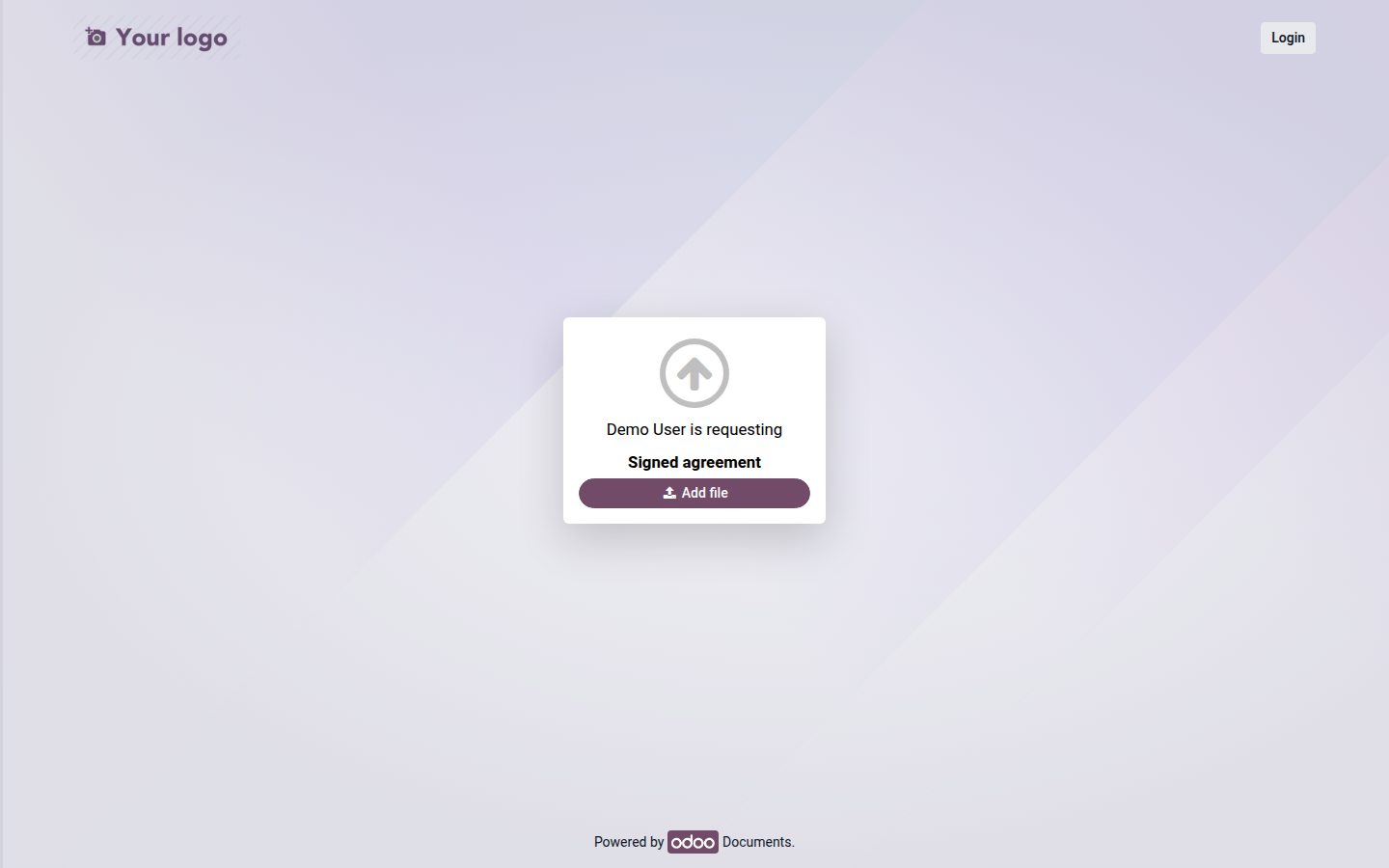
The customer opens the email and clicks Upload the requested document. The page identifies the requester and the requested document.
Open image at full size (new tab) -
The customer clicks Add file and selects one file. Upload starts immediately.
-
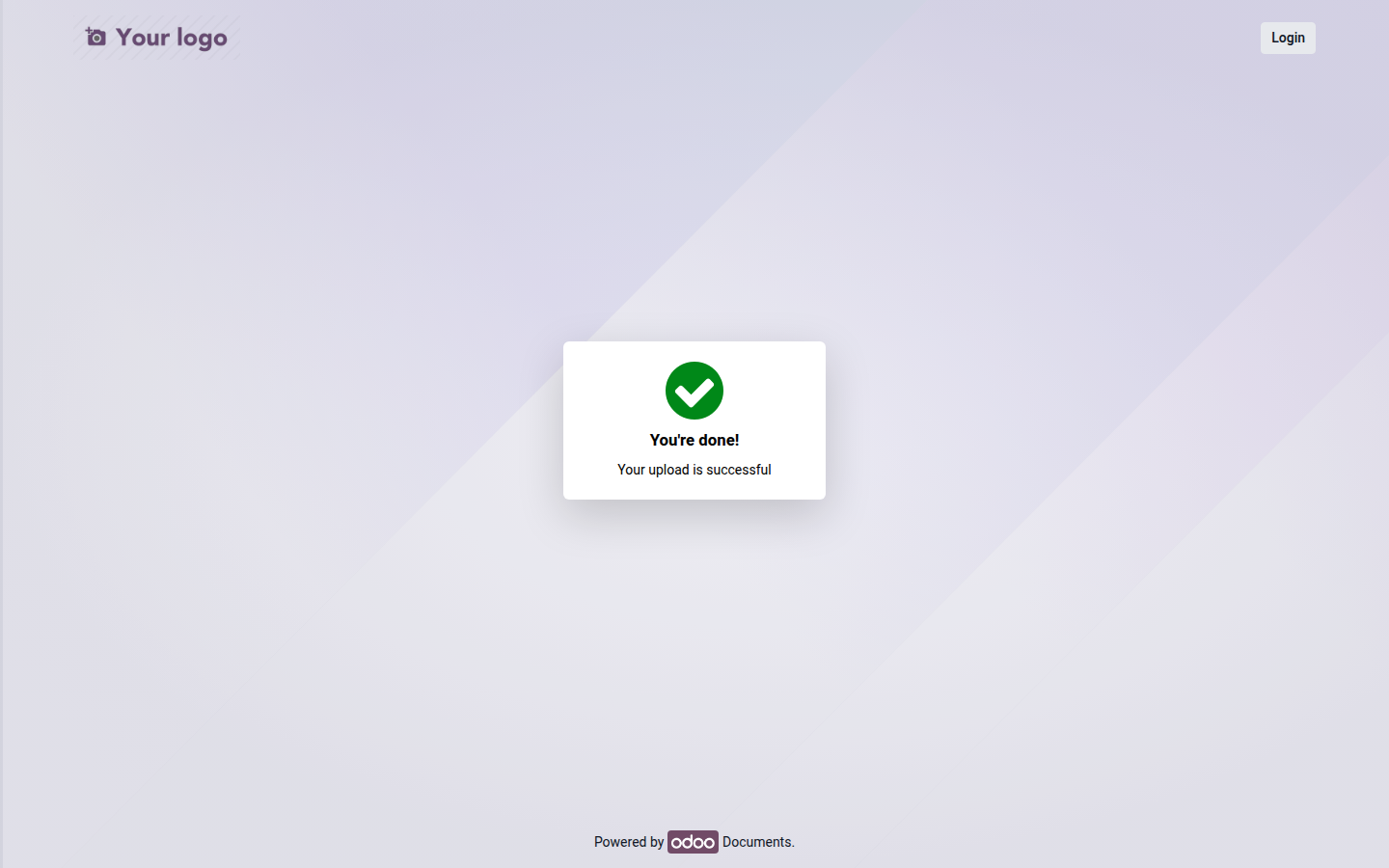
Odoo displays a confirmation after a successful upload.
Open image at full size (new tab)
The uploaded file replaces the placeholder, completes the request activity, and changes the public link to view-only access.
Track and remind
Section titled “Track and remind”Switch Documents to the activity view and find the request in the Requested Document column. Open its date to upload the file yourself, edit or cancel the activity, or send a reminder. Use Preview to check the reminder email before Send Now.
The deadline is the expected response date; it does not by itself guarantee that an external customer’s public link has expired. Cancel an obsolete request instead of relying on the date alone.