

Import and export records
Quick summary: Export records before preparing an import. Use a regular export for analysis and an import-compatible export for updating existing records. When importing, decide first whether each file creates new records or updates existing ones, then test a small sample before changing the full dataset.
Before you start
Section titled “Before you start”Use a desktop browser and open the list for the type of record you need, such as contacts, products, orders, or journal entries. The available actions and fields depend on the view and your access rights. If Export or Import records is missing, ask your administrator to check your permissions.
For a bulk change, agree on its scope and recovery plan with the record owner. Keep the original file and an export of the values you intend to change. For a large or sensitive import, arrange a database backup or test the process in a test database. A spreadsheet export is not a complete database backup.
Exports can contain personal or commercial data. Include only necessary fields and store the files in an approved location.
Exporting records
Section titled “Exporting records”The following example uses products, but the same export dialog is available from other supported record lists.
Choose the correct export mode
Section titled “Choose the correct export mode”Decide how the file will be used before selecting its fields:
| Export mode | Use it for | Fields and record identification |
|---|---|---|
| Regular export | Analysis, reporting, sharing, or keeping a working extract | The update checkbox stays clear. Odoo offers a broader set of exportable fields, including fields that cannot be imported. External ID is not added automatically. |
| Import-compatible export | Editing values and importing them back into the same database | Enable I want to update data (import-compatible export). Odoo limits the list to importable fields, uses technical field names as column headers, and automatically adds the External ID column (id) so it can identify each existing record. |
A regular export is not automatically a safe update file. It can contain calculated or read-only fields, and it may not contain the identifier Odoo needs to find the original records. Start with an import-compatible export whenever you plan to update data.
Export the selected records
Section titled “Export the selected records”-
Open the relevant list, apply the required filters, and check the active company and result count. Switch to list view when necessary. Select the records to export and confirm whether you selected only the visible page or all records matching the search.
-
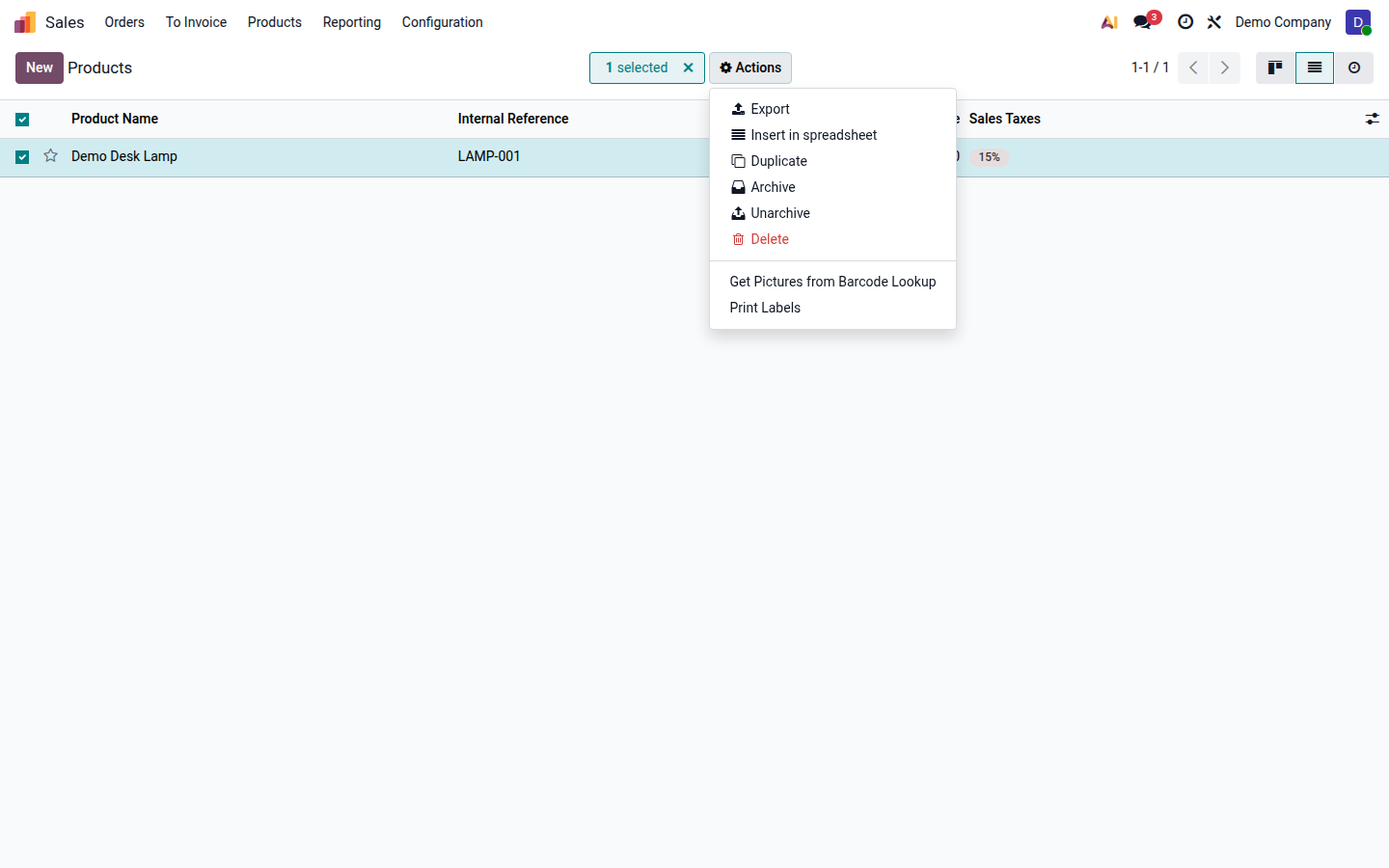
Open Actions and click Export. In this product example, the path is Sales > Products > Products.
Open image at full size (new tab) -
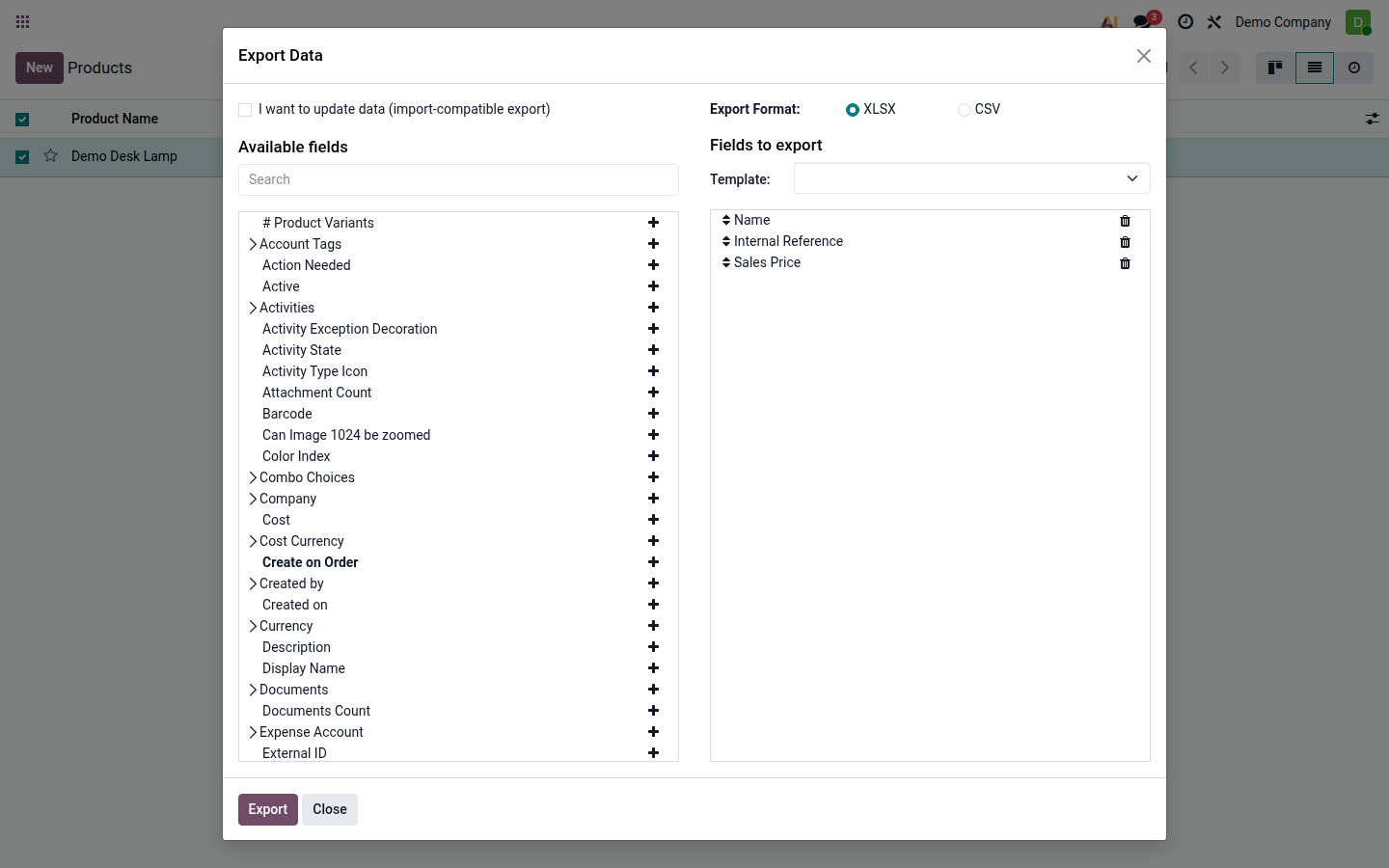
In Export Data, choose the mode before building the field list. For a regular export, leave I want to update data (import-compatible export) clear. Select the fields needed for analysis or reporting.
Open image at full size (new tab) -
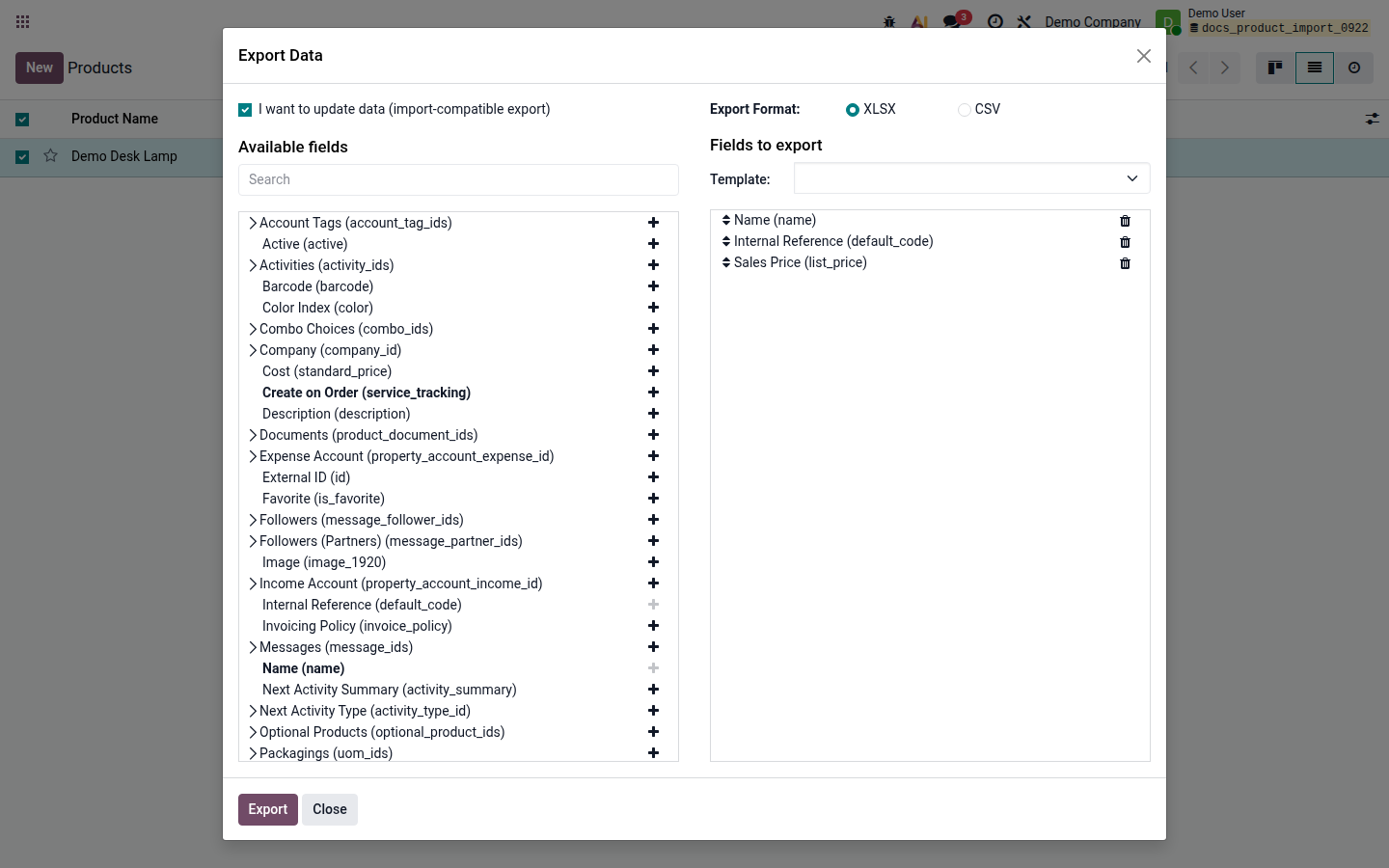
If the file will update existing records, enable I want to update data (import-compatible export). If you also need to find fields by their technical names, close the dialog, enable developer mode, and open Export again. Technical names then appear in parentheses and can be entered in the field search.
Open image at full size (new tab) -
Under Available fields, search for a field and click its plus icon to add it to Fields to export. Expand a related field when you need one of its subfields. Add only the data you need; drag selected fields to change their column order or remove them with the trash icon.
In import-compatible mode, Odoo adds the External ID column (
id) to the downloaded file automatically, even though it is not shown in Fields to export. The other downloaded column headers also use their technical field names. -
Choose XLSX for convenient manual work in a spreadsheet, or CSV for a plain-text exchange file. CSV requires extra care with encoding, delimiters, and number formats. Click Export.
-
Open the downloaded file and verify its columns and records. Keep an untouched copy. If you will update records, edit a separate working copy and never change its External ID (
id) values.
For recurring extracts, save the selected field list as an export template. A saved template remembers the fields and their order; it does not save the current records or filters.
Importing records
Section titled “Importing records”Importing can either create new records or update existing ones. Keep these purposes separate while preparing the file; using different files for creation and updates makes the result easier to review.
Decide whether to create or update
Section titled “Decide whether to create or update”| Your intention | How Odoo identifies the row | Safe preparation |
|---|---|---|
| Create a new record | No existing record has the row’s External ID | Include all required fields. Assigning a new, unique external ID is strongly recommended so later imports can update the same record. |
| Update an existing record | The unchanged External ID matches an existing record in this database | Begin with an import-compatible export. Keep the external ID and only the columns you deliberately intend to change. |
| Link to another record | A relation value identifies the related record, preferably by its external ID | Import the related records first. Use their exact unique names only when there is no ambiguity. |
A matching name, email address, internal reference, or spreadsheet row number does not reliably turn a row into an update. If the external ID is missing, changed, or unknown, Odoo can create a duplicate instead of updating the intended record.
Preparation of a file that creates new records
Section titled “Preparation of a file that creates new records”- Open Import records from the destination list and download its import template when one is available. A template supplies recognized column headings and sample structure. You can also prepare your own XLSX or CSV file.
- Use one header row and one row per simple record. Include every required field for a new record. Most records require Name.
- Give each row a new, stable External ID, such as
catalog_product_001. The external ID is optional for the initial creation but makes later updates safer. - Make sure related values such as companies, categories, units, taxes, or countries already exist and match unambiguously. Use the related record’s external ID when names are duplicated.
Preparation of a file that updates existing records
Section titled “Preparation of a file that updates existing records”- Start from the import-compatible export created in the first part of this guide.
- Keep every External ID exactly as exported. Do not replace it with a name, internal reference, or row number.
- Keep only External ID and the columns you intend to update. An omitted column stays unchanged, while a mapped empty cell can clear the existing value. Review blanks carefully.
- Change the intended values in a working copy. For example, a product price update needs only External ID and Sales Price; Name is unnecessary unless it is also being changed.
Import translations of text fields
Section titled “Import translations of text fields”To import translations of a regular text field in the same spreadsheet, name each translated column using this pattern:
<technical field name>@<language code>
For example, name@sl_SI imports the Slovenian translation of the Name field (name). The language must already be active in Odoo, and the suffix must use its exact code. Importing multiple translations in one file is supported. Keep the unchanged External ID in each row when translating existing records.
id |
name@en_US |
name@sl_SI |
|---|---|---|
catalog_product_001 |
Office Chair | Pisarniški stol |
This shortcut is for importing translations of regular text fields. The regular export does not create the language-suffixed columns.
Do not use this shortcut for HTML fields, such as Description (description), Description for the website (website_description), or eCommerce Description (description_ecommerce) on products. For HTML content, follow Import and export record translations.
Check spreadsheet values
Section titled “Check spreadsheet values”- Store external IDs, postal codes, barcodes, and references as text so leading zeroes are preserved.
- Use consistent dates and numbers. For CSV dates,
YYYY-MM-DDavoids day/month ambiguity. Check the detected decimal separator, thousands separator, CSV delimiter, and encoding in the import preview. - For orders or other records with multiple lines, export a small working example and follow its row structure. Do not flatten or repeat lines without testing how Odoo groups them.
- Do not enable automatic creation of missing related values merely to bypass spelling mistakes or ambiguous matches.
Upload, test, and import
Section titled “Upload, test, and import”-
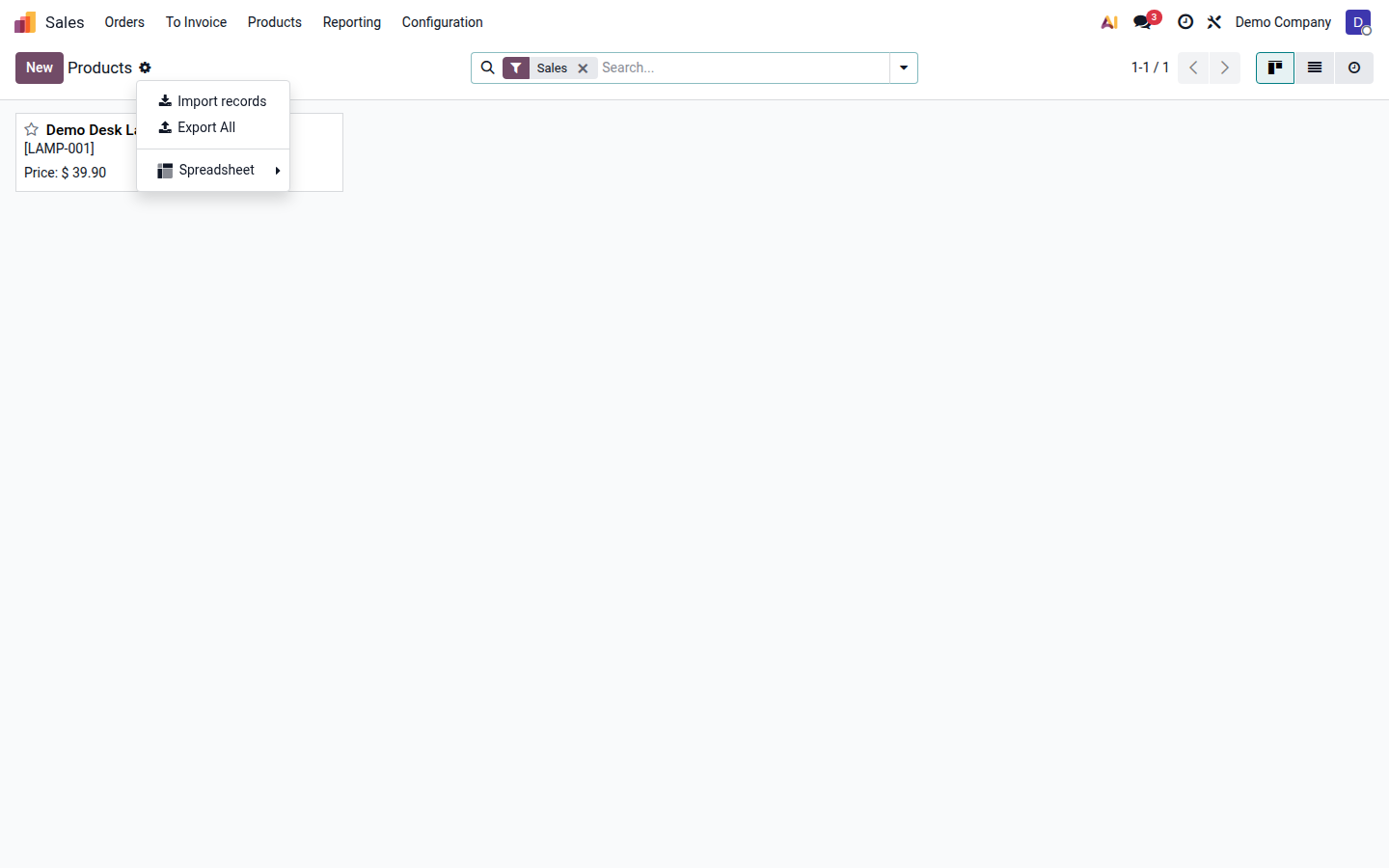
Return to the correct record list. Open the gear menu beside the list title and click Import records. The product example below shows the action under Sales > Products > Products.
Open image at full size (new tab) -
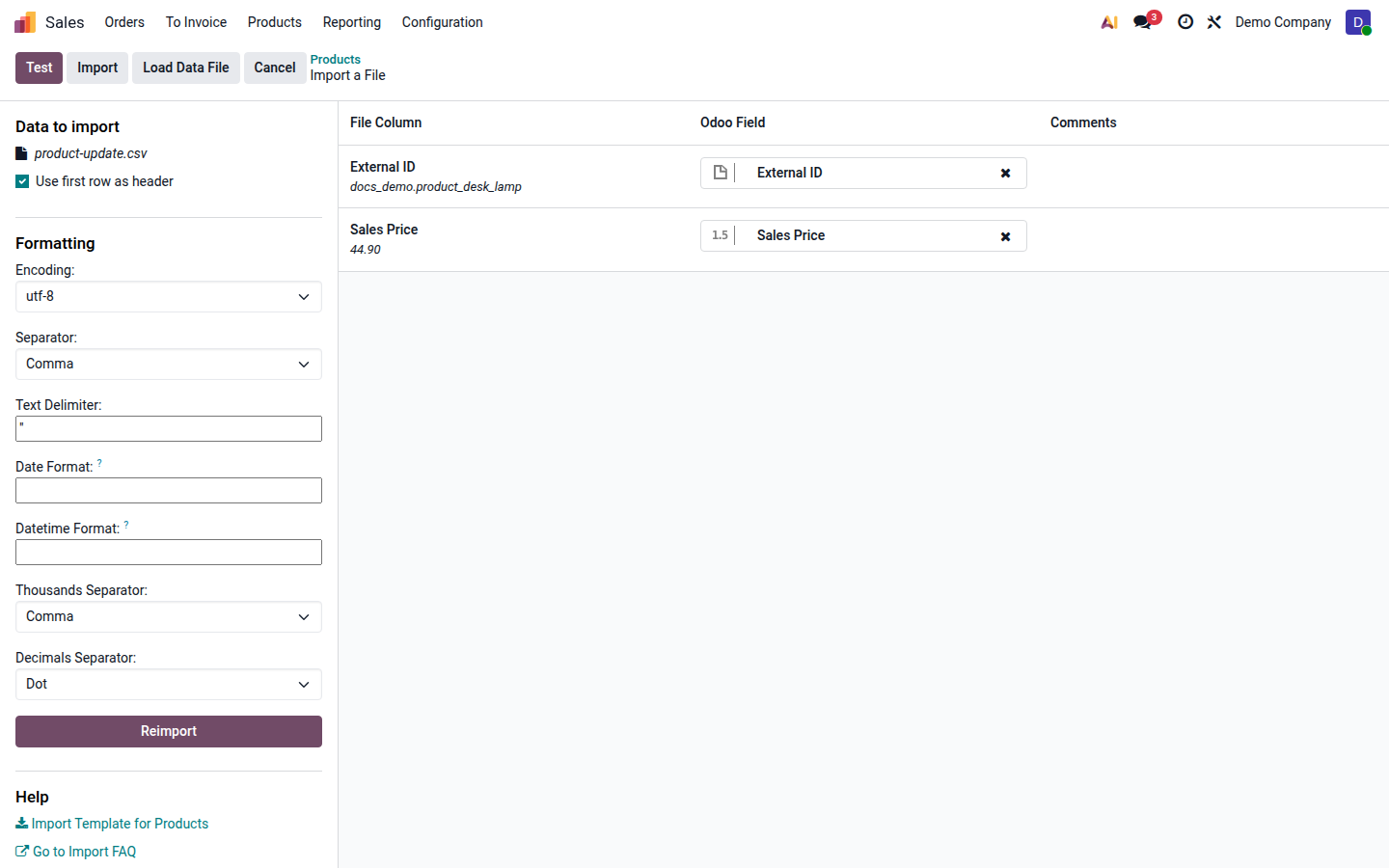
Upload the prepared XLSX or CSV file. Review the preview and every mapping from File Column to Odoo Field. Correct inaccurate matches and leave unwanted columns unmapped. For CSV, also verify the formatting options.
Open image at full size (new tab) -
Click Test. Odoo validates the file without keeping changes to the records. Resolve every error and review warnings about rows, fields, or ambiguous related records, then test again.
-
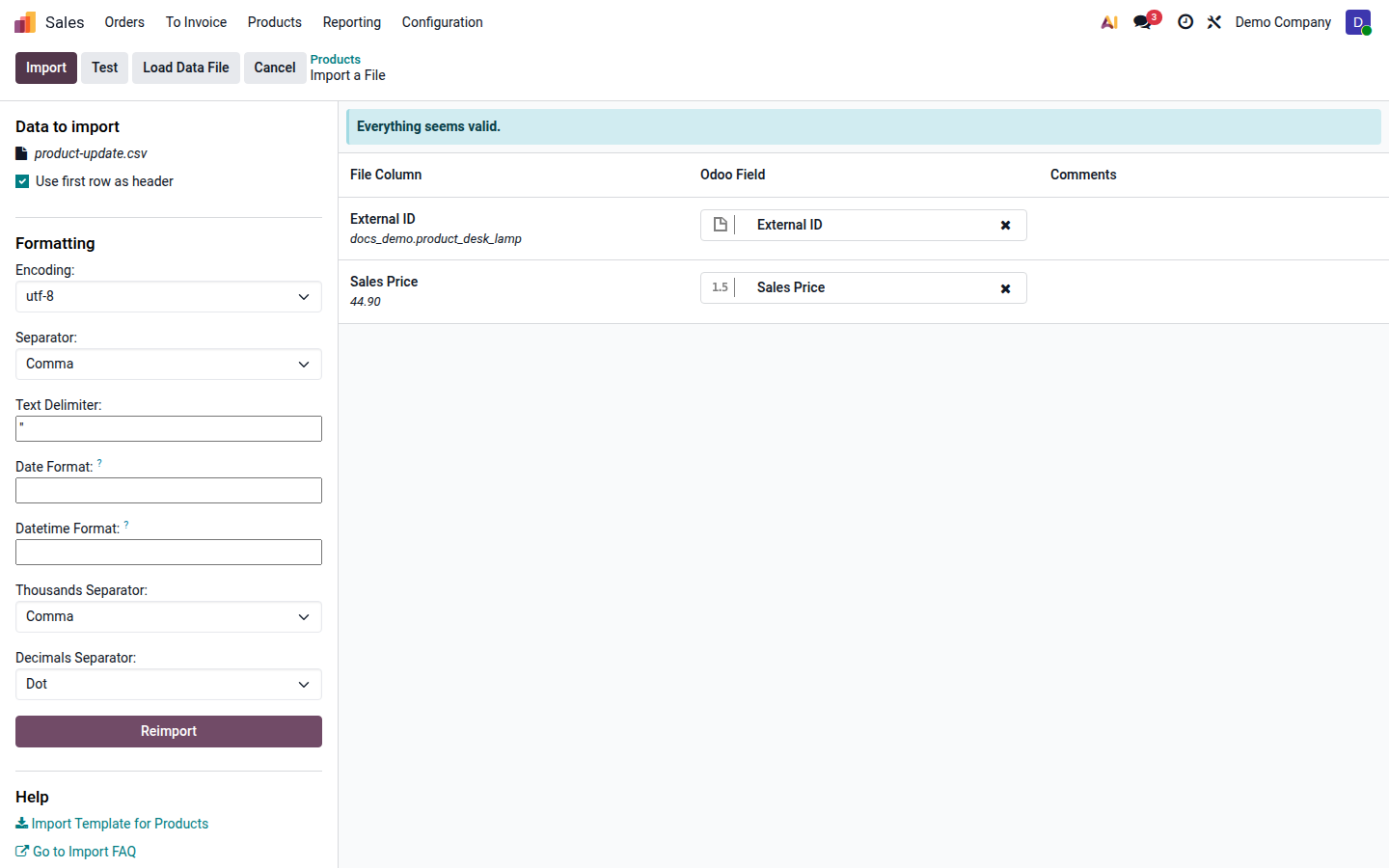
When Everything seems valid. appears, review the values and mapping yourself. A successful test confirms technical validity, not that prices, companies, recipients, or other business values are correct.
Open image at full size (new tab) -
Click Import for a small representative sample. This is the step that creates or updates actual records. Open several results and verify their values, company, relationships, and whether Odoo created or updated them as intended.
-
When the sample is correct, import the remaining rows with the same structure and stable external IDs. Check the completion message, record count, and another sample of the final data.
Importing data does not replace the normal confirmation, posting, or validation steps for business documents.
If an import stops or gives an unexpected result
Section titled “If an import stops or gives an unexpected result”Read the reported row and field, correct the source value or mapping, and run Test again. After a timeout, interruption, or large-file failure, earlier batches may already have been saved. Check the actual records before resuming; do not blindly import the complete file again without stable external IDs.
If duplicates were created, stop before another import and compare the external IDs with the actual records. For partner records that already exist more than once, follow the partner duplicate cleanup guide. For a complete product example, see Import and export products.