

Manage your meal orders
Quick summary: Use the attendance kiosk to review your meal orders and change them before the ordering window closes.
Order or cancel a meal
Section titled “Order or cancel a meal”-
Identify yourself at the attendance kiosk and open Info > Manage Meal Orders.
-
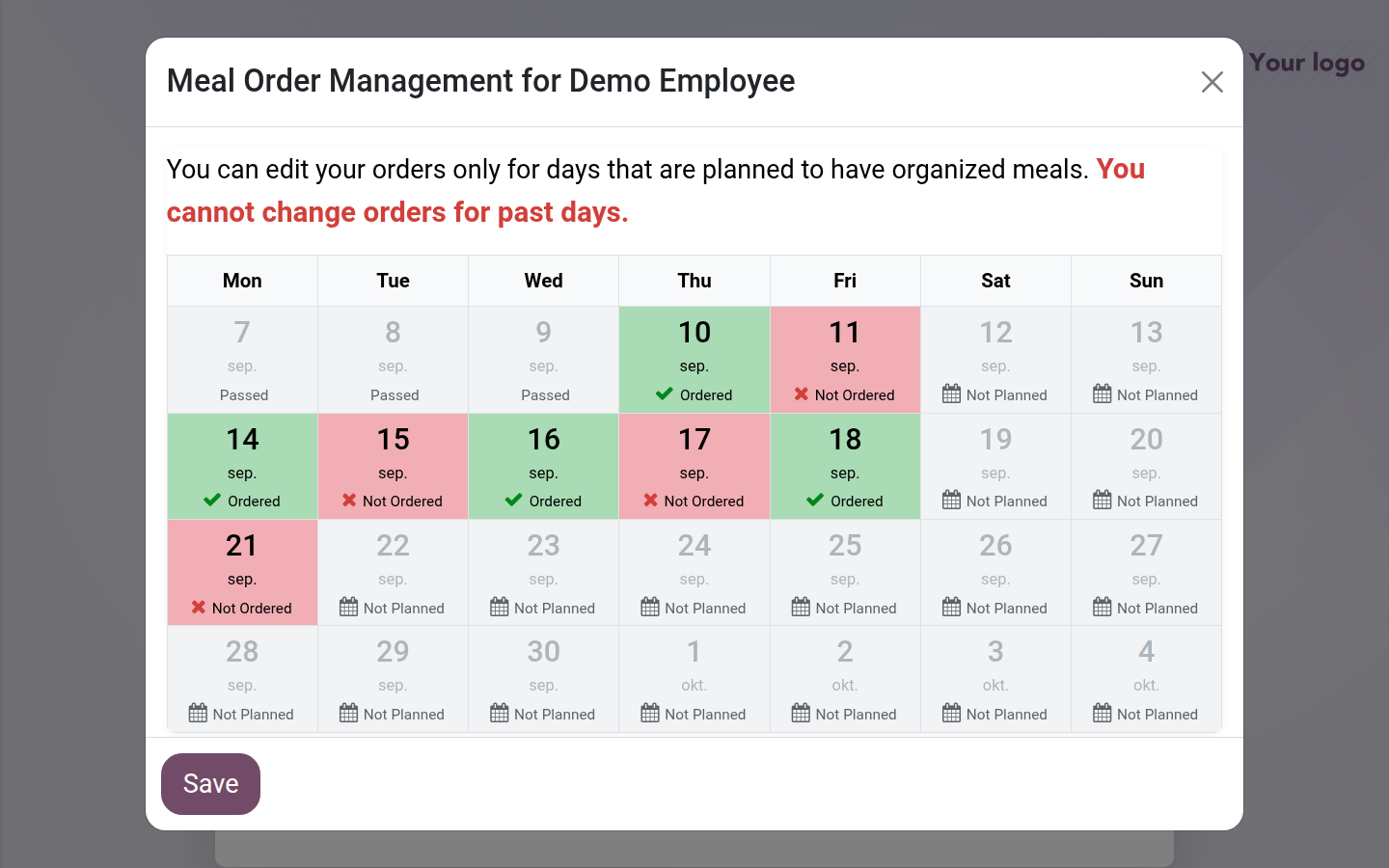
Find the date and read its status. Ordered means a meal is selected; Not Ordered means it is not. Not Planned means there is no available meal order for that day.
Open image at full size (new tab) -
Click an editable day to switch its order status. Each change is sent immediately; wait for the updated status before selecting another day.
-
Review all changed dates, then click Save to close the dialog. This button closes the dialog; it does not defer or undo the changes already sent.
-
Reopen the calendar if you need to confirm the result.
Ordering windows and defaults
Section titled “Ordering windows and defaults”You can change only days for which an order exists and the configured edit window is open. Past days cannot be changed. The exact deadline depends on the meal template, so use the available controls and your employer’s published cutoff rather than assuming a universal time.
Published shifts generate upcoming orders. Checking in can also add an eligible employee to today’s order. A default meal preference can select meals automatically; review the actual calendar instead of assuming a new shift or check-in always produces the choice you intended.
Result and common problems
Section titled “Result and common problems”- A day is disabled: its edit window may not be open, may have closed, or the day may be past. Ask the meal coordinator about a late change.
- No meal is planned: ask the coordinator to check the published shift and matching meal template. Repeatedly clicking the day cannot create an order.
- The status did not update: reopen the dialog and check again before assuming the change was accepted.
Sending the combined order and starting or ending a group meal break are coordinator actions. An individual employee should not use these to change their own meal selection.