

From quotation to sales order and invoice
Quick summary: Prepare an offer, confirm the accepted order, and create the invoice from the same sales record.
Prepare and send the quotation
Section titled “Prepare and send the quotation”-
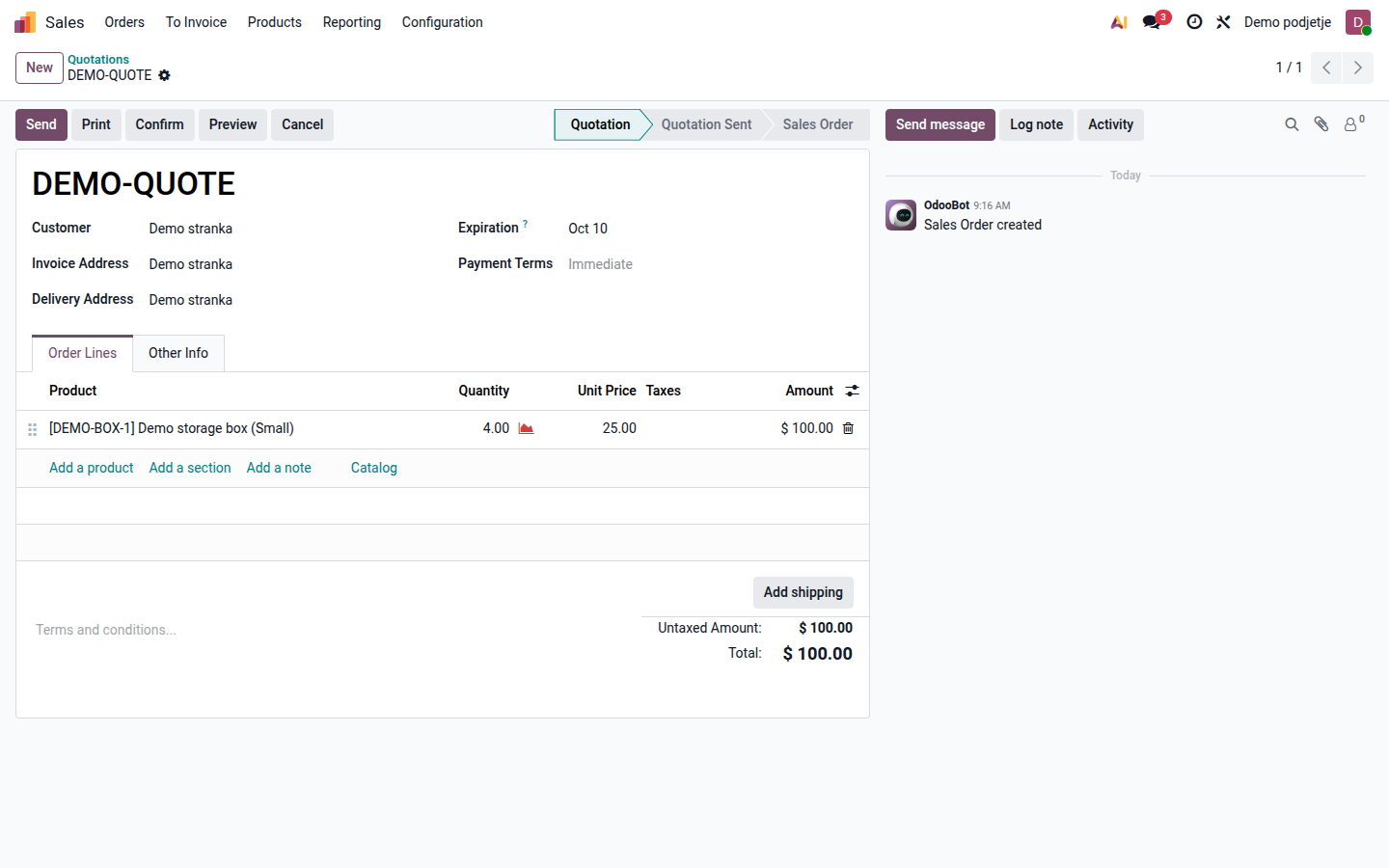
Open Sales > Orders > Quotations and select New. Choose the customer and check the invoice and delivery addresses.
-
Add the exact products or variants, quantities, and units. Review unit prices, discounts, taxes, currency, and Payment Terms. Check the quotation validity and proposed delivery commitment.
-
Review the customer-facing description and terms. Internal notes should not be placed in a line description that the customer will receive.
Open image at full size (new tab) -
Click Send. Check recipients, message, and attached quotation before sending; this communicates the offer to the customer.
-
After acceptance and any required internal approval, click Confirm. Confirmation commits the order and can launch delivery, procurement, or service work according to product configuration. Do not confirm an offer merely to save it.
Deliver and invoice
Section titled “Deliver and invoice”-
Open the delivery from the confirmed order, if one exists. Have the warehouse complete delivery processing with the actual quantities. For services, record the delivered work using the configured service workflow.
-
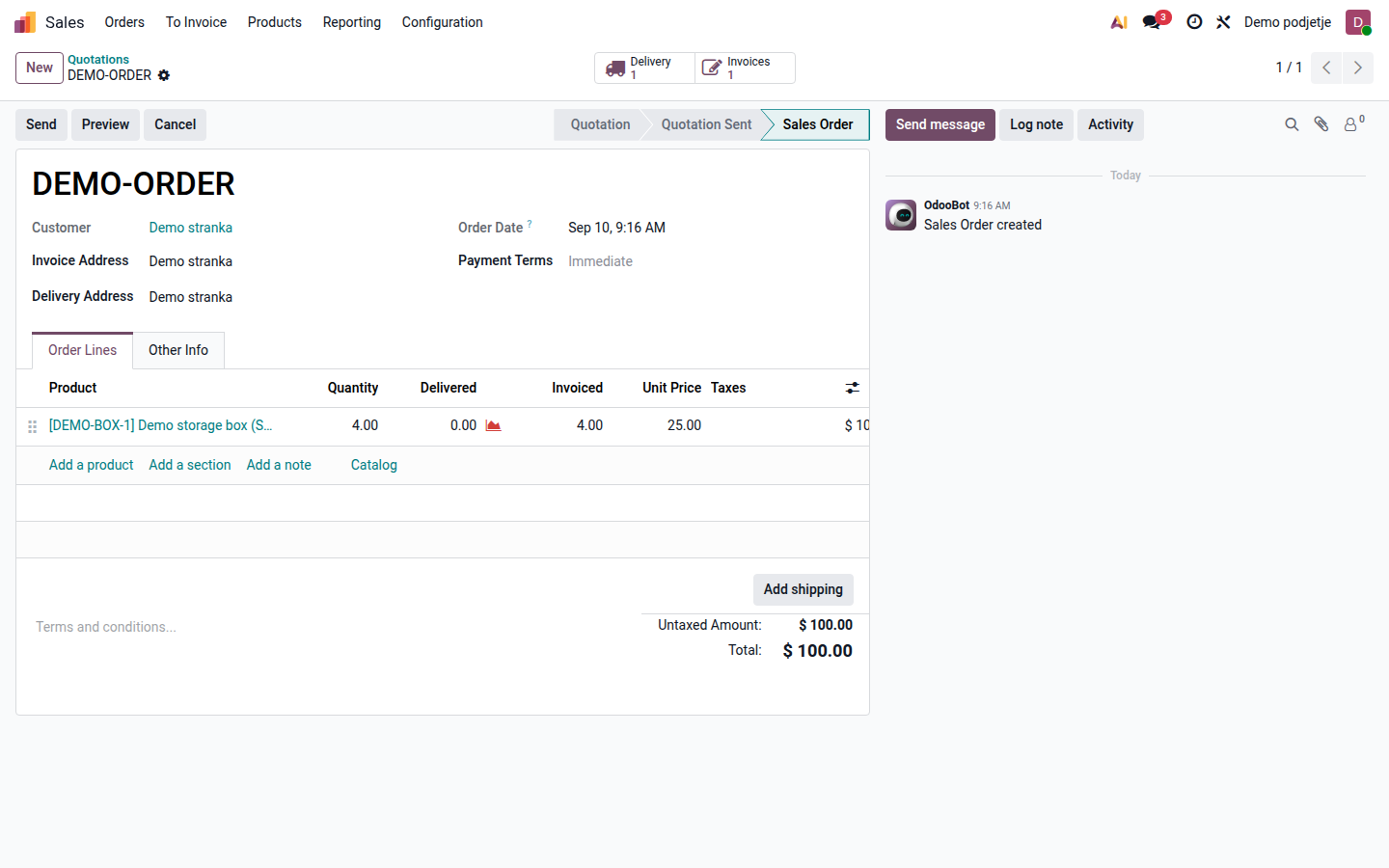
Compare ordered, delivered, and already invoiced quantities on the order. With an ordered-quantity policy, invoicing can precede delivery; with a delivered-quantity policy, only delivered quantities become invoiceable.
-
Click Create Invoice. Select the regular invoice option for the amount currently due, then Create Draft. For an agreed deposit, use the advance payment terms guide instead of treating the deposit as a completed delivery.
-
Review the draft invoice’s recipient, date, lines, taxes, currency, and payment terms. Have the authorized accounting user post and send it using the customer invoice workflow. Creating the draft does not collect payment.
-
Return to the order and check its linked invoices and remaining quantities. Follow up on partial deliveries or outstanding balances separately.
Open image at full size (new tab)
Result and common problems
Section titled “Result and common problems”The quotation becomes a sales order with linked fulfillment and invoicing records. A confirmed order is not proof of delivery or payment.
- Nothing to invoice: check the product’s invoicing policy, actual delivered quantities, and existing draft or posted invoices.
- No delivery: a service may create no stock transfer; for goods, ask the warehouse owner to check the configured routes.
- Incorrect address or price: correct the draft before sending. For completed deliveries or posted invoices, use the returns and refunds workflow rather than deleting the history.
- Customer has not accepted: retain the quotation and schedule a follow-up activity.
See Odoo 19 quotations.